

If you have just unboxed your Fitbit Flex, you might feel unsure about where to start. This screen-free fitness tracker monitors your steps, distance, calories burned, active minutes, and sleep using only LED lights and vibrations. Learning how to use Fitbit Flex properly is simple once you understand the basics. The device runs quietly in the background and syncs automatically to your phone or computer. In this guide, you will discover how to charge, wear, pair, read the signals, and troubleshoot your Flex so you can start tracking your fitness journey without delay.
This article covers every essential step for using your Fitbit Flex effectively. You will learn exactly what you need to do from the moment you open the box until you are tracking your daily progress confidently.
Charge Your Fitbit Flex Before First Setup
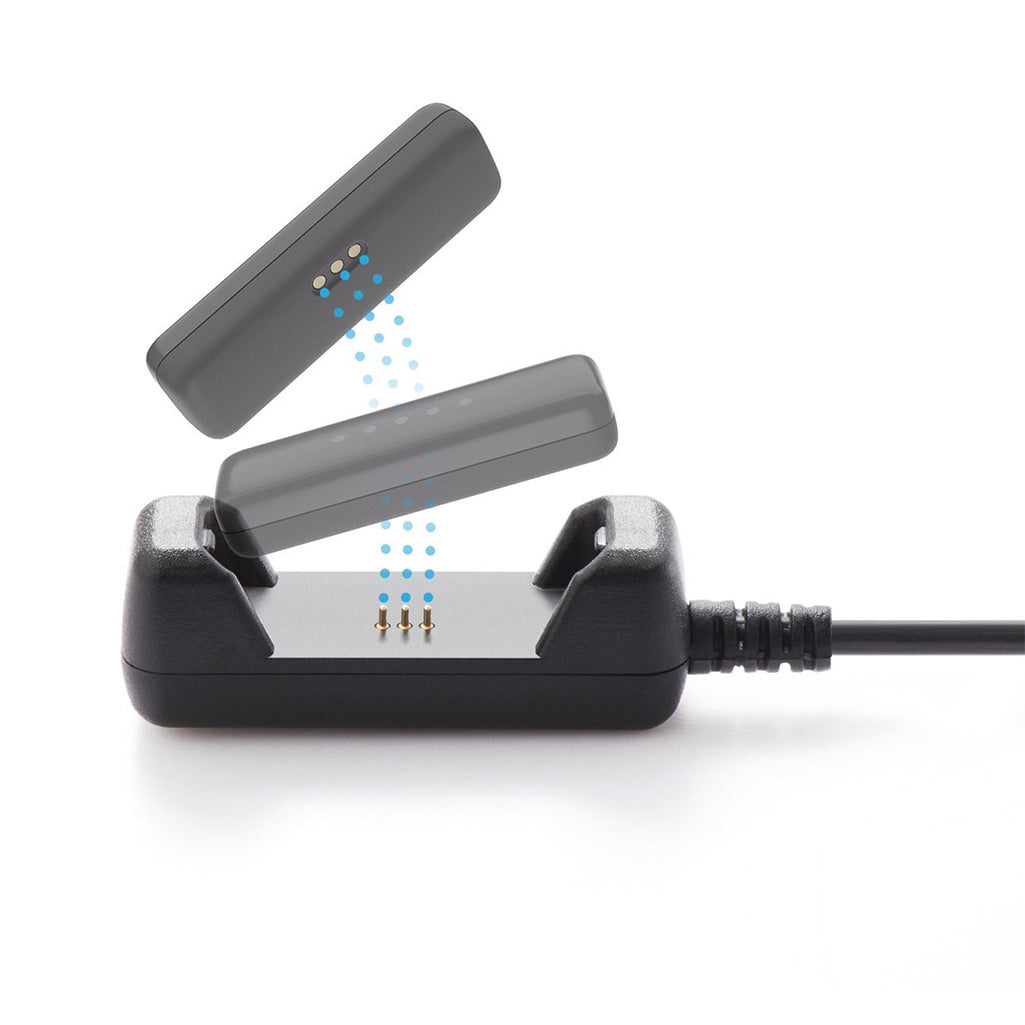
Your Fitbit Flex must have sufficient power before you begin pairing it with any device. Charging first prevents setup failures and ensures stable operation during configuration.
Insert the Tracker Correctly Into the Charger
Always insert the Flex into the USB charger with the round end going in first. The flat side with the gold contacts must align with the metal pins inside the charger. Forcing the tracker in the wrong direction can bend the contacts and stop charging completely.
Check the Five LED Charging Lights
The Flex has five LED lights that display battery status. One light means the battery is at approximately 20 percent. Three lights indicate 60 percent, which is the minimum charge needed for setup. Five solid lights mean the battery is fully charged at 100 percent, which is ideal for first-time pairing. Plug the charger into a powered USB port on a computer or wall adapter rather than a low-power source like a keyboard. Charging typically takes one to two hours. Once all five lights are solid, remove the tracker and proceed to assembly.
Assemble and Wear Your Flex Correctly
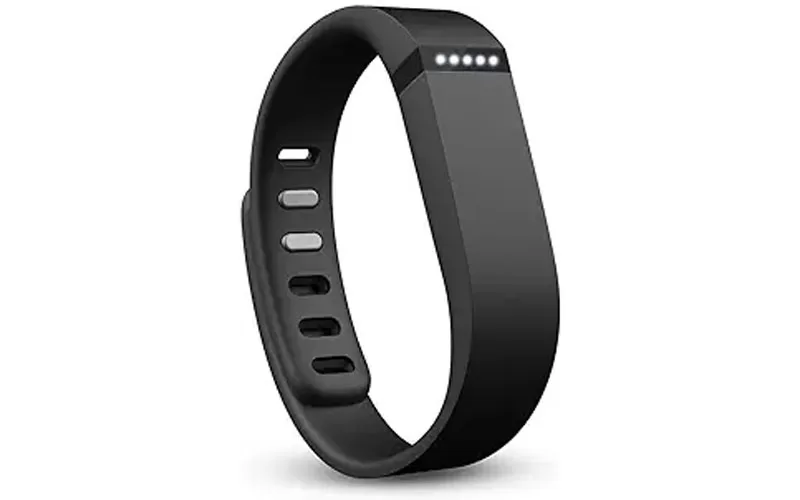
Proper assembly affects tracking accuracy and whether you can feel vibrations and alerts. Taking a moment to align everything correctly saves problems later.
Align the Arrow on the Tracker
When inserting the tracker into the wristband, look for the small arrow icon on the device. This arrow must face outward and point toward the black clasp side of the band. This orientation ensures the device locks securely in place and positions the vibration motor against your skin so you can feel silent alarms and goal celebrations.
Secure a Comfortable Yet Snug Fit
Wear the band snugly on your wrist. It should be tight enough to stay in place during movement and exercise, but not so tight that it restricts blood circulation. A proper fit helps the accelerometer detect motion accurately and allows you to feel all notifications. The clasp should click firmly into place to prevent the device from sliding or falling off during activity.
Set Up Your Flex Using the Mobile App
The easiest way to use Fitbit Flex is through the Fitbit app on your smartphone. This method uses Bluetooth to connect wirelessly.
Download and Install the Fitbit App
Open the app store on your phone and download the official Fitbit app. The app is available from the Apple App Store for iOS devices, Google Play Store for Android devices, and Microsoft Store for Windows Phone users. After installation, open the app and create a free account using your email address, Google login, or Facebook login.
Enter Your Profile Details
To get accurate calorie calculations and personalized goals, you must input your personal information. This includes your name, gender, birthday, height, weight, and time zone. These details help the app calculate your basal metabolic rate and daily calorie burn correctly.
Enable Bluetooth on Your Phone
Go to your phone is Settings menu, find Bluetooth, and turn it on. Keep Bluetooth enabled during the entire setup process so the app can detect and communicate with your Flex. Your phone must be in discovery mode for the pairing to work.
Pair Your Flex With the App
Tap the plus icon in the top-right corner of the app dashboard. Select Add Device and choose Fitbit Flex from the list. Press and hold the small side button on your Flex for approximately five seconds. When the LED lights flash and the device vibrates, it has entered pairing mode. Wait for the app to detect your Flex, then tap to confirm the connection. The app will then guide you through setting your first goal, which defaults to 10,000 steps per day.
Sync Data and Track Your Daily Activity
Once set up, your Flex automatically logs your movement and syncs data to the app when your phone is nearby.
Check Progress With Double-Tap
Double-tap the Flex to see how close you are to your daily goal. Each of the five LED lights represents 20 percent of your target. Three lights mean you have reached 60 percent of your goal, which is approximately 6,000 steps out of 10,000. All five lights flashing indicates you have hit your goal. This action only displays stored progress on the device; it does not trigger a sync.
Automatic Data Synchronization
When your phone is within range, typically one to three feet, the Flex automatically syncs your activity data to the Fitbit app. Open the app anytime to trigger a manual sync and view your complete dashboard with steps, distance, calories, and sleep data.
Computer Setup: Use Fitbit Connect Without a Phone
If you do not have a smartphone, you can still use your Fitbit Flex by setting it up with your computer using Fitbit Connect software.
Download Fitbit Connect Software
Visit fitbit.com/setup using your web browser. The site will attempt to detect your operating system automatically and provide the correct download link for Windows or Mac. If the automatic detection is wrong, manually select your OS. On Windows 10, the download button may send you to the Microsoft Store. If the store version does not work for your system, look for the option to download the traditional PC program instead. Run the installer and follow the prompts to complete installation.
Sign In and Configure Your Profile
Launch Fitbit Connect after installation. Sign in to your Fitbit account or create a new one using your email, Facebook, or Google credentials. Enter your profile details including name, gender, birthday, height, weight, and time zone. Your computer must have built-in Bluetooth capability, or you can use a USB Bluetooth dongle if needed.
Connect the Tracker to Your Computer
Insert the Flex into the wristband with the arrow facing outward toward the black clasp side. Place the device near your computer and wait for Fitbit Connect to detect it. When prompted, double-tap the Flex. A vibration confirms the connection was successful. Your data will now sync when the device is within range of your computer and upload to your account at fitbit.com/login.
Understand LED Light Patterns and Vibration Alerts
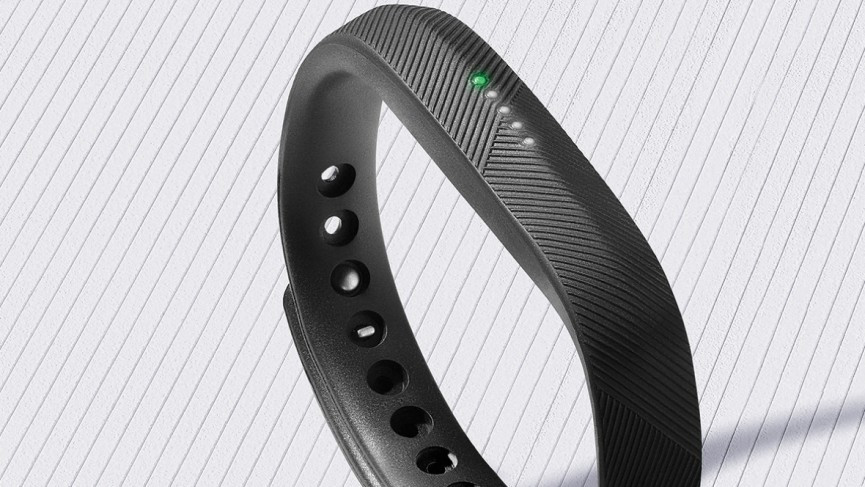
The Fitbit Flex has no screen, so LED lights and vibrations are your only way to receive feedback about your progress and device status.
What the Five Lights Indicate
During normal use, each light represents 20 percent of your daily step goal. One light shows 20 percent complete, two lights show 40 percent, three lights show 60 percent, four lights show 80 percent, and five lights mean you have reached 100 percent of your goal. While charging, the lights display battery level instead, with one light meaning low charge and five lights meaning full charge. When you reach your daily goal, all five lights flash and the device vibrates to celebrate your achievement.
When the Device Vibrates
The Flex vibrates in several situations. It vibrates when you hold the side button for five seconds to enter pairing mode. It vibrates when you double-tap during computer setup to confirm connection. It vibrates when you reach your daily step goal. It also vibrates if you have set silent alarms in the app to wake you or remind you to move after sitting for too long.
Solve Common Fitbit Flex Problems

Even when used correctly, the Fitbit Flex can experience issues. Here are solutions for the most frequent problems users encounter.
Device Shows No Lights or Won’t Turn On
If no lights appear when you press the button or connect the charger, your battery may be depleted. Plug the charger in and wait until all five lights are solid. If lights still do not appear, check the orientation of the tracker in the charger. The round end must go in first. Clean the gold contacts on both the tracker and charger with a dry cloth to remove sweat or debris. Try a different USB port, as some ports do not supply enough power.
Flex Won’t Pair With Your Phone
First, confirm Bluetooth is turned on in your phone settings and the Flex is within one to three feet of your device. Make sure no other Bluetooth devices like headphones are actively connected, as they can cause interference. Verify the Fitbit app is updated to the latest version. If pairing still fails, restart your phone, restart the Flex by holding the button for five seconds, uninstall and reinstall the Fitbit app, and attempt pairing again.
Data Not Syncing Automatically
Open the Fitbit app to trigger a manual sync immediately. Keep your phone close to the Flex during syncing. Ensure background app refresh is enabled for Fitbit in your phone settings so sync can happen automatically. If using a computer, restart Fitbit Connect and make sure Bluetooth is functioning properly.
Reset Your Fitbit Flex When Necessary
Use a reset only if your device becomes unresponsive or fails to connect despite troubleshooting attempts.
How to Perform a Reset
Plug the Flex into the USB charger and wait for the LED lights to appear. Remove the tracker from the charger and press and hold the side button for ten to twelve seconds. The lights will flash, indicating the reset is complete. Note that resetting does not erase your stored data; all history remains safely in your Fitbit account. After resetting, re-pair the device using the Fitbit app or Fitbit Connect.
Track Sleep and Adjust Your Goals
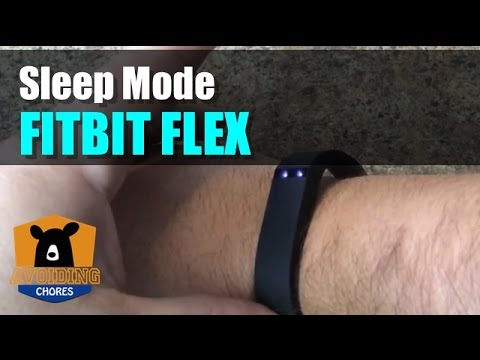
Your Fitbit Flex automatically monitors sleep when worn overnight, giving you insight into your rest patterns.
Enable Sleep Mode
To activate sleep mode manually, press the button on your Flex until you see one blinking light appear. This tells the device to focus on sleep tracking. If you prefer not to log sleep manually, the Flex will automatically detect your sleep based on movement patterns and record the data when you sync.
View Sleep Data in the App
After syncing your Flex, open the Fitbit app or visit fitbit.com/login to view your sleep information. You can see total sleep time, minutes spent awake, and your sleep efficiency score. Use this data over time to identify patterns and improve your sleep habits.
Change Your Daily Step Goal
If 10,000 steps does not fit your fitness level, you can adjust your goal. Open the Fitbit app, tap Account, then tap Goals. Select Daily Steps and enter your new target. Save your changes. Each LED light will now represent 20 percent of your new goal.
Keep Your Fitbit Flex Clean and Functional
Regular maintenance extends the life of your device and keeps tracking accurate.
Clean the Band and Tracker
Wipe your Flex with a dry or slightly damp cloth after workouts. Sweat, oils, and dirt can accumulate on the sensors and gold contacts over time, affecting accuracy and charging. Avoid using harsh chemicals or submerging the device in water.
Protect Against Water Damage
The Flex is resistant to sweat, rain, and splashes, but it is not waterproof. Do not wear it in the shower, swimming pool, or bathtub. Submerging the device will cause permanent damage.
Update Software Regularly
The Fitbit app and Fitbit Connect deliver firmware updates automatically when available. Keep both your app and software updated to ensure your Flex performs optimally and has the latest features and bug fixes.
Key Takeaways for Using Your Fitbit Flex
You now have complete knowledge of how to use Fitbit Flex from unboxing to daily tracking. Charge your device fully before first use and always insert the tracker with the round end first into the charger. Wear the band with the arrow pointing toward the clasp for proper vibration feedback. Set up using the Fitbit app for the easiest experience, or use Fitbit Connect on your computer if you prefer. Double-tap to check progress, with each light representing 20 percent of your goal. Troubleshoot common issues by restarting devices, cleaning contacts, and ensuring Bluetooth proximity. Maintain your Flex by keeping it clean and dry, and update software regularly for best performance.
Start wearing your Fitbit Flex today and sync it to your phone or computer. Set a realistic step goal, track your sleep, and let the device help you build healthier habits one step at a time.
Frequently Asked Questions About Fitbit Flex
How do I know if my Fitbit Flex is charging?
Plug the Flex into the USB charger and connect it to a power source. The five LED lights will illuminate to show battery level. One light means low charge, three lights mean 60 percent, and five solid lights mean fully charged.
Can I use Fitbit Flex without a smartphone?
Yes. You can set up and use the Flex with a computer by downloading Fitbit Connect from fitbit.com/setup. The software allows pairing, syncing, and data viewing through your computer instead of a phone.
What does double-tapping the Fitbit Flex do?
Double-tapping displays your progress toward your daily step goal. Each of the five lights represents 20 percent of your target. This action does not sync data; it only shows stored progress on the device.
Why won’t my Fitbit Flex sync to my phone?
Ensure Bluetooth is enabled on your phone and keep the Flex within one to three feet during syncing. Check that the Fitbit app is updated, and try opening the app to trigger a manual sync. Restart both devices if problems persist.
How do I reset my Fitbit Flex?
Plug the Flex into the charger, wait for lights to appear, then remove it. Press and hold the side button for ten to twelve seconds until the lights flash. The device will reset without deleting your account data. Re-pair using the app or Fitbit Connect afterward.
Is the Fitbit Flex waterproof?
No. The Flex is resistant to sweat, rain, and splashes, but it is not waterproof. Avoid submerging it in water, including in the shower or swimming pool.



