
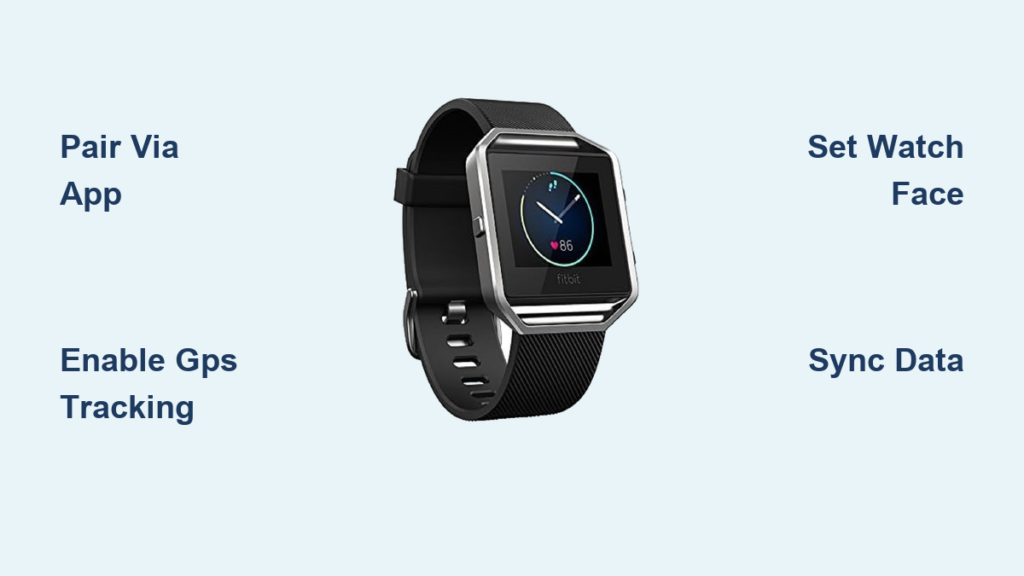
If you’ve just picked up a Fitbit Blaze, you’re holding one of Fitbit’s most feature-rich smart fitness watches. More than a simple step counter, this device offers real-time heart rate monitoring, ConnectedGPS tracking, sleep stage analysis, smart notifications, and guided workouts, all in a sleek, customizable design. However, with so many capabilities, knowing how to use Fitbit Blaze watch effectively can feel overwhelming. This guide walks you through every feature step by step, from initial setup to advanced tracking, so you can transform this device into your personal health hub.
Whether you’re a fitness beginner or a seasoned athlete, you’ll learn how to sync, track, customize, and troubleshoot your Blaze like a pro. Let’s dive in.
Initial Setup and Device Pairing
Install the Fitbit App
Before turning on your Blaze, download the Fitbit app from the App Store (iOS) or Google Play (Android). The app handles setup, syncing, data analysis, and all customization options. Ensure your phone’s Bluetooth is enabled, as the Blaze relies on it for communication with your smartphone.
Pair Your Blaze to Your Phone
The pairing process links your watch to your account and unlocks full functionality.
- Open the Fitbit app and sign in or create an account.
- Tap the + (Plus) icon in the top-right corner.
- Select “Add Device.”
- Choose Fitbit Blaze from the list of available devices.
- Follow the on-screen prompts to complete pairing.
Your Blaze will vibrate and display a pairing code. Confirm it matches the one shown in the app. Once paired, the watch syncs automatically whenever it’s near your phone.
Fix Pairing Issues Fast
If your Blaze won’t connect, try these troubleshooting steps:
- Restart both devices (phone and watch).
- Toggle Bluetooth off and on.
- In the app, go to Devices > Blaze > Remove Device, then re-pair.
Configure Time and Display Settings
Sync Time Automatically
The Blaze doesn’t allow manual time setting. It pulls time and date from your phone during sync. To ensure accuracy:
- Confirm your phone’s time and time zone are correct.
- In the Fitbit app, go to Devices > Blaze > Time & Date.
- Enable “Set Automatically.”
If the time is wrong, force a sync in the app. If it still fails, restart the Blaze or reinstall the app.
Wake the Screen the Right Way
The Blaze screen turns off to save battery. To wake it:
- Double-tap the display, or
- Press the left-side button.
For convenience, enable Quick View so a simple wrist flick wakes the screen during workouts.
Choose Your Watch Face
Customize your Blaze with a unique watch face through the app.
- In the Fitbit app, go to Devices > Blaze > Watch Faces.
- Browse the 12 available styles, including digital, analog, data-dense, and minimalist options.
- Tap “Set as Current” and sync your watch.
Some faces display heart rate, steps, or weather. Pick one matching your daily needs.
Track Workouts with ConnectedGPS
Enable GPS via Your Phone
The Blaze lacks built-in GPS. Instead, it uses ConnectedGPS, leveraging your phone’s location services.
To track outdoor activities:
- Keep Bluetooth and Location Services on.
- Set Fitbit app location permission to “Always.”
- On the Blaze, go to Exercise > Select Activity > Gear Icon > Use Phone GPS.
Start the workout. Your phone logs distance, pace, and route in real time.
Customize Exercise Shortcuts
The Blaze comes with five preset workout types: Running, Cycling, Weight Training, Treadmill, Elliptical, and Workout.
To add more:
- In the app, go to Devices > Blaze > Exercise Shortcuts.
- Add up to seven total modes, including Yoga, Tennis, Kickboxing, Pilates, and Bootcamp.
Remove unused shortcuts to keep your menu clean.
Use Running Mode Like a Pro
Running is the most customizable workout on the Blaze:
- Set time-based (e.g., 30-minute run) or distance-based (e.g., 5K) goals.
- During the run, the Blaze shows real-time pace, heart rate, and zone.
After a 10-minute GPS run, the app calculates your Cardio Fitness Level, a VO2 max estimate comparing your fitness to others your age and gender.
Monitor Heart Rate and Fitness Zones
Understand Your Heart Rate Zones
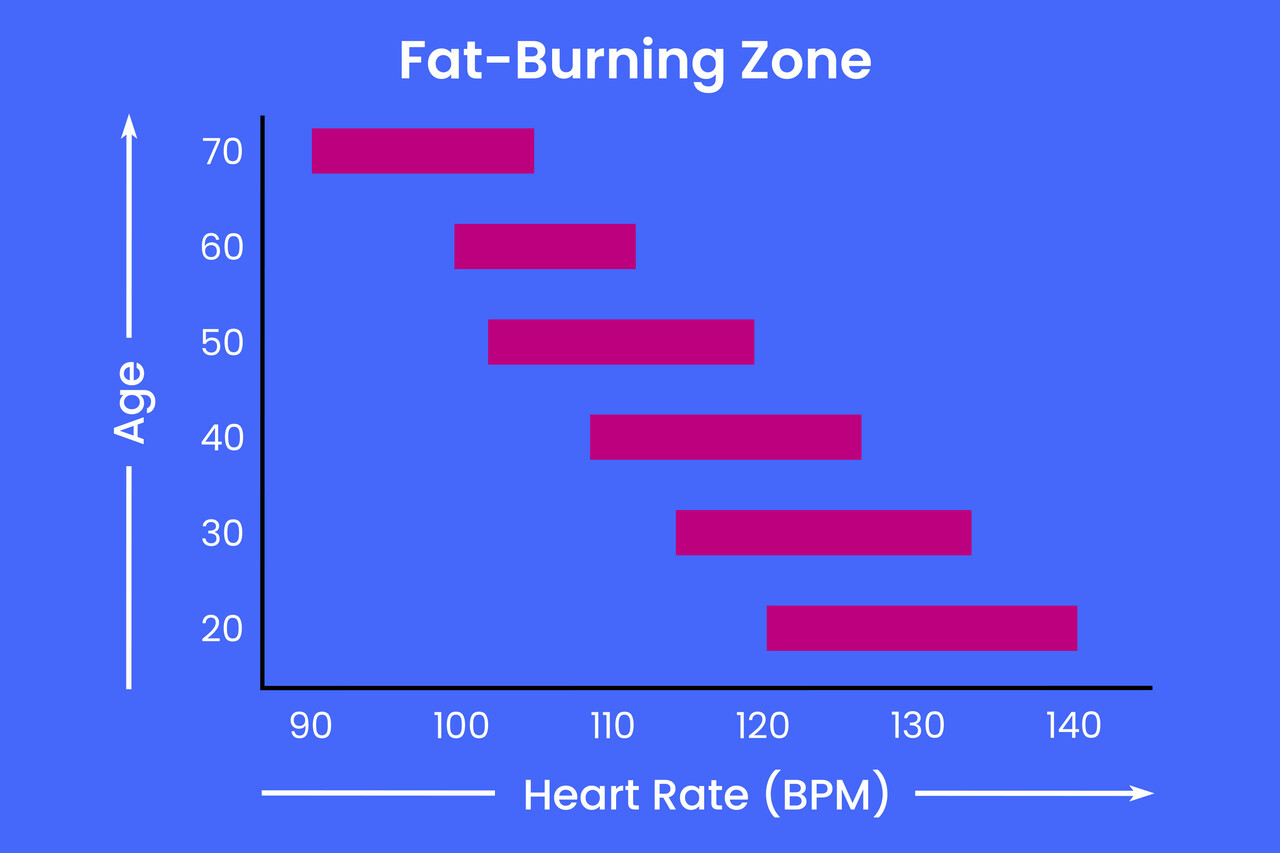
The Blaze tracks heart rate 24/7 and divides effort into three zones:
- Fat Burn (50–69% max HR): Light activity, burns fat efficiently.
- Cardio (70–84% max HR): Improves endurance and heart health.
- Peak (85–100% max HR): High-intensity training for performance.
These are based on the formula: 220 minus your age. If inaccurate, set custom zones in the app under Heart Rate Zones.
Maximize Cardio Fitness Level
This score appears in the Heart Rate section of the app after a GPS run. Higher scores mean better aerobic fitness. To improve:
- Do regular cardio workouts.
- Maintain consistency; scores update weekly.
- Ensure GPS and heart rate tracking are enabled during runs.
Track Sleep Stages and Set Goals

View Light, Deep, and REM Sleep
The Blaze uses motion and heart rate to break down your sleep:
- Light Sleep: Transition phase, easy to wake.
- Deep Sleep: Physical recovery and immune support.
- REM Sleep: Mental restoration and memory consolidation.
In the app, tap any sleep entry to see duration and insights for each stage.
Improve Sleep Accuracy
If the Blaze misses sleep or overcounts awakenings:
- In the app, go to Account > Advanced Settings > Sleep Sensitivity.
- Set to “Sensitive” if you move a lot in bed.
This helps the device better detect when you’re truly asleep.
Set Sleep Goals and Alarms
Build better habits with automated reminders:
- In the app, go to Sleep > Settings (cog icon).
- Set a Sleep Goal (e.g., 8 hours) and Bedtime/Wake-up Time.
- Enable Bedtime and Wake-up Alerts.
The Blaze vibrates silently at your scheduled times.
Use Relax Breathing Exercises
Activate Guided Breathing
The Relax feature helps reduce stress using your heart rate data.
To start:
- Swipe to Relax on the watch.
- Choose 2 or 5-minute session.
- Breathe in and out with the on-screen prompt.
The Blaze adjusts the breathing pace based on your current heart rate, guiding you toward calm.
Pro Tip: Use Relax before bed or during work breaks to lower stress and improve focus.
Manage Notifications and Alerts
Enable Smart Alerts
The Blaze shows calls, texts, emails, and app notifications on your wrist.
To set up:
- In the app, go to Devices > Blaze > Notifications.
- Toggle Phone Notifications on.
- Under App Notifications, enable specific apps like Facebook, Twitter, or Gmail.
During workouts, press and hold the lower right button to view alerts without pausing.
Set Silent Alarms and Move Reminders
Silent Alarms: Go to Devices > Blaze > Silent Alarms. Set time, repeat days, and label. When it triggers, tap the ZZ icon to snooze for 9 minutes.
Reminders to Move: Get a vibration 10 minutes before the hour if you’ve taken fewer than 250 steps in the last 50 minutes. Customize the active window (e.g., 9 AM to 6 PM) to match your day.
Control Music from Your Wrist
Play, pause, or skip tracks without touching your phone.
During music playback:
- Press and hold the upper right button on the Blaze.
- Swipe to change tracks or adjust volume.
Works with Spotify, Apple Music, YouTube, and most media apps.
Improve Tracking Accuracy

Set Wrist Dominance Correctly
Wearing the Blaze on your dominant hand increases motion, which can inflate step counts.
To fix:
- In the app, go to Devices > Blaze > Wrist.
- Select Dominant if worn on your writing hand.
This adjusts the algorithm to prevent overcounting.
Calibrate Stride Length
For accurate indoor distance (treadmill, elliptical), set your stride length.
Option 1: Manual Calibration
- Walk or run 100 feet, counting steps.
- Divide distance by steps: e.g., 100 ft divided by 40 steps equals 2.5 ft per stride.
- Enter in Account > Advanced Settings > Stride Length.
Option 2: Auto-Detect
- Do an outdoor run with ConnectedGPS.
- The app compares GPS distance to step count and updates your stride automatically.
Maintain Battery and Hardware
Charge and Extend Battery Life
The Blaze lasts up to 5 days, but heavy use (GPS, notifications) shortens it.
To charge:
- Attach the magnetic cable to the back of the tracker.
- Plug into any USB power source.
- Full charge takes 1 to 2 hours.
To extend battery:
- Lower screen brightness.
- Disable All-Day Sync (syncs only when you open the app).
- Turn off Automatic Heart Rate (use on-demand instead).
- Disable notifications.
Swap Bands and Frames
Customize your look in seconds.
To change bands:
- Flip the watch over.
- Slide the quick-release tabs on the band bar.
- Pull off the old band, snap on the new one.
To remove the tracker from the frame:
- Push it out from the back.
- Reinsert with buttons aligned.
Compatible with 21mm bands: choose leather, sport, or metal styles.
Reboot When Stuck
If the screen freezes or apps lag:
- Press and hold the left button and bottom right button.
- Hold for 10 seconds until the Fitbit logo appears.
This resets the system. Your data stays safe, but pending notifications clear.
Sync with Apps and Update Firmware
Connect to MyFitnessPal
Track calories in and out by syncing with nutrition apps.
To link:
- Open MyFitnessPal > More > Apps & Devices > Fitbit > Connect.
- Log food as usual; calories and exercise sync automatically.
Also integrates with Strava, MyZone, and Weight Watchers.
Install Firmware Updates
New features and fixes come via firmware updates, delivered automatically.
To ensure updates:
- Keep the Fitbit app updated.
- Sync your Blaze regularly.
- Leave the watch near your phone overnight.
If an update fails, reboot the Blaze and retry syncing.
Frequently Asked Questions About Using Fitbit Blaze Watch
How do I set up my Fitbit Blaze for the first time?
Download the Fitbit app from your phone’s app store, enable Bluetooth, then open the app and tap the plus icon to add your Blaze. Follow the on-screen prompts to pair and complete setup.
Does Fitbit Blaze have built-in GPS?
No, the Blaze uses ConnectedGPS, which relies on your phone’s GPS. Keep your phone with you during outdoor runs to track distance, pace, and route.
How do I change the watch face on my Fitbit Blaze?
Open the Fitbit app, go to Devices > Blaze > Watch Faces, select your preferred style, tap “Set as Current,” and sync your watch.
Can I track sleep with the Fitbit Blaze?
Yes. The Blaze tracks light, deep, and REM sleep stages. View detailed sleep data in the Fitbit app under the Sleep section.
How long does the Fitbit Blaze battery last?
The Blaze lasts up to 5 days on a single charge, depending on usage. Heavy use of GPS and notifications shortens battery life.
Why is my Fitbit Blaze not syncing?
Try restarting both devices, toggling Bluetooth off and on, or removing and re-pairing the device in the app.
Key Takeaways for Mastering Your Fitbit Blaze
The Fitbit Blaze remains a powerful fitness companion despite being a legacy device. By mastering setup, GPS workouts, sleep tracking, and customization, you can transform it into a personal health hub delivering continuous insights. Remember to keep your device synced regularly, wear it consistently for accurate data, and use the Fitbit app to fine-tune your goals and preferences. With the right settings and proper maintenance, your Blaze will keep delivering valuable health and fitness insights for years to come.



