
If you’re trying to sync your Fitbit without a smartphone or want to avoid plugging in a cable every time, the Fitbit wireless sync dongle is your solution. This small USB device enables automatic data uploads from select Fitbit trackers directly to your computer, no phone or charging cable required. But since Fitbit has discontinued the necessary software and limited support, many users struggle to set it up correctly. This guide walks you through how to use the Fitbit dongle step by step, troubleshoot common issues, and keep your sync system running smoothly on Windows 10 and 11.
You’ll learn which Fitbit models work with the dongle, how to install legacy software safely, and why the dongle might not show up in standard Bluetooth settings. Whether you’re reviving an old Charge HR or setting up a desktop dashboard, this is the complete resource for getting your Fitbit dongle working reliably.
Plug in the Dongle Correctly

Choose the Right USB Port
Always plug the Fitbit dongle into a direct USB port on your computer, preferably one on the front or side panel. Avoid USB hubs, extension cables, or powered docks, as they can cause power fluctuations or signal loss that prevent stable communication between your tracker and the computer.
For best results, use a USB 2.0 or 3.0 port that is easily accessible. Placing the dongle closer to where you typically place your Fitbit, like your desk, improves wireless range and sync reliability.
Check Device Recognition in Windows
After inserting the dongle, open Device Manager by pressing Win + X and selecting it. Look under Universal Serial Bus controllers, Network adapters, or Other devices. The dongle may appear as a Fitbit USB Device, Broadcom Bluetooth Device, or an unknown entry with a yellow warning icon.
It will not show up as a standard Bluetooth adapter because it uses a proprietary protocol. If the device has a warning symbol, right-click it and select Uninstall device. Unplug the dongle, restart your computer, then plug it back in to trigger fresh driver installation.
Install Fitbit Connect Software
Get the Legacy App Safely
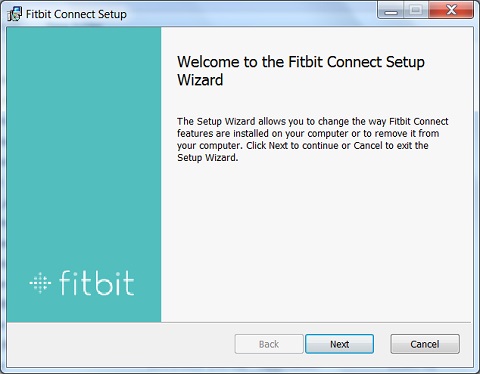
Fitbit officially discontinued Fitbit Connect, the desktop app required for dongle syncing. You can no longer download it from Fitbit’s website. However, you can still install it using archived versions from trusted tech repositories.
Search for Fitbit Connect 2.0.0.6956, which is the latest stable version. Download only from reputable sources like MajorGeeks, FileHippo, or TechSpot. Before installing, disable aggressive antivirus tools temporarily because older installers are often flagged as suspicious due to lack of recent updates.
Run Installer as Administrator
Right-click the downloaded .exe file and choose Run as administrator. This ensures the installer can modify system files and register services needed for background syncing.
During setup, accept all default options and allow the program to make changes to your device. Wait for installation to complete without interruption. Do not connect the dongle until after installation finishes because installing the software first ensures drivers load correctly.
Sign In and Pair Your Fitbit

Launch Fitbit Connect and Log In
Open the Fitbit Connect app from your Start menu. When prompted, sign in with your Fitbit account credentials, the same ones used on the mobile app. Make sure you are logged into the correct account because if you manage multiple accounts, a mismatch here causes sync failures or data appearing under the wrong profile.
Once signed in, the app will check for connected devices. At this point, insert the dongle if it is not already plugged in.
Start Device Pairing Process
In the Fitbit Connect interface, click Set Up a New Device or Sync Device. Select your Fitbit model from the list, such as Charge 4, Versa 3, or Inspire. Follow any on-screen prompts.
Bring your Fitbit within 1 to 3 feet of the computer. The tracker should vibrate or display a syncing animation when detected. Wait for the progress bar to complete because the first sync may take longer if your device has several days of stored data.
Fix Common Setup Problems

Dongle Not Detected by Computer
If Windows does not recognize the dongle, try a different USB port and avoid hubs. Uninstall the device in Device Manager, then replug it and restart your computer. Some users report conflicts with wireless keyboards or mice on Windows 8 systems.
If you experience keystroke lag or input delays, unplug other USB receivers temporarily to isolate the issue.
Sync Fails Despite Dongle Being Plugged In
When the dongle is recognized but syncing does not start, ensure proximity by moving your Fitbit within arm’s reach of the computer. Restart Fitbit Connect by closing and relaunching the app. Reboot your tracker by holding the button for 10 to 12 seconds until the screen turns off and back on.
Clear old pairings in Fitbit Connect settings to remove any outdated devices that might cause conflicts. Also verify that your computer is not asleep or in hibernation because syncing only works when the system is awake.
Installation Errors or Stuck Setup
Common causes include lack of admin rights, so always run the installer as administrator. Overzealous antivirus can block installation, so temporarily disable real-time protection. Corrupted downloads can also cause issues, so delete the file and redownload from a verified source.
Clear temporary files in the %temp% folder before reinstalling because a clean environment reduces the chance of partial installations.
Optimize Sync Performance
Disable USB Power Saving
Windows can cut power to USB devices during idle periods, which kills the dongle’s connection. To prevent this, open Control Panel, go to Power Options, and click Change plan settings.
Click Change advanced power settings, then expand USB settings and USB selective suspend setting. Set both On battery and Plugged in to Disabled. This keeps the dongle active at all times and ensures background syncing works even after long idle periods.
Prevent Computer Sleep During Sync
Configure your computer to stay awake during expected sync times by going to Power and sleep settings. Set screen and sleep timers to Never for desktops, or keep the computer awake manually when syncing critical data.
Alternatively, enable Allow this device to wake the computer in the USB root hub properties found in Device Manager.
Know Compatible Devices and Limits

Supported Fitbit Models
The dongle works with these trackers. Fitbit Charge HR, Charge 3, and Charge 4. Fitbit Inspire, Inspire 2, and Inspire 3. Fitbit Versa series including Versa, Versa 2, and Versa 3. Fitbit Sense and Fitbit Ionic.
Older models like the Fitbit Zip or One require direct USB connection and do not support wireless syncing via dongle. Note that newer Fitbit models are optimized for smartphone-only syncing and may drop support for Fitbit Connect over time.
Unsupported Operating Systems
The dongle and Fitbit Connect are not supported on macOS or Linux. While some advanced users have reverse-engineered partial functionality on Linux using BLE sniffing tools, there is no official or reliable method to use the dongle on non-Windows systems.
For Mac users, the only viable sync method is through the Fitbit app on an iPhone.
Maintain Long-Term Reliability
Keep Software and Firmware Updated
Even though Fitbit Connect is discontinued, keeping your tracker’s firmware updated helps maintain compatibility. To update firmware, use the Fitbit app on a smartphone, ensure Bluetooth sync works temporarily, and complete any pending updates.
An updated tracker communicates more reliably with legacy desktop software.
Clean and Store the Dongle Properly
Dust and corrosion on the USB contacts can cause intermittent connections. Periodically unplug the dongle and wipe the metal connectors with a dry, lint-free cloth. Blow out any debris from the computer’s USB port.
If you travel with the dongle, store it in a protective case to avoid bent pins.
Restart Fitbit Connect Weekly
Over time, the app may develop memory leaks or fail to detect the dongle after sleep cycles. As a best practice, close Fitbit Connect daily or weekly and relaunch it to refresh the sync service.
Re-pair your device if sync stops unexpectedly because this simple habit prevents most background glitches.
Frequently Asked Questions About Fitbit Dongles
Does the Fitbit dongle work with Windows 11?
Yes, the Fitbit dongle works with Windows 10 and Windows 11, but you must install Fitbit Connect from a third-party source since Fitbit discontinued the official download. The setup process is the same as Windows 10, though some users report slightly longer driver recognition times on Windows 11.
Can I use the Fitbit dongle as a regular Bluetooth adapter?
No, the Fitbit dongle cannot pair with headphones, speakers, or other Bluetooth devices. Its firmware is locked to Fitbit’s proprietary protocol, making it useless for anything other than syncing Fitbit trackers. Do not expect it to replace your laptop’s built-in Bluetooth.
Why does my Fitbit dongle not show up in Bluetooth settings?
The dongle does not appear in standard Bluetooth settings because it uses a proprietary protocol rather than standard Bluetooth Low Energy. Check Device Manager under Universal Serial Bus controllers or Network adapters instead, where it may appear as a Fitbit USB Device or Broadcom Bluetooth Device.
What do I do if Fitbit Connect won’t install?
Run the installer as administrator and temporarily disable antivirus or firewall software that may flag the legacy installer as suspicious. If installation still fails, clear your temporary files and redownload the installer from a verified source like MajorGeeks or FileHippo.
How close does my Fitbit need to be to the dongle?
Optimal performance is achieved when the tracker is within a few feet of the dongle. While the theoretical range is up to 20 feet, reliability drops significantly with distance and physical obstructions. Keep your Fitbit at your desk while working for best results.
Is the Fitbit dongle still worth using in 2024?
The dongle is worth using if you do not own a smartphone or prefer desktop-only syncing. However, it is a legacy system with discontinued software support. Future Windows updates could break compatibility at any time, so maintain a backup of the Fitbit Connect installer and consider your setup temporary.
Key Takeaways for Using Your Fitbit Dongle
The Fitbit wireless sync dongle offers a cable-free, phone-free way to sync your tracker, ideal for desktop users and those without smartphones. While Fitbit has moved away from this technology, it still works reliably on Windows 10 and 11 with the right setup.
To keep your dongle working smoothly, always plug it directly into a computer USB port rather than a hub, install Fitbit Connect before connecting the hardware, and disable USB power saving to prevent connection drops. Remember that this is a legacy system, so preserve your setup while it still works by keeping the installer backed up and avoiding unnecessary operating system upgrades.



