
Losing your Garmin watch, even for a few minutes, can be frustrating when you’re about to head out for a workout or need to check your health stats. The good news: if your watch is nearby, you can quickly locate it using your phone. With the Garmin Connect app, you can trigger a ring and vibration on your wearable to help track it down. This guide shows you exactly how to find your Garmin watch with your phone, step by step.
Here’s the catch: this only works if your watch is powered on and within Bluetooth range (about 30 feet). Unlike Apple or Samsung devices, Garmin doesn’t offer GPS-based or cloud tracking for lost watches. So while you can’t locate a watch that’s miles away, you can find one hiding under the couch or left in another room.
Activate Find My Device in Garmin Connect
The core tool for locating your Garmin watch from your phone is called Find My Device, built directly into the Garmin Connect app. It’s not a GPS tracker, but a smart proximity alert system. Once triggered, your watch starts ringing and vibrating so you can locate it by sound and feel. To use it effectively, your phone must already be paired with the watch via Bluetooth and logged into the same Garmin account. The process takes seconds and requires no extra setup.
Open the Garmin Connect App
Start by unlocking your smartphone and opening the Garmin Connect app. Make sure you’re logged in with the same account linked to your watch. If the app hasn’t been used in a while, allow a moment to sync and reconnect with your device. Ensure Bluetooth is enabled on your phone. Without an active Bluetooth connection, the app won’t recognize your watch, even if it’s nearby. If you see an error message like “Device Not Connected,” try restarting Bluetooth or rebooting your phone.
Navigate to Device Settings
Tap the bottom-right corner of the Garmin Connect app screen to open the device dashboard. This area serves as the central hub for managing your connected devices. Next, select “Garmin Devices” from the menu. A list of all paired wearables will appear. If you own multiple Garmin devices, choose the specific watch you’re trying to locate. On the next screen, you’ll see details like battery level, firmware version, and connection status. Scroll down until you find the “Find My Device” option, usually located at the bottom of the page.
Compatible Garmin Watch Models
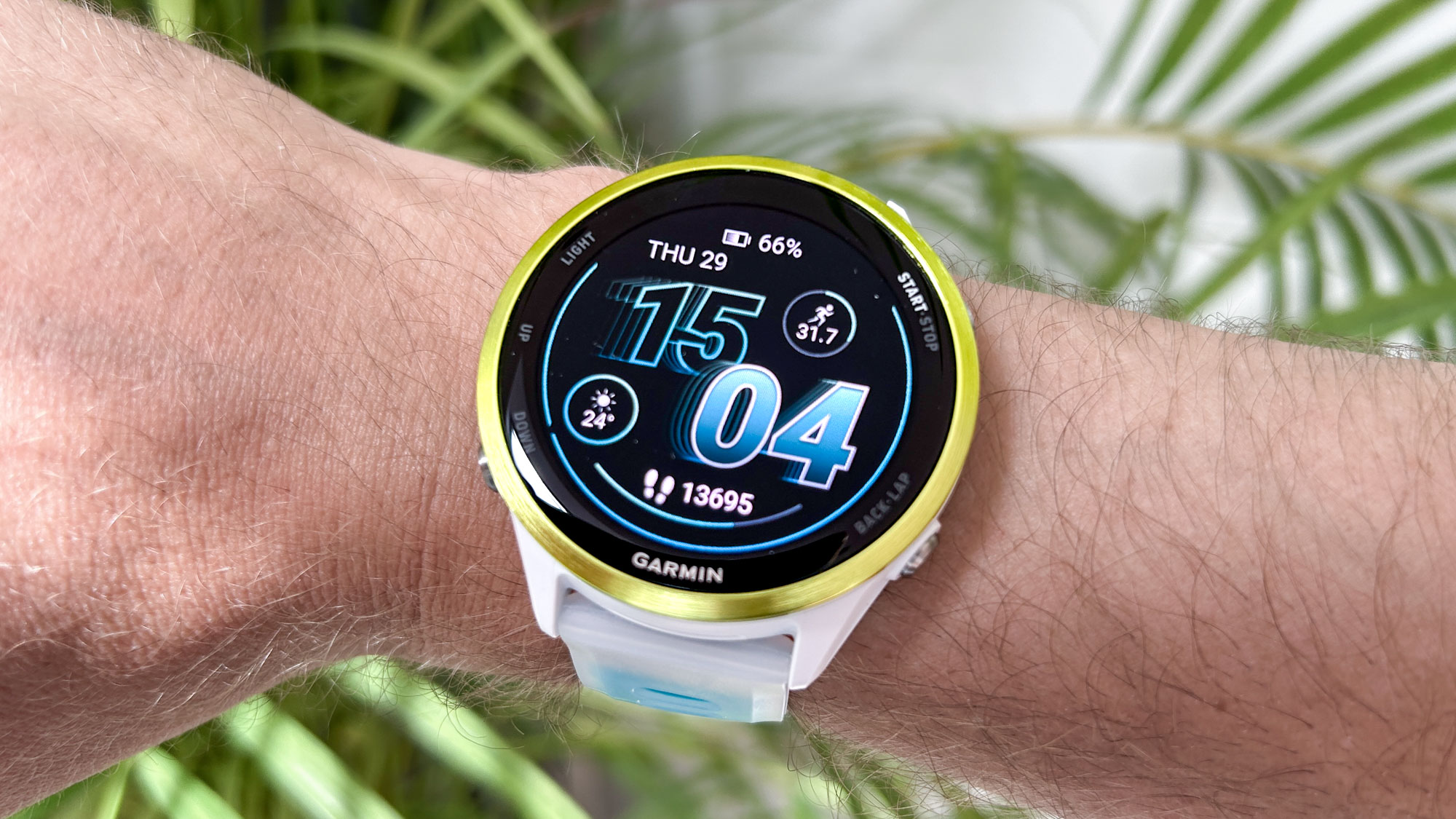
Not every Garmin watch supports Find My Device. While most modern smartwatches support this feature, older or fitness-focused models lack the necessary firmware integration. Before attempting to locate your watch, verify that your model is compatible.
Supported Devices
The following Garmin watch lines do support the Find My Device feature:
- Forerunner (245, 945, 55, 45, and newer models)
- Fenix (6, 7, 8, and Pro variants)
- Epix (Gen 2, Gen 3)
- Venu (1, 2, 3, Sq, Sq 2)
- Vivoactive (3, 4, 5)
- Instinct (2, Solar, Tactical)
- Vivosmart (4, 5, smart variants only)
- Lily (all models)
These watches are designed to sync seamlessly with the Garmin Connect app and respond to remote alerts.
Unsupported Models
The following do not support Find My Device:
- Vivofit 1, 2, 3, 4
- Vivofit Junior
- Vivofit Active
These are basic activity trackers without full smart connectivity. They cannot receive remote commands from the phone, including locate alerts.
Trigger the Alert Sequence
Once you’ve confirmed compatibility and navigated to your device, it’s time to activate the search. The alert sequence is designed to be unmistakable, combining both audible and haptic feedback.
Tap Find My Device
On the device info screen, tap “Find My Device.” The app will attempt to communicate with your watch over Bluetooth. If the connection is active, your watch will immediately begin ringing and vibrating. The alert is continuous and loud enough to hear across a room or through soft materials. On your phone, you’ll see a confirmation message: “Device Found.” This means the signal was sent successfully.
The alert continues until either you tap “OK” or “Close” in the app, or you press any button on the watch to dismiss it manually. Don’t worry about draining the battery. The alert stops automatically after a short period if not acknowledged, though it typically runs until user intervention.
Listen and Locate
Now use your senses. Move around your home, office, or gym bag and listen for the beeping tone. Feel for vibrations if the watch is buried under clothes or blankets. Some models emit a sharper beep (like the Forerunner), while others have a softer chime (such as the Venu). The vibration strength also varies. Larger watches like the Fenix and Epix have strong haptics, making them easy to feel. Smaller models like the Lily and Vivosmart have subtler buzz, which may be harder to detect in thick materials.
Walk closer to suspected locations. Since Bluetooth range is limited to about 30 feet, staying within one floor of a house usually ensures connectivity.
Required Connection Conditions

For Find My Device to work, several technical conditions must be met. If any one fails, the feature won’t activate. Understanding these requirements helps you avoid frustration when trying to locate your watch.
Bluetooth Must Be Active
Your watch and phone must be paired and connected via Bluetooth. Even if they’ve synced before, the connection drops when devices move out of range or go into power-saving mode. If you see “Device Not Found” or no response from the watch, check three things. First, is Bluetooth enabled on your phone? Second, is the watch powered on? Third, are both devices within 10 meters (about 30 feet)? Physical barriers like walls, metal furniture, or Wi-Fi interference can reduce effective range. Try moving closer to where you last used the watch.
Watch Needs Power
A dead or powered-off watch cannot respond to the Find My Device command. If your watch screen is blank and unresponsive, charge it first. Even if the battery is low but not dead, some models disable Bluetooth to conserve power. In such cases, plug in the watch and wait a few minutes for it to boot up. Once the watch shuts down, it becomes untraceable via software until powered on and reconnected.
App and Firmware Updates
An outdated Garmin Connect app or watch firmware can disable or glitch the Find My Device feature. To prevent issues, update the Garmin Connect app via Google Play Store or Apple App Store. Check for watch software updates in the app under Device Settings. Restart both devices after updating. Keeping both systems current ensures full functionality and fixes known bugs.
Troubleshoot Failed Attempts
Sometimes, tapping “Find My Device” does nothing. Don’t panic. Here’s how to fix common problems and get the feature working again.
Fix Bluetooth Pairing Issues
If the app doesn’t detect your watch, follow these steps. Go to your phone’s Bluetooth settings and forget the Garmin device. In Garmin Connect, go to Settings, then Paired Devices, and select Add New Device. Follow pairing instructions to reconnect. After re-pairing, try Find My Device again. On iPhones, ensure Garmin Connect has background refresh enabled. Go to Settings, General, Background App Refresh, then find Garmin Connect and turn it on.
Address Missing Options
If “Find My Device” is missing or grayed out, several things could be wrong. First, confirm your watch model supports the feature. Second, ensure you’re viewing the correct device in the app. Third, log out and back into your Garmin account. Fourth, reinstall the Garmin Connect app if needed. Sometimes, a simple app restart clears temporary glitches.
Handle No Response Scenarios
If the watch doesn’t ring when you activate the feature, try these solutions. Move closer to its last known location. Check if it’s in Do Not Disturb or Sleep Mode, as some modes mute alerts. Try restarting both devices. Charge the watch and retry. Remember: no GPS fallback exists. If the watch is disconnected or off, software-based recovery ends there.
Find My Device vs Find My Phone
It’s easy to confuse two similar-sounding features in Garmin Connect. Understanding the difference between these functions helps you use the right tool for each situation.
| Feature | Find My Device (Phone → Watch) | Find My Phone (Watch → Phone) |
|---|---|---|
| Triggered From | Garmin Connect app | Watch Controls menu |
| Action | Watch rings and vibrates | Phone rings and vibrates |
| Range | Bluetooth (~10m) | Bluetooth (~10m) |
| GPS Tracking | No | No |
| Signal Strength | Not shown | Available on Fenix, Epix, Venu |
While Find My Phone lets you see Bluetooth signal strength on some models (helping you walk toward your phone), Find My Device offers no such feedback. So if you’re trying to find your watch, you’re relying purely on sound and proximity, not directional cues.
Limitations and Realistic Expectations
Garmin’s Find My Device is useful but limited. Understanding what this feature can and cannot do prevents disappointment when you need it most.
No GPS or Map Tracking
Unlike Apple’s Find My network or Samsung SmartThings Find, Garmin does not store location history or allow web-based tracking. There’s no way to see where your watch was last seen online. You also can’t activate a Lost Mode, remotely lock or wipe data, or use offline finding via nearby devices. This means if your watch is lost outside your home (at the gym or park, for example) and disconnected, you cannot locate it remotely.
Designed for Proximity Only
Think of Find My Device as a “find it in the house” tool, not a theft recovery system. It excels when the watch is nearby, powered on, and Bluetooth is connected. But once any of those conditions fail, the feature stops working. User insight from the Garmin Community confirms this limitation. One user noted: “It only works if still connected. Once disconnected, walang paraan” (no way to trace it).
Garmin prioritizes privacy and battery life over constant location logging. So while less powerful than competitors, it avoids background tracking concerns that some users may have.
Enhance Tracking with Third-Party Tools
Since Garmin doesn’t offer long-range tracking, consider adding physical solutions to protect your watch. These tools work alongside Garmin’s native features to give you the best chance of recovering a lost device.
Attach a Bluetooth Tracker
Use a Tile, Apple AirTag, or Samsung SmartTag clipped to your watch band. These devices work with their own apps and offer precision finding and map-based location. They can be located even when out of direct Bluetooth range. For example, attach a Tile Mate to your watch strap. If the watch goes missing, open the Tile app to see its last known location or make it ring. Note that AirTags require an iPhone for full functionality.
Best Practice: Combine Methods
For maximum protection, use Garmin’s native Find My Device for quick indoor searches. Pair with a physical tracker for outdoor or long-distance scenarios. Keep your watch charged and connected whenever possible. This dual-layer strategy covers all common loss situations.
Final Tips for Finding Your Garmin Watch
Following these best practices increases your chances of successfully locating a misplaced watch and keeps the feature working reliably.
Update Software Regularly
Outdated firmware can disable features or cause connection drops. Enable automatic updates in Garmin Connect or manually check monthly. Keeping your software current ensures all features work as intended and fixes known bugs that could affect Find My Device functionality.
Keep Watch Charged
A dead battery kills all connectivity. Charge your watch nightly or before long outings. Low battery can also cause Bluetooth to disable automatically on some models. Maintaining a charged watch is the simplest way to ensure Find My Device works when you need it.
Test the Feature Now
Don’t wait until you lose your watch. Try Find My Device today while you know where your watch is. Place your watch in another room, open Garmin Connect, tap “Find My Device,” and verify you can hear it beep. Testing builds confidence and helps you learn how loud the alert is on your specific model.
Avoid Common Mistakes
Several common errors cause frustration when trying to locate a watch. Don’t confuse Find My Device with Find My Phone. Don’t expect GPS tracking, as Garmin doesn’t offer it. Don’t forget to check Bluetooth connection first. Don’t use an unsupported model like Vivofit. Clear understanding prevents frustration later.
Frequently Asked Questions About Finding a Garmin Watch with Your Phone
Can I find my Garmin watch if it’s turned off?
No. A powered-off or dead watch cannot respond to the Find My Device command. The watch must be turned on and have battery power for the feature to work. If your watch is off, you’ll need to rely on memory or physical search to locate it.
What is the Bluetooth range for Find My Device?
The effective range is approximately 10 meters (about 30 feet). Physical barriers like walls, metal furniture, or Wi-Fi interference can reduce this range. Stay within one floor of your home to ensure connectivity.
Does Find My Device work on Vivofit trackers?
No. The Vivofit series (1, 2, 3, 4), Vivofit Junior, and Vivofit Active do not support Find My Device. These basic activity trackers lack the firmware integration needed for remote alerting. Only smartwatches like Forerunner, Fenix, Venu, and Lily models support this feature.
Can I locate my Garmin watch if it’s lost outside my home?
No. Garmin does not offer GPS-based or cloud tracking for lost watches. Find My Device only works when the watch is nearby, powered on, and connected via Bluetooth. If your watch is lost at a park or gym and disconnected, you cannot locate it remotely.
Why doesn’t my watch ring when I tap Find My Device?
Several issues could cause this. First, check if Bluetooth is enabled on both devices. Second, verify the watch is powered on and charged. Third, ensure you’re using a compatible model. Fourth, try restarting both devices and re-pairing through the app. If the watch is in Do Not Disturb mode, the alert may be muted.
Can I use AirTag to track my Garmin watch?
Yes. While not officially supported by Garmin, you can attach an Apple AirTag (requires iPhone), Tile Mate, or Samsung SmartTag to your watch band. These third-party trackers offer map-based location and work beyond Bluetooth range, providing an alternative solution for long-distance tracking.
Key Takeaways for Finding Your Garmin Watch with Your Phone
The Find My Device feature in Garmin Connect offers a fast, reliable way to locate your Garmin watch with your phone, but only when it’s nearby and connected. It requires Bluetooth connectivity, a powered-on watch, and a compatible model. The feature works through audible alerts and vibrations, making it effective for finding watches hidden under furniture or left in other rooms. However, it cannot locate a disconnected, powered-off, or distant watch. For broader protection beyond Bluetooth range, pair Garmin’s native tool with a physical tracker like Tile or AirTag. Together, they give you the best chance of recovering a lost watch, whether it’s under the couch or left at the coffee shop. Test the feature now so you know exactly what to expect when you need it.



