
You’re out for a run, glancing at your Garmin watch for a text alert, only to realize you accidentally blocked WhatsApp last week. Or maybe you silenced Facebook notifications during a busy period and now need event reminders again. The good news is that blocking an app on your Garmin watch isn’t permanent, and you can unblock it in minutes using the Garmin Connect app or directly on your watch.
This guide covers step-by-step methods for both Android and iOS users, troubleshooting tips for common issues, and model-specific instructions. Whether you own a Forerunner 955, Venu 3, Fenix 8, or Instinct 2, the process is consistent across supported Garmin models.
Unblock Apps via Garmin Connect App
The most reliable way to unblock apps works across all Garmin watches and smartphone platforms. This method ensures full visibility of your app list and applies changes across all paired devices linked to your Garmin account.
Open Garmin Connect Settings
Launch the Garmin Connect app on your phone. Make sure your watch is connected via Bluetooth. Then follow these steps:
On iOS: Tap More (⋯) in the bottom-right corner.
On Android: Tap the ☰ Menu icon in the top-left.
Navigate to Settings, then select Notifications > App Notifications.
Critical Tip: Do not go into Devices > [Your Watch] > Notifications. That path limits access. Use the main Settings menu to see all apps.
Enable the Blocked App
You’ll see a scrollable list of apps installed on your phone that send system notifications. Find the one you blocked, such as WhatsApp, Gmail, or Facebook, and toggle the switch to ON.
What Happens Next: The app’s notifications will sync to your watch within seconds. No restart needed.
iOS-Specific Navigation Fix
Many iOS users miss the correct path due to menu similarities. Follow this exact sequence:
More (⋯) → Settings → Notifications → App Notifications
If the app doesn’t appear, ensure it sends visible notifications on your phone and check that Garmin Connect has notification permissions enabled in iOS Settings.
Unblock Directly on Your Watch
If you own a 2020 or newer Garmin model, you can manage app permissions right from your wrist without requiring your phone.
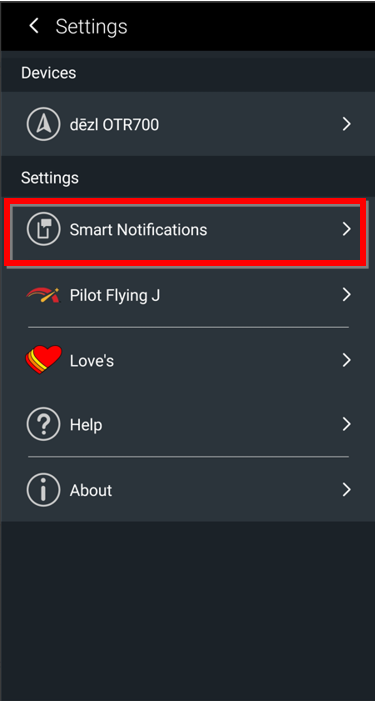
Access Smart Notifications
Press the Menu/Start button on your watch. Go to Settings > Notifications & Alerts > Smart Notifications. Scroll down and select Connected Apps or Manage Apps. Find the blocked app and toggle it to Enabled, or choose Unblock or Allow.
This change syncs with your phone the next time they connect via Bluetooth.
Supported Models for On-Watch Unblocking
These Garmin models support direct app unblocking from the wrist:
• Forerunner: 245, 255, 265, 745, 945, 955, 970
• Fenix/Epix: 6, 7, 8, Gen 2, Gen 3
• Venu Series: Venu, Venu 2, Venu 3, Venu Sq, Venu Sq 2
• Instinct 2, Instinct Crossover
• Enduro 1 & 2, Approach S62/S70, Descent MK2/MK3
On older models like the Forerunner 235, this option isn’t available. Use Garmin Connect instead.
Fix Device-Specific Notification Settings
Sometimes even after unblocking, notifications don’t return. This is often because global notification settings are disabled.
Enable Smart Notifications
In Garmin Connect, tap ☰ Menu > Devices > Select your watch. Tap Notifications or Smartphone Notifications. Ensure General Use is turned on. Toggle on Notifications During Activities if desired. Tap Apps or Manage Apps and confirm your app is enabled.
Important: Turning off Smart Notifications here disables all app alerts, even if individual apps are enabled in main Settings.
Android vs iOS: Key Differences
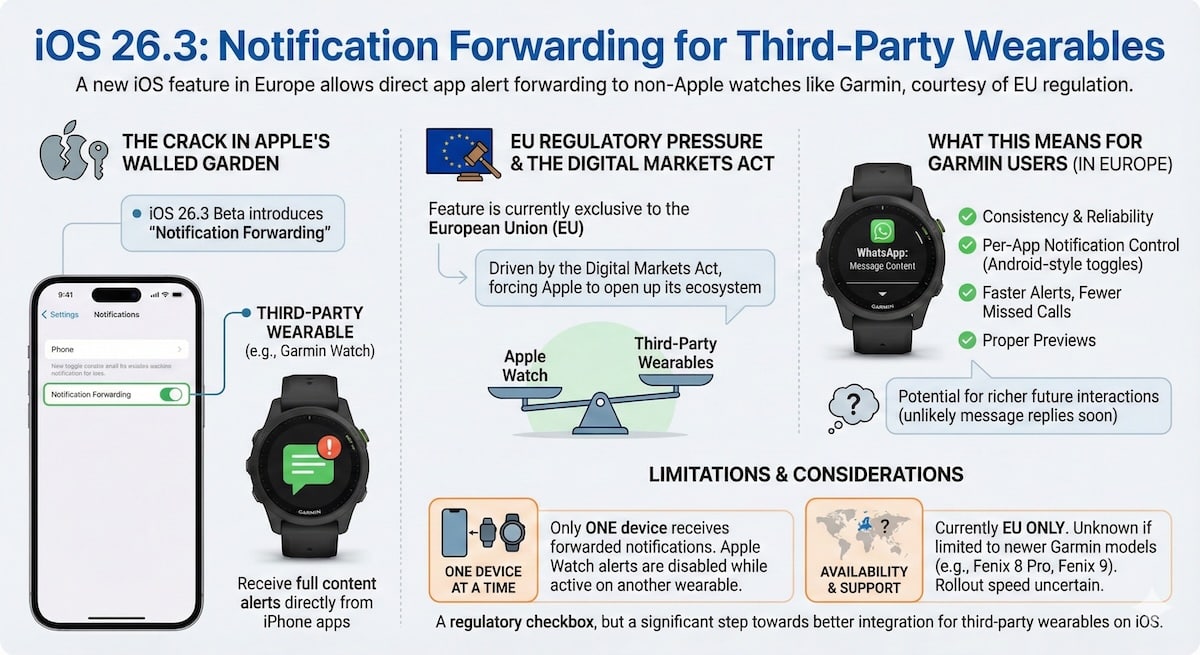
Unblocking works the same way on both platforms, but certain behaviors differ significantly.
Android Advantages
• New apps automatically appear and are enabled by default in Garmin Connect
• Full app list syncs from the OS notification system
• Less navigation confusion with consistent menu paths
iOS Challenges
• Apps do not auto-enable. You must manually turn them on
• Users often navigate to the wrong settings path (device-specific instead of main)
• Background restrictions in iOS may delay or block notification delivery
Pro Tip: Disable battery optimization for both the target app and Garmin Connect to ensure reliable delivery on Android.
Troubleshoot Missing or Stuck Apps
Sometimes the app doesn’t appear in the list or stays blocked despite toggling. Here’s how to fix it.
App Not Showing in List
Causes include wrong navigation path, app doesn’t send system notifications, or phone OS suppresses background activity.
Solutions:
• Use the correct path: More (⋯) → Settings → Notifications → App Notifications
• Enable notifications for the app in your phone’s Settings
• Disable battery optimization for both the app and Garmin Connect
• Restart your phone and force-sync the watch
App Missing on Watch
Causes include app not installed or updated, Bluetooth disconnected, or corrupted Garmin Connect cache.
Fixes:
• Reinstall the app on your phone
• Re-pair the device: Devices > Select watch > Unpair Device > Re-pair
• Clear app cache: On Android, go to Settings > Apps > Garmin Connect > Storage > Clear Cache. On iOS, offload and reinstall Garmin Connect
• Tap the sync icon in the Today tab
Notifications Still Not Working
Even after unblocking? Try these steps:
• Wait 1-2 minutes. Sync delays are normal
• Manually trigger a sync in Garmin Connect
• Reset notification settings: Settings > Notifications & Alerts > Reset All Settings
• Confirm smartphone-level permissions are enabled
Enable Phone-Level Notification Permissions
Garmin can’t show alerts if your phone blocks them first. Both the target app and Garmin Connect must have notification access.
Android Setup
For the target app, go to Settings > Apps > [App Name] > Notifications > Enable all. For Garmin Connect, go to Settings > Apps > Garmin Connect > Notifications > Allow all. Also exclude Garmin Connect from battery optimization and power-saving modes.
iOS Setup
For the target app, go to Settings > [App Name] > Notifications > Allow Notifications. For Garmin, go to Settings > Garmin > Notifications > Allow.
Failure here means no notifications reach your watch, even if unblocked in Garmin Connect.
Supported Apps and Use Cases
You can unblock any app that sends smart notifications.
Common App Categories
| Type | Examples |
|---|---|
| Messaging | WhatsApp, SMS, Signal, Telegram |
| Gmail, Outlook, Apple Mail | |
| Social | Facebook, Instagram, X (Twitter) |
| Calendar | Google Calendar, Apple Calendar |
| Navigation | Google Maps, Waze |
| Payment | Samsung Pay, Google Pay |
| News | BBC, CNN, Weather apps |
| Fitness | Strava, MyFitnessPal (notifications only) |
Blocking affects alerts, not data syncing. Your Strava runs still upload even if you block its notifications.
Real Fixes from Real Users
Case: Blocked Samsung Pay on Epix Gen 2
Issue: Accidentally blocked payment alert during checkout.
Fix: Used More (⋯) → Settings → Notifications → App Notifications → Enabled Samsung Pay.
Result: Payment alerts returned in under 30 seconds.
Case: Too Many Facebook Alerts on Forerunner 955
Action: Blocked during workouts. Later unblocked via Garmin Connect to get event invites.
Feedback: Thanks. I was tired of the ever present Facebook notifications.
Case: Can’t Find App List on Venu 3 (iOS)
Issue: Navigated to device settings where the list was empty.
Fix: Switched to main Settings path. The app list appeared immediately.
Best Practices for Notification Control
Avoid future issues with these tips.
Prevent Accidental Blocks
When dismissing a new notification, don’t tap Block app unless you’re sure. Read the options carefully before confirming.
Manage Apps in Bulk
Use Garmin Connect’s App Notifications list to review and toggle multiple apps at once. This is faster than handling them one by one.
Audit Monthly
Check your notification list every few weeks. Ensure critical apps like banking, health, and messaging are enabled.
Sync After Changes
Always manually sync or wait for auto-sync to confirm the fix has taken effect.
Use On-Watch Unblocking for Speed
If your model supports it, unblock directly on the watch. It’s faster than opening the app on your phone.
Frequently Asked Questions About Unblocking Apps on Garmin Watch
How do I unblock an app on my Garmin watch?
Open the Garmin Connect app, go to More (⋯) or ☰ Menu > Settings > Notifications > App Notifications. Find the app and toggle it to ON. You can also unblock directly on the watch via Settings > Notifications & Alerts > Smart Notifications > Connected Apps.
Does unblocking an app restore all notifications?
Yes, enabling the app in Garmin Connect restores its smart notifications to your watch. However, ensure the app has notification permissions enabled in your phone’s Settings as well.
Why can’t I find the blocked app in Garmin Connect?
You may be in the wrong menu. Use More (⋯) → Settings → Notifications → App Notifications, not the device-specific settings. Also ensure the app sends visible notifications on your phone.
Can I unblock apps on older Garmin models?
On-watch unblocking is available on 2020 and newer models. For older models like the Forerunner 235, use the Garmin Connect app method instead.
Will unblocking an app work on all my paired Garmin devices?
Yes, blocking and unblocking is account-wide. The change applies to all paired Garmin devices linked to your Garmin Connect account.
Why do notifications still not work after unblocking?
Check that Smart Notifications is enabled in Garmin Connect (Devices > [Your Watch] > Notifications). Also verify both the target app and Garmin Connect have notification permissions in your phone’s Settings. Wait 1-2 minutes for sync to complete.
Key Takeaways for Unblocking Apps on Your Garmin Watch
Unblocking apps on your Garmin watch is straightforward and reversible. The primary methods are using the Garmin Connect app (the most reliable option) or unblocking directly on your watch (available on 2020 and newer models). Navigation path matters significantly, especially on iOS, where users often mistakenly go to device-specific settings instead of the main Settings menu.
Remember that phone-level permissions are critical. Both the target app and Garmin Connect must have notification access enabled in your phone’s Settings for alerts to reach your watch. Blocking only affects smart notifications, not data syncing from fitness apps like Strava.
No app block is permanent. No factory reset is needed. Keep Garmin Connect updated, know the correct menu paths, and double-check phone-level permissions. Stay in control of your alerts by auditing your notification settings monthly, and you’ll never lose important notifications again.



