

You’re not alone if your digital wrist watch suddenly shows the wrong time, skips dates, or stops responding to button presses. Whether it’s a basic Casio, a budget fitness model, or a smartwatch that froze after a software glitch, resetting your digital wrist watch can fix most common issues. This guide covers every step from adjusting the time and date to performing a full factory reset so you can restore accuracy and functionality in minutes.
You’ll learn universal methods that work across most models, discover how to troubleshoot problems that prevent successful resets, and avoid mistakes that cause settings to vanish. Whether you just replaced the battery or inherited an old watch, this is your complete roadmap to getting it working like new.
Enter Time-Setting Mode on Your Watch
Hold the Mode or Set Button
To begin resetting your watch, press and hold the Mode or Set button for 2 to 5 seconds. Most digital watches respond by flashing the seconds display, indicating entry into edit mode. If nothing happens, ensure the battery is charged or properly seated because low power often prevents access to settings.
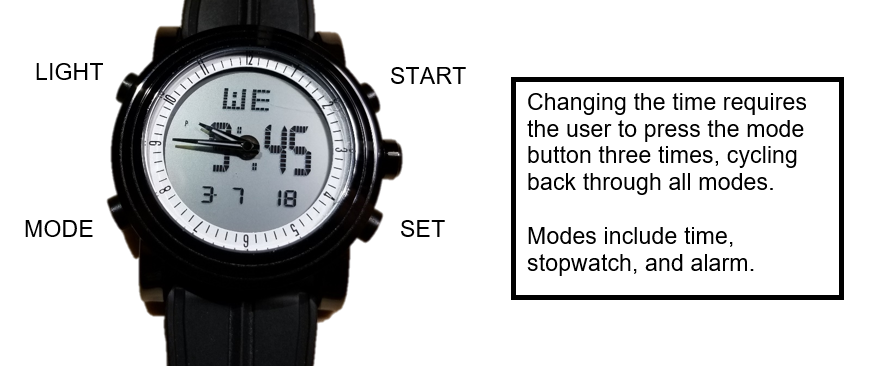
Some models use a triple-press method instead of a long hold. For example, many SKMEI and generic digital watches require you to press Mode three times quickly to reach the time-setting screen. Watch for any blinking digits or icons after each press to confirm progress.
Recognize Flashing Indicators
Once in setting mode, the seconds field will typically flash first, followed by minutes, hours, date, and day. The flashing digit tells you which value you’re editing. Do not press any other buttons until the correct field is flashing because advancing too quickly can skip critical steps and cause incorrect settings.
Some watches show a small 12H or 24H indicator during this process, which means you can toggle between time formats. Others may display ALM, SIG, or a bell icon, which indicates alarm mode rather than time setup.
Adjust Time and Date Settings
Change Seconds, Minutes, and Hours
With the seconds field flashing, use the Start/Stop or Adjust button to cycle through values from 00 to 59. Once correct, press Mode to move to minutes, then repeat the process. Continue to hours, adjusting until the correct time appears.
For 12-hour format watches, pay attention to AM/PM indicators. When setting 2:00 PM, the display should show PM. If it shows AM, keep incrementing until it flips. On 24-hour format models, 2:00 PM is displayed as 14:00, eliminating AM/PM confusion entirely.
Update Date, Month, and Day
After setting the time, press Mode again to advance to the date field. Use Start/Stop to adjust the day of the month from 01 to 31. Then press Mode to move to month, followed by day of the week such as Mon or Tue.
Some watches auto-calculate the day based on the date, but cheaper models require manual input. If your watch incorrectly shows Friday when it is Monday, double-check that you did not skip a field during setup.
Save and Exit Properly
After configuring all fields, press Set or Mode one final time to exit setting mode. The display should stop flashing and return to normal operation. Some models require you to press Reset to confirm.
If the time reverts or does not save, you likely exited before completing all fields. The battery may be too weak to retain memory, or a software glitch could be interfering. Repeat the process, ensuring each field is set and confirmed with a Mode press.
Switch Between 12-Hour and 24-Hour Format

Toggle Time Display Mode
While in time-setting mode, continue pressing Mode after setting the hour. Look for a 12H, 24H, or AM/PM indicator on the screen. Use the Start/Stop button to switch between formats.
Choosing 24-hour mode displays times from 00:00 to 23:59, which is ideal for military, medical, or travel use. Twelve-hour mode uses AM/PM and is more common in everyday wear.
Confirm Format Before Saving
Before exiting, verify the format matches your preference. Once saved, some watches do not allow quick changes without re-entering the entire setup sequence.
If your watch lacks a visible format indicator, set a test alarm for 14:00. If it rings at 2:00 PM, it is in 24-hour mode. If it rings at 2:00 AM, it is in 12-hour mode and misconfigured.
Reset and Configure Alarms
Turn Alarm On or Off
Press Mode twice to enter alarm mode. The display will show the current alarm time, often with an ALM, SIG, or bell icon. Press Start/Stop to toggle between ON and OFF.
An active alarm usually flashes or shows a solid icon. When off, the icon may disappear or dim. Leaving the alarm on unnecessarily can drain the battery faster, especially on older models.
Edit Alarm Time
With the alarm displayed, hold the Reset button until the digits begin to flash. Start with the minutes, using Start/Stop to adjust. Press Mode to advance to hours, then confirm with Set or Mode.
If your watch uses 12-hour format, ensure the AM/PM designation is correct. Setting an alarm for 7:00 AM instead of 7:00 PM is a common error that causes missed wake-ups.
Test Alarm Function
After setting, wait for the next day or manually advance the time forward to test the alarm. Some watches allow temporary silencing by pressing any button, but the alarm will recur the next day.
If the alarm does not sound, check that it is turned on. Verify the time format matches your expectation. Replace the battery if the beep is weak or absent.
Clear Stopwatch and Timer Functions
Reset the Chronograph
Press Mode to enter stopwatch mode. If timing is in progress, press Start/Stop to pause it first. Then press Reset to return the display to 00:00.
Most watches will not allow reset while running. You must stop first. Attempting to reset mid-timer may result in no action or an error flash.
Manage Countdown Timers
In timer mode, press Start/Stop to begin a countdown. To cancel, press Reset. To reconfigure the duration, hold Reset or press Set to enter edit mode, then adjust using Start/Stop.
Some models allow multiple timers or interval settings, but basic watches only support one countdown at a time. Use the timer for cooking, workouts, or medication reminders.
Perform a Factory Reset
Reset Smartwatches to Default
For digital smartwatches with touchscreens, swipe right to left to access the system menu. Tap the power option and look for a reset icon often shown as a circular arrow or recycling symbol. Slide or tap to confirm.
The watch will erase all data including alarms, custom layouts, and paired devices, then reboot with factory defaults. Back up any important data before proceeding because this action cannot be undone.
Hard Reset Basic Digital Watches
For non-smart models that freeze or malfunction, remove the battery for 5 to 10 seconds, then reinsert. The watch resets to factory state, and all settings including time, alarms, and date are erased.
Alternatively, if supported by your model, simultaneously press and hold all four buttons (Mode, Set, Start/Stop, Reset) for 5 to 10 seconds. Release when the display clears or flashes. Not all models support multi-button resets, so attempt this only if verified in the manual or by user reports.
Troubleshoot Common Reset Problems
Watch Does Not Enter Setting Mode
If pressing Mode or Set does nothing, try holding for at least 3 seconds. Replace the battery because weak power prevents mode entry. Clean around the buttons with a soft cloth to remove debris that may be blocking contact.
Tap the back of the watch gently after inserting a new battery. This can jolt the circuit into recognizing power.
Settings Do Not Save After Exit
If time reverts after setting, you skipped a field during setup. The battery may be too low to retain memory, or a software glitch occurred. Repeat the process, ensuring every field is adjusted and confirmed with a Mode press. Use a fresh battery if needed.
Alarm Does Not Trigger
Even with ALM ON, alarms fail when time format is incorrect (24H versus 12H mismatch) or AM/PM is set wrong. Battery weakness can also cause silent failures. Recheck alarm time and format. Replace battery if the beep is faint or absent.
Stopwatch Will Not Reset
The common cause is not stopping before resetting. Always press Start/Stop to pause first, then press Reset. If it still will not reset, the button may be stuck or damaged, or internal software is frozen.
Reset Tips for Specific Watch Brands

Generic and Budget Digital Watches
Many no-name or inexpensive watches follow a simplified logic. Press Mode three times to enter time-setting. Use Reset to select fields and Start/Stop to increase values. Press Set to confirm and exit.
Buttons may be unlabeled, so observe screen reactions carefully. These watches often skip seconds during setting, so just set to the nearest minute and let it sync naturally.
SKMEI and ITSKMEI Models
SKMEI watches are popular for durability and features. Reset steps involve holding Set to enter time mode, using Start/Stop to adjust flashing digits, pressing Mode to advance, and holding Reset to edit alarm.
For support, contact ITSKMEI, the official distributor, especially for wholesale or warranty inquiries. Some SKMEI models have a hidden reset pinhole, so use it only if instructed in official guides.
Maintain Your Watch After Resetting
Prevent Accidental Resets
Avoid pressing multiple buttons at once unless resetting. Keep the watch away from magnets, extreme heat, or moisture, which can trigger erratic behavior. Learn your watch’s button layout so you do not accidentally enter settings while checking the time.
Replace Battery Correctly
After battery replacement, time and alarms are always erased. Perform a full reset immediately. Use the correct type, which is usually CR2032 for most digital watches. Using cheap or incorrect batteries can leak and damage internal circuits.
Clean and Store Properly
Wipe buttons and case weekly with a dry cloth. If exposed to sweat or water, dry thoroughly, especially if the watch is not rated waterproof. For long-term storage, remove the battery and store in a cool, dry place.
Frequently Asked Questions About Resetting Digital Wrist Watches
Why does my digital watch reset to the wrong time after I replace the battery?
When you replace the battery, all settings including time, date, and alarms are erased. This is normal behavior. You must manually reset all fields after installing a new battery. Use a fresh battery of the correct type to ensure the watch retains memory properly.
How do I know if my watch is in 12-hour or 24-hour mode?
Look for an AM/PM indicator on the display. If you see AM or PM, the watch is in 12-hour mode. If no AM/PM appears and times go from 13:00 to 23:00, it is in 24-hour mode. You can also test by setting a 14:00 alarm and checking when it rings.
Can I reset my watch without removing the battery?
Yes, most digital watches can be reset using button combinations without removing the battery. Hold Mode or Set for 2 to 5 seconds to enter setting mode. For frozen or unresponsive watches, removing the battery for 10 seconds provides a hard reset that clears all settings.
What should I do if my watch buttons are not responding?
First, ensure the battery is not dead. Clean the buttons gently with a dry cloth to remove debris. Try holding each button for 3 to 5 seconds. If nothing works, remove and reinsert the battery or perform a hard reset.
How do I reset a smartwatch versus a basic digital watch?
Smartwatches typically require navigating through touchscreen menus to find the reset option in settings. Basic digital watches use button combinations, usually holding Mode or removing the battery. The processes differ significantly because smartwatches run software while basic models use simple circuitry.
Final Thoughts on Resetting Your Digital Wrist Watch
Resetting a digital wrist watch does not have to be confusing. By mastering the Mode button, recognizing flashing indicators, and following the correct sequence, you can fix time, date, alarms, and even frozen displays. Whether you own a ten-dollar digital watch or a feature-rich smart model, these steps ensure reliable performance.
Always start with a fresh battery if problems persist. Refer to your brand’s support for model-specific help when the standard methods do not work. With this guide, you are now equipped to keep your watch accurate for years to come.



