

If your Galaxy Watch isn’t tracking sleep properly, you’re not alone. Across Galaxy Watch 4, 5, 6, 7, 8, and Ultra models, users consistently report missing sleep stages, incomplete data, false awake markers, and even total tracking failure. The issue is widespread but not unsolvable. Samsung has officially acknowledged a software-level problem affecting sleep tracking accuracy, and while a major Samsung Health app update is in development, most users can restore reliable tracking now with targeted fixes.
This guide delivers proven, step-by-step solutions verified by user reports, technical analysis, and Samsung’s own recommendations. You’ll learn how to eliminate sensor blockages, fix hidden permissions, disable interfering settings, and optimize your device for accurate, continuous sleep monitoring. Whether your watch misses REM sleep, fails to detect naps, or skips tracking entirely, the answers are here.
Remove Sensor Obstructions First
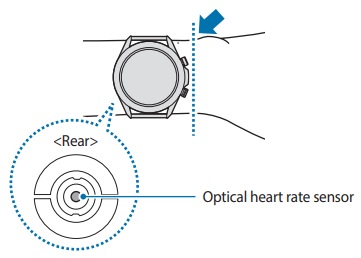
A surprisingly common cause of sleep tracking failure is physical blockage of the optical sensors on the back of your watch.
Peel Off Factory Stickers
Some Galaxy Watches ship with a protective film covering the green LED PPG sensors. If left on, this film disrupts heart rate and motion detection during sleep.
Check the back of your watch for a clear or tinted sticker over the sensor cluster. Peel it off gently using a fingernail or soft tool. Clean the area with a dry, lint-free cloth.
Multiple users reported immediate restoration of full sleep tracking after removing the factory film.
Clean Sensors and Wrist Nightly
Sweat, dirt, and skin oils scatter the optical signal, reducing accuracy. Wipe the sensor area every night before bed. Also clean your wrist where the watch sits. Use a dry or slightly damp cloth and avoid alcohol or harsh cleaners.
Avoid Wearing Over Tattoos
Dark ink absorbs green LED light, weakening the PPG signal. If you have a wrist tattoo, wear the watch on the opposite arm or position it above the tattooed area.
Fix Sensor Permissions on Your Watch

Even with perfect hardware, restricted permissions can block sleep tracking entirely.
Allow All-Time Sensor Access
On your Galaxy Watch, go to Settings then Security and Privacy then Privacy then Permission Manager. Tap Sensors then Samsung Health. Set the permission to Allow all the time.
This setting is critical. Without it, Samsung Health cannot access heart rate or motion data in the background, even if you wear the watch all night.
Some users see no change after toggling this once. If tracking still fails, toggle Deny, wait 10 seconds, then set back to Allow all the time. Restart the watch afterward.
Disable Power Saving Mode Completely
Power Saving Mode is the number one cause of missing sleep stages and sleep scores.
Turn Off Power Saving
On your watch, go to Settings then Battery then Power Saving Mode. Ensure it is turned off. Even if you do not use Power Saving, toggling it on and off can reset blocked health features.
Disable Limit Health Features
This hidden sub-setting silences sleep stage detection, even when Power Saving is off. Go to Power Saving Mode settings. Find Limit Health Features and turn it OFF. Grayed out means off.
Dozens of users confirmed that disabling this setting restored REM, deep sleep, and Sleep Score instantly.
Enable Continuous Heart Rate Monitoring

Sleep staging requires continuous heart rate data. Default settings often skip readings, breaking tracking.
Set Heart Rate to Always
Open the Heart Rate app on your watch. Tap the three dots and go to Settings. Set Heart Rate Measurement to Always.
Battery impact is minimal for most users. Expect around 5 to 10 percent additional drain per day. Without this setting, the watch may only sample heart rate every 10 to 30 minutes, which is not enough to detect sleep transitions.
Disable Risk Detection to Prevent False Off-Wrist Triggers
The Risk Detection feature assumes you have removed the watch if it detects no movement for a period. During sleep, this can stop tracking prematurely.
Turn Off Risk Detection
On your watch, go to Settings then Security and Privacy then Risk Detection. Toggle it OFF.
This is especially important for Galaxy Watch 8 and Ultra users. It prevents tracking gaps due to motionless periods during sleep.
Enable Required Sleep Features in Samsung Health
Many tracking issues stem from disabled health sensors in the phone app.
Activate Key Sleep Sensors
In Samsung Health on your phone, tap Sleep then Settings. Enable Blood oxygen monitoring during sleep, Skin temperature monitoring during sleep if supported, and Snore detection if microphone permission is granted.
These sensors feed data into the sleep algorithm. Disabling them limits accuracy.
If SpO2 or skin temperature options are grayed out, re-enable permissions in Phone Settings then Apps then Samsung Health then Permissions. Restart the watch afterward.
Clear App Cache and Reset Health Platform
Corrupted data in Samsung Health or Health Platform can break sync and tracking.
Clear Cache and Data
On your phone, go to Settings then Apps then Samsung Health. Tap Storage, then Clear Cache, then Clear Data. Repeat this process for Health Platform and Samsung Accessory Service.
Clearing Health Platform data fixed sleep tracking for multiple Galaxy Watch 5 users.
Restart Both Devices
After clearing data, restart your Galaxy Watch by holding Power and the Bottom button until the logo appears. Also restart your phone. This resets background services and forces a clean sync.
Update Software and Apps
Outdated firmware or apps contain known bugs affecting sleep tracking.
Check for Updates
Update Samsung Health via Galaxy Store or Google Play. Check watch firmware by opening Galaxy Wearable app, going to Watch Settings, then Software Update. Ensure your phone is on the latest Android version.
Samsung is rolling out a dedicated Samsung Health update to fix core sleep tracking logic. Keep apps updated to receive it.
Reset Sleep Schedule and Wear Habits
The algorithm uses your bedtime routine to predict sleep windows.
Set a Realistic Sleep Schedule
In Samsung Health, go to Sleep then Sleep Schedule. Set bedtime and wake-up goals that match your actual habits. Even if you do not follow it strictly, this helps the AI start tracking faster.
Wear the Watch Snugly, High on Wrist
Position the watch 1 to 2 finger widths above the wrist bone. Wear it snug but comfortable with no sliding or rotation. Avoid loose or rigid bands like metal or third-party options.
Poor fit equals signal loss, which equals gaps in tracking.
Factory Reset as Last Resort
If nothing works, a factory reset can resolve deep software corruption.
Perform a Reset
Back up workouts and health data in Samsung Health first. On your watch, go to Settings then General then Reset then Factory Data Reset. Re-pair the watch and re-enable all sleep settings.
Some users needed this step after persistent failures across multiple watches.
Model-Specific Fixes and Tips
Different Galaxy Watch models have unique quirks affecting sleep tracking.
Galaxy Watch 4 and 5
Common issues include missing deep sleep and naps not tracked. Fix this by clearing Health Platform data, enabling SpO2, and wearing the watch snugly.
Galaxy Watch 6 Classic
Users report 4-hour gaps in tracking. Fix this by disabling Power Saving, cleaning sensors, and restarting.
Galaxy Watch 7
No Sleep Score or Energy Score appears. Fix this by disabling Limit Health Features and allowing all-time sensor access.
Galaxy Watch 8
Tracking fails with tattoos or limited movement. Fix this by disabling Risk Detection and avoiding tattooed skin.
Galaxy Watch Ultra
Complete tracking failure after an update. Fix this by restarting, re-enabling sensors, and waiting for the Samsung Health update.
Some users report 46mm models failing more often than 42mm, but others see no difference. No hardware flaw is confirmed.
Workarounds When Tracking Fails
If you cannot get full accuracy, try these user-tested alternatives.
Use Sleep as Android
This third-party app offers reliable sleep tracking and syncs with Google Fit. It lacks Samsung’s Energy Score but captures sleep stages accurately.
Manually Edit Sleep Times
In Samsung Health, tap your sleep record and use Edit to adjust start and end times. This is useful for minor underreporting.
Revert to Original Band
Third-party bands can alter fit and pressure. Switch back to the stock band if tracking drops. Confirm fit and sensor contact.
Understand Tracking Limitations
Galaxy Watch sleep data is not medical-grade.
Normal Algorithm Behavior
Brief movements are labeled awake, which is standard for PPG watches. Lying still while awake may be counted as sleep, especially with Good Night mode enabled. REM and deep sleep are estimates based on HRV, not EEG.
Good Night Mode vs Auto Tracking
Good Night mode uses manual input and may override biometrics. For accuracy, rely on automatic tracking unless you have insomnia or irregular sleep patterns.
Final Checklist: 10-Step Fix Sequence
Follow this order for the best results.
Remove factory sticker from the watch back. Clean sensors and wrist nightly. Set Samsung Health sensor permission to Allow all the time. Disable Power Saving Mode and turn off Limit Health Features. Enable heart rate monitoring set to Always. Disable Risk Detection. Enable SpO2, skin temperature, and snore detection in Samsung Health. Clear cache and data for Samsung Health, Health Platform, and Accessory Service. Restart both phone and watch. Update all apps and firmware and wait for the Samsung Health fix.
Most users resolve issues within steps 1 through 5. Limit Health Features is the most overlooked culprit.
Frequently Asked Questions About Galaxy Watch Sleep Tracking
Why is my Galaxy Watch not tracking sleep at all?
Your watch may not be tracking sleep due to sensor permissions being restricted, Power Saving Mode being enabled, or the Limit Health Features setting blocking tracking. Check these settings first. A factory sticker on the sensors or loose watch fit can also cause complete tracking failure.
How do I fix missing sleep stages on my Galaxy Watch?
Enable continuous heart rate monitoring by setting Heart Rate Measurement to Always in the Heart Rate app settings. Also disable Limit Health Features in Power Saving Mode settings. These two changes most commonly restore missing REM, deep, and light sleep stages.
Why does my Galaxy Watch show gaps in sleep data?
Gaps in sleep data typically occur when Risk Detection misinterprets natural sleep movement as watch removal. Disable Risk Detection in your settings. Loose watch fit or sensor obstructions can also cause tracking gaps.
Can tattoos affect Galaxy Watch sleep tracking?
Yes, dark tattoos absorb green LED light from the PPG sensor, weakening the signal. Wear the watch on the opposite wrist or above the tattooed area for accurate tracking.
Will a factory reset fix Galaxy Watch sleep tracking issues?
A factory reset can resolve deep software corruption that other fixes do not address. Back up your health data first, then reset and reconfigure all sleep settings. This should be your last resort after trying all other troubleshooting steps.
Key Takeaways for Fixing Galaxy Watch Sleep Tracking
Galaxy Watch sleep tracking failures stem from a combination of software settings, sensor permissions, and physical factors. The most common culprits are the Limit Health Features setting in Power Saving Mode, restricted sensor permissions, and factory stickers covering the PPG sensors. Addressing these three areas resolves tracking for the majority of users.
Physical factors matter just as much as software settings. Keep sensors clean, wear the watch snugly above the wrist bone, and avoid tattooed areas. These adjustments significantly improve signal quality and reduce gaps in your sleep data.
Samsung is working on a dedicated Samsung Health app update to fix core sleep tracking logic. Until that arrives, proactive setting management is essential. By following this guide in order, you can restore reliable, detailed sleep data and trust what your watch tells you about your rest.



