

You’ve just purchased a VTech KidiZoom smartwatch for your child and are searching for “how to connect VTech watch to phone” hoping to pair it like a regular smartwatch. You’re not alone in this search, but here’s what most parents discover: these watches don’t connect to smartphones at all. VTech KidiZoom DX2, DX3, and DX4 models are standalone educational devices designed for creative play, photo-taking, and games, not for phone synchronization or tracking.
This guide will walk you through what actually works for VTech watches, including how to connect them to a computer, transfer photos, share content between watches using QR codes, and manage everything through VTech’s Learning Lodge platform. You’ll also learn why phone connectivity isn’t supported and what alternatives exist if you need a GPS-enabled kids’ watch.
Connect VTech Watch to Computer Instead
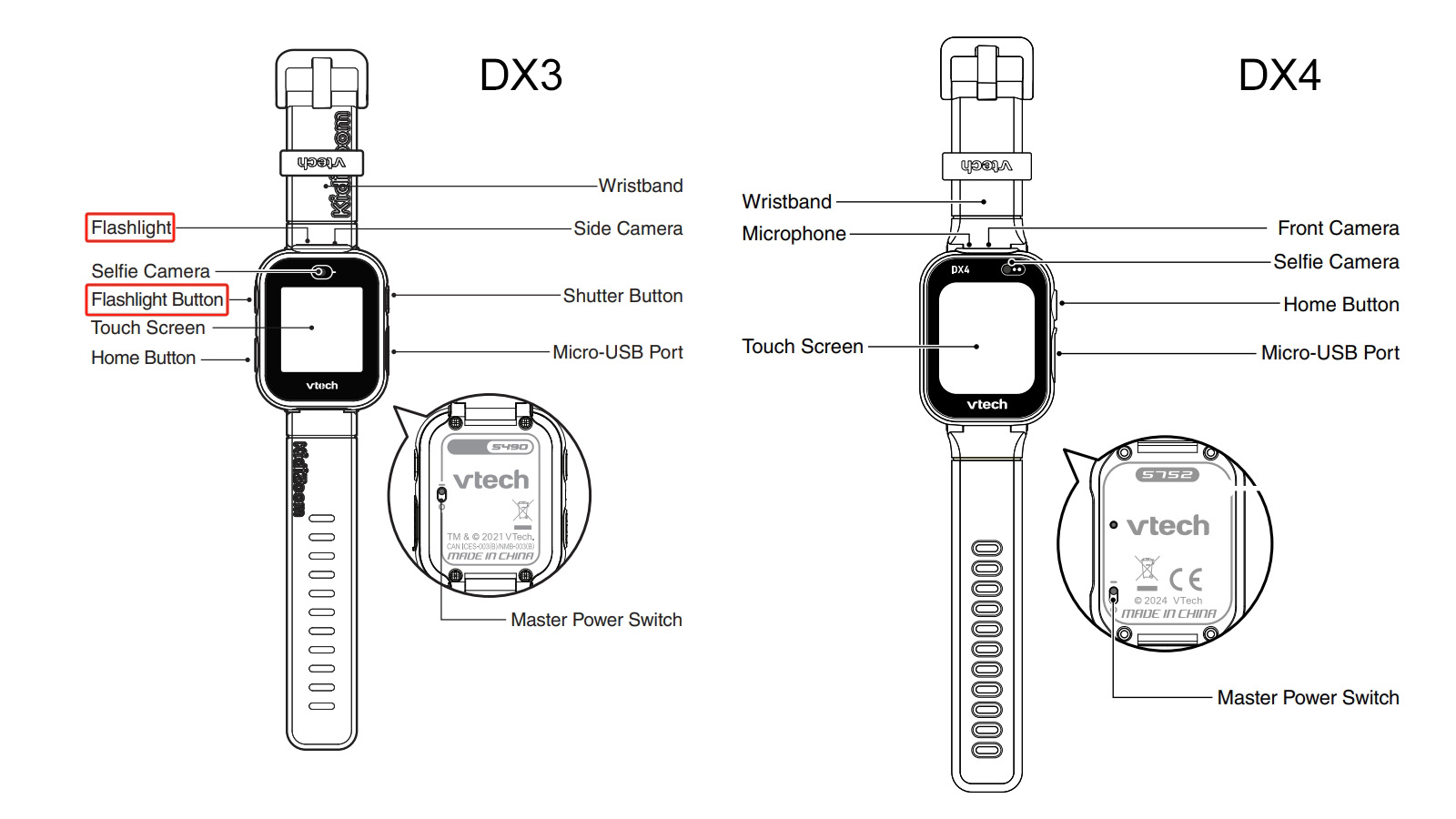
Since direct phone pairing isn’t supported, the primary method of managing your VTech KidiZoom is through a USB connection to a computer. This allows firmware updates, app installations, and file transfers.
Required Tools for Computer Connection
You will need the following items to connect your VTech watch to a computer for content management and updates.
The VTech KidiZoom DX2, DX3, or DX4 watch
The included micro-USB cable that came with the device
A Windows or Mac computer running Windows 7 or later, or macOS 10.12 or later
Internet access for downloading content
Learning Lodge Explorer software from VTech’s website
Step-by-Step USB Connection Process
Follow these steps to establish a successful connection between your VTech watch and computer.
Turn on the watch by locating the master power switch on the back and sliding it to “Line = On,” then press the power button to wake the screen.
Open the rubber USB port flap on the side of the watch by gently prying it open with your fingernail, then insert the micro-USB end securely into the port.
Plug the standard USB end into a powered USB port on your computer, avoiding unpowered USB hubs and phone chargers that deliver less than 500mA.
Wait for the computer to recognize the watch. It will appear as a removable drive labeled something like “VTEC 1938A” in your file explorer.
Launch Learning Lodge Explorer by visiting learninglodge.vtech.com to download and install the software if you haven’t already done so.
Browse available content in Learning Lodge, including games, themes, clock faces, and activities. Click “Install to Device” to transfer your selections to the watch.
Wait for the transfer to complete completely before disconnecting the cable. Safely eject the device through your operating system before unplugging.
Pro Tip: Restart the watch if new apps don’t appear immediately after disconnection.
Transfer Photos and Media Files
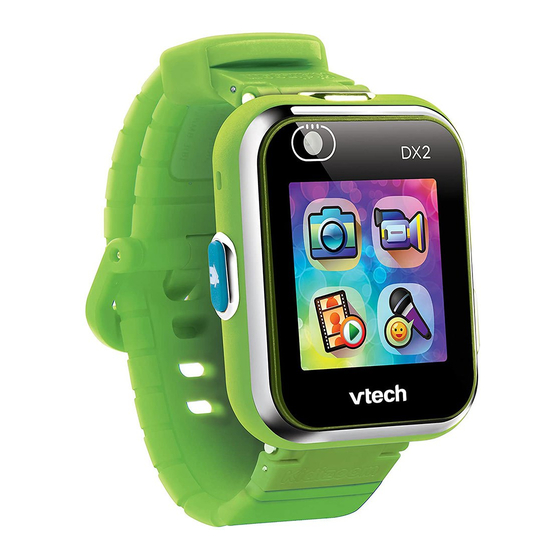
While you cannot sync photos directly to your phone, you can manually transfer media to and from the watch using your computer. This allows you to back up precious photos and add custom images to the device.
Supported File Types
The VTech watch supports specific file formats for photos and audio. Photos must be in JPEG format and are stored in the DCIM/CAMERA folder on the device. Audio files, specifically WAV format for voice recordings, go into the SOUND folder.
How to Add Photos to VTech Watch
Connect the watch to your computer via USB and open the drive folder. Navigate to DCIM > CAMERA and copy your JPEG images into this folder. Safely eject the device and restart the watch. Open the Photo app to view your newly added images.
Share Custom Clock Faces
You can create custom clock faces by taking a photo or importing one via USB, then opening the Photo Clock app and selecting “Set as Clock Face.” Another DX3 or DX4 user can scan your screen using the Scanner app to apply the same clock face to their device.
QR Code Pairing Between Watches
Although you cannot connect to a phone, DX3 and DX4 models can interact with each other using QR codes. This feature enables multiplayer games and content sharing without any phone or internet connection.
Supported Multiplayer Features
Several games and features support QR code sharing between compatible watches. Treasure Hunt on DX3 and DX4 allows shared objectives through QR code transfer. Monster Catcher works across DX2 and DX4 models. Greeting Cards on DX4 enable sending animated cards via QR code. Two-watch games on DX3 support versus-style mini-games after pairing.
How to Connect Two Watches with QR Code
On the first watch, open a compatible game like Treasure Hunt and select “Invite Friend” or “Generate QR Code.” On the second watch, open the Scanner app and align the first watch’s screen within the scanner frame. Wait for confirmation that the game has been transferred successfully.
Best Practice: Scan in bright, indirect light and keep both screens clean and within 12 inches of each other for best results.
Manage Content with Learning Lodge
Learning Lodge Explorer serves as the central hub for expanding your child’s VTech watch experience. Think of it as an app store specifically designed for these devices.
What You Can Install Through Learning Lodge
The platform offers a variety of downloadable content including educational games, themed clock faces, interactive activities covering math and spelling, new camera effects and stamps, and language packs for multilingual families.
How to Update Firmware
Outdated firmware can block new downloads, so keeping the device updated is essential. Connect the watch to your computer and open Learning Lodge Explorer. The software will detect available updates automatically. Click “Update Device” and wait 3 to 5 minutes for the process to complete. Do not disconnect the watch during the update.
Warning: A failed update may require a factory reset. Always ensure the watch has full battery before updating.
Set Parental Controls Without a Phone
VTech includes built-in parental controls accessible directly on the device. These controls help manage screen time and restrict features without requiring any phone connection.
How to Access Parental Menu
Hold the screen for 3 seconds until it turns red, then tap the blue button three times. Solve a simple math problem displayed on screen to enter the parental control settings.
Available Parental Restrictions
Game Time Limit lets you set daily limits of 15, 30, 60, 90 minutes, or unlimited play. Disable Games replaces games with calculator, calendar, and stopwatch functions. School Mode on DX4 blocks non-essential apps during school hours. Language Lock prevents accidental language switching. Factory Reset wipes all data and restores default settings.
Troubleshoot Connection Problems
Even with the correct steps, issues can arise when connecting your VTech watch to a computer. Here’s how to resolve common problems quickly.
Watch Not Detected by Computer
If your computer doesn’t recognize the watch, the USB port may be dirty, so clean the flap with a dry cloth. The cable might be loose, so try a different USB cable. A driver issue could be the culprit, so reinstall Learning Lodge Explorer. Ensure the master power switch is set to “Line = On” to activate the connection.
QR Code Scanning Issues
If QR codes won’t scan, clean both watch lenses with a microfiber cloth. Avoid glare by scanning indoors or in shaded areas. Hold the watches steady during scanning, as movement blurs the code. If you’re too close, increase the distance slightly.
Apps Not Appearing After Installation
If new apps don’t show up after installing through Learning Lodge, restart the watch first. Reinstall the app via Learning Lodge if the problem persists. Check the firmware version, as outdated software may block compatibility with newer apps.
Why VTech Watch Cannot Connect to Phone
Understanding why phone connectivity isn’t possible helps set realistic expectations for these devices. VTech KidiZoom watches are digital learning toys, not smartwatches like those marketed by Garmin or Apple.
Technical Limitations
These watches lack Bluetooth, Wi-Fi, GPS, and cellular connectivity entirely. There is no companion mobile app for iOS or Android devices. They operate completely standalone without any external device synchronization.
What These Watches Don’t Have
Unlike phone-connected kids’ watches such as GizmoWatch, TickTalk, or Xplora, the VTech KidiZoom cannot receive notifications, track location, make calls, send messages, or sync with a smartphone app. This design choice prioritizes offline, screen-limited engagement and protects children from online risks.
Backup and Maintain Your Watch
With no cloud sync available, manual backups are essential to preserve your child’s photos and recordings.
How to Back Up Data
Connect the watch to your computer via USB and open the VTEC drive. Copy these folders to your desktop for safekeeping: DCIM/CAMERA for photos and videos, SOUND for voice recordings, and THEMES for custom clock faces. Store these in a dedicated “VTech Backup” folder and repeat monthly to preserve memories.
Frequently Asked Questions About VTech Watch Connectivity
Can I connect my VTech KidiZoom to an iPhone or Android phone?
No, VTech KidiZoom DX2, DX3, and DX4 watches do not support Bluetooth or Wi-Fi connection to smartphones. They are designed as standalone educational devices and have no companion mobile app.
Why does my VTech watch not have Bluetooth?
VTech intentionally omitted Bluetooth, Wi-Fi, GPS, and cellular features to keep these devices focused on offline creative play and learning without internet exposure or tracking capabilities.
Can I transfer photos from VTech watch to my phone?
Direct transfer to a phone isn’t possible. You can transfer photos to a computer via USB and then manually move them to your phone, but there’s no wireless or app-based sync feature.
What can I do instead of connecting to a phone?
You can connect the watch to a computer using the included USB cable to install games and updates through Learning Lodge. You can also share content between two compatible watches using QR codes.
Is there a VTech app for phone connection?
No, VTech does not offer an iOS or Android companion app for the KidiZoom smartwatch series. All content management happens through the Learning Lodge software on a computer.
What kids’ watches do connect to phones?
If you need a watch that connects to a phone for GPS tracking and calling, consider GizmoWatch 2, TickTalk 4, or Xplora X5 instead. These devices offer the phone connectivity features that VTech KidiZoom intentionally excludes.
Key Takeaways for Connecting Your VTech Watch
VTech KidiZoom watches cannot connect to smartphones by design. They are standalone educational devices that manage content through USB connections to computers and peer-to-peer sharing via QR codes between compatible models. Use the included micro-USB cable to connect to a computer, then download Learning Lodge Explorer to install games, clock faces, and firmware updates. Transfer photos manually by copying JPEG files to the DCIM/CAMERA folder. Encourage your child to use QR code sharing to exchange games and clock faces with friends who have compatible DX3 or DX4 watches. Regularly back up photos and voice recordings to preserve your child’s creations. If you need a watch with phone connectivity, GPS tracking, or calling features, look at GizmoWatch, TickTalk, or Xplora alternatives instead.



