

You just unboxed your new Fitbit watch and want to get started fast. Whether you’re using an Inspire, Charge, Luxe, or Ace model, knowing how to navigate your device efficiently is key to unlocking its full health and fitness potential. Operating a Fitbit watch involves mastering gestures like swipes and taps, understanding model-specific buttons, and customizing settings to match your lifestyle. From checking heart rate to enabling Sleep Mode or activating Water Lock before a swim, every function is designed to keep you informed and in control.
In this guide, you will learn the universal navigation principles across Fitbit models, discover step-by-step how to use core features, and get model-specific tips that make daily use seamless. You will also find troubleshooting fixes for common issues like unresponsive screens or missing unlock prompts. By the end, you will know exactly how to operate your Fitbit watch with confidence.
Wake and Navigate Your Fitbit

Learning how to wake and navigate your Fitbit is the first step to operating it effectively. Most models offer multiple ways to activate the screen, so you can choose what works best for your lifestyle.
Activate the Screen Correctly
To operate a Fitbit watch, first learn how to wake it. Most models use one of three methods:
• Wrist Turn (Auto Wake): Rotate your wrist toward your face to activate the screen. Available on all modern Fitbits.
• Press the Button: Single press on models with a side button like Charge 3 through Charge 6 or Inspire 2 and Inspire 3.
• Double-Tap Screen: Firmly tap twice on the display on models like Ace 3, Charge 5/6, Luxe, and Inspire 3. The screen must be off for at least 10 seconds before double-tap works.
If the screen does not wake, ensure Auto Wake or Double Tap is enabled in Settings → Display.
Master Basic Navigation Gestures
Once awake, use these universal gestures on touchscreen models including Charge 3 and newer, Inspire 2 and 3, Ace 3, Luxe, and Charge 5/6:
• Swipe Up: View daily stats including steps, heart rate, calories, and distance.
• Swipe Down: Access notifications or Quick Settings.
• Swipe Left: Open the app carousel to access Exercise, Stopwatch, and other apps.
• Swipe Right: Return to the previous screen or clock face.
• Tap: Select an option or open an app.
On newer models like Charge 6 and Inspire 3, a firm double-tap returns you directly to the clock face from any screen.
Use Buttons Based on Your Model

Fitbit models have different button configurations, so understanding yours is essential for operating it properly.
Single Button Models
Models with one button include Charge 3, Charge 4, Inspire, and Inspire HR. Press the button to scroll through menus or confirm selections. Press and hold to open Quick Settings including brightness, DND, and Water Lock. Battery level appears when you press and hold the button.
Two Button Models
Models with two buttons include Inspire 2, Inspire 3, and Ace 3. Press either button to navigate forward. Press and hold both buttons simultaneously to access Quick Settings. To switch worn mode, go to Settings → Worn Mode and select On Wrist or Clipped on Body. In Clipped mode, heart rate tracking and Active Zone Minutes are disabled.
No Physical Buttons
Older models like Alta, Alta HR, and Ace Gen 1 have no physical buttons. Wake the screen by turning your wrist or double-tapping the tracker body. Navigate by tapping once to advance through screens. These models do not support swipe gestures.
Access and Use Core Features
Your Fitbit tracks numerous health metrics automatically. Knowing how to access this data helps you stay motivated throughout the day.
Check Daily Stats and Health Data
From the clock face, swipe up to see your steps, heart rate, active minutes, calories burned, and distance traveled. On Charge 5/6 and Inspire 3, swipe up again to view more detailed trends like Active Zone Minutes or SpO2 readings.
Open Apps and Start Exercises
To start a workout, swipe left from the clock face to enter the app carousel. Tap Exercise to begin a workout, select your activity such as Walk, Run, or Swim, then tap Start. During exercise, tap the screen to pause or resume, and swipe down to access lap times, pace, or heart rate depending on your model. The Charge 6 automatically activates HR on Equipment when paired with compatible gym machines.
Control Notifications and Alerts
Stay connected without being overwhelmed by managing your notification settings properly.
View Phone Notifications
On Charge 3/4/5/6, Luxe, and Inspire 3, swipe down from the clock face to see calls, texts, and calendar alerts. On Blaze, swipe up from the clock face to access notifications. Notifications require Bluetooth connection and proper app permissions.
Mute Alerts with Quiet Modes
Use Do Not Disturb or Sleep Mode to silence alerts when you need focus or rest.
Do Not Disturb mutes all vibrations and screen wake-ups. Enable it by swiping down and tapping the DND icon. On Charge 3/4, workout alerts still come through while DND is active.
Sleep Mode mutes notifications, dims the screen, and disables wrist wake. Schedule it by going to Settings → Sleep Mode → Schedule and setting start and end times. Sleep Mode turns off automatically at the scheduled time, even if you turned it on manually.
Important: Sleep Mode and DND cannot be active at the same time.
Manage Screen and Display Settings

Customizing your display ensures comfortable viewing and battery efficiency.
Customize Brightness and Timeout
Open the Settings app → Display to adjust brightness by sliding up or down. Choose how long the screen stays on by selecting Screen Time Out options of 5s, 10s, 15s, or 30s. On Charge 5/6, Luxe, and Inspire 3, enable Always-on Display to keep a dim clock visible.
Enable or Disable Auto Wake
Auto Wake turns the screen on when you lift your wrist. Manual Wake keeps the screen dark until you press a button or double-tap. To change this setting, go to Settings → Display → Screen Wake and choose Auto or Manual. If double-tap is not working, ensure the screen has been off for 10 or more seconds.
Activate Water Lock for Swimming
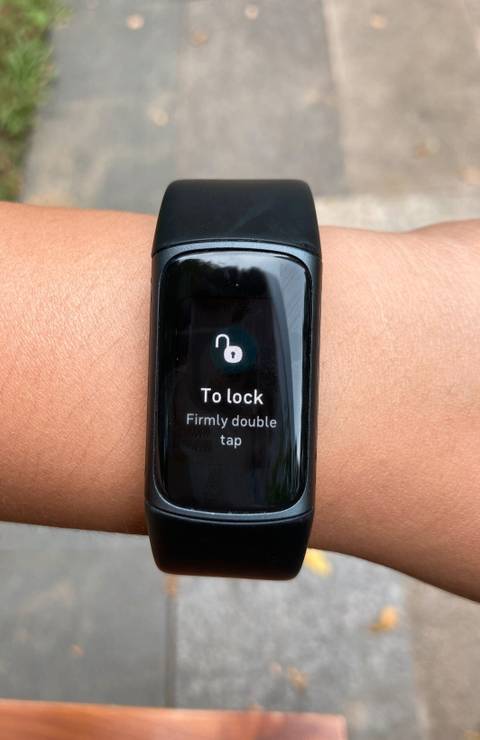
Water Lock prevents accidental screen activation during water activities.
Turn On Water Lock
Before swimming or showering, swipe down to open Quick Settings. Tap Water Lock, then firmly double-tap the screen. Locked appears, confirming that screen and buttons are disabled. Water Lock auto-activates when you start a Swim exercise.
Unlock After Water Exposure
To exit Water Lock, firmly double-tap the center of the screen and wait for the Unlocked message. If it does not unlock, tap harder because the accelerometer requires significant force to register the action. Try drying the screen first if water droplets are interfering.
Monitor Battery and Charging Status
Knowing your battery status prevents unexpected shutdowns during important activities.
Check Battery Level
Swipe up from the clock face to see the battery icon in the top left on most models. On older models like Inspire HR, press and hold the button to see the battery level. A red battery icon in the status bar means the battery is critically low.
Identify Status Indicators
On Charge 6, Inspire 3, and Luxe, icons flash at the top of the screen for 3 seconds when you wake the device. The moon icon means Do Not Disturb is active. The bed icon means Sleep Mode is active. A red battery icon means critical battery. A phone with slash means not connected to your phone. To view these again, swipe right in Quick Settings or wake the device again.
Customize Settings for Your Needs
The Settings app puts full control of your Fitbit experience at your fingertips.
Use the Settings App
Open the Settings app (gear icon) to adjust multiple categories.
Display settings include brightness, Always-on Display, screen timeout, and status indicators on Charge 6.
Quiet Modes include DND, Sleep Mode with scheduling, and Exercise Focus which mutes notifications during workouts.
Health and Sensors include heart rate toggle, heart zone notifications for active minutes, GPS settings on compatible models, and HR on Equipment on Charge 6 for gym machine pairing.
System settings include vibration strength adjustment, Button Lock to prevent accidental presses, and Restart Device for soft reboots when unresponsive.
Set Up Your Fitbit for First Use
Before you can operate a Fitbit watch, you must complete the initial setup process.
Initial Setup Steps
Download the Fitbit app from the Apple App Store or Google Play Store. Create an account using your email and password. Power on the device by pressing and holding the button or plugging into the charger. Open the app, tap the plus icon, and follow the Bluetooth pairing prompts. Enter your personal data including age, weight, height, gender, and activity level to calibrate tracking algorithms. Customize preferences including units (Metric or Imperial), daily goals, and enable heart rate and sleep tracking. Wear the device and it begins automatic tracking immediately.
Your activation date during setup marks the start of your warranty period.
Troubleshoot Common Issues
When your Fitbit behaves unexpectedly, these solutions restore normal operation.
Fix Unresponsive Screen
If the device freezes, open the Settings app, scroll to Restart Device, and tap Restart. Wait 10 to 15 seconds for the reboot to complete. Only use this software restart method unless specifically instructed to perform a hard reset.
Resolve Water Lock Not Unlocking
The problem is that Unlocked does not appear after double-tapping. The fix is to tap harder because the accelerometer requires significant force. Alternatively, try drying the screen first since water droplets can interfere with the sensor.
Fix Double-Tap Not Working
The cause may be that the setting is disabled or the screen has not been idle long enough. Go to Settings → Display → Double Tap and ensure it is enabled. Wait 10 or more seconds after the screen turns off before attempting to double-tap.
Heart Rate Not Tracking on Inspire 2/3
The cause is likely that the device is in Clipped on Body mode. Go to Settings → Worn Mode and select Worn on Wrist. Heart rate and Active Zone Minutes are disabled when in clip mode.
Maintain and Care for Your Device
Regular maintenance keeps your Fitbit working reliably for years.
Clean After Use
Wipe the device with a dry, soft cloth after sweating or swimming. Avoid soaps, chemicals, and do not submerge bands unless you are swimming.
Wear It Snugly
For accurate heart rate and proper button function, wear the device snugly but comfortably. Use Button Lock during intense workouts if a tight fit causes accidental presses.
Charge Properly
Use the magnetic charger provided with your device. Charge when the battery drops below 10%. Most models fully charge in 1 to 2 hours depending on the model.
Final Tips for Smooth Operation
Keep your Fitbit running optimally with these best practices.
Update your software regularly through the Fitbit app to ensure optimal sync and bug fixes. Sync daily to upload data and keep settings current. On Charge 6, triple-tap to access Google Wallet for contactless payments. Enable Magnify on Charge 6 by triple-tapping to zoom the screen 2x or 3x, then single tap to exit. Check your warranty start date by going to Settings → Device Info → System Info to view the activation date.
Frequently Asked Questions About Operating a Fitbit Watch
How do I navigate my Fitbit watch?
Swipe up from the clock face to see daily stats. Swipe down for notifications and Quick Settings. Swipe left to access the app carousel. Swipe right to return to the previous screen. Tap to select items.
Why will my Fitbit screen not wake up?
Ensure Auto Wake or Double Tap is enabled in Settings → Display. If using double-tap, wait at least 10 seconds after the screen turns off. Try pressing the physical button if your model has one.
How do I turn on Water Lock?
Swipe down from the clock face, tap Water Lock, then firmly double-tap the screen. The screen displays Locked when active. Water Lock also auto-activates when you start a Swim exercise.
Why is my Fitbit not tracking heart rate?
Check if your device is in Clipped on Body mode by going to Settings → Worn Mode. Switch to Worn on Wrist to enable heart rate tracking. Heart rate is disabled in clip mode by design.
Can Sleep Mode and Do Not Disturb be on at the same time?
No. Sleep Mode and Do Not Disturb cannot be active simultaneously. You must turn one off before enabling the other.
How do I check my battery level?
Swipe up from the clock face to see the battery icon in the top left corner. On older models, press and hold the button to display the battery level.
Key Takeaways for Operating Your Fitbit Watch
Mastering how to operate a Fitbit watch comes down to understanding three core areas. First, learn the navigation gestures specific to your model, whether it uses swipes, taps, buttons, or a combination. Second, customize your settings in the Settings app to match your preferences for notifications, display, and health tracking. Third, use features like Water Lock, Sleep Mode, and Button Lock strategically to protect your device and extend battery life.
Keep this guide handy during your first week. The gestures and settings will become second nature quickly, and you will be tracking your health goals with confidence in no time.



