
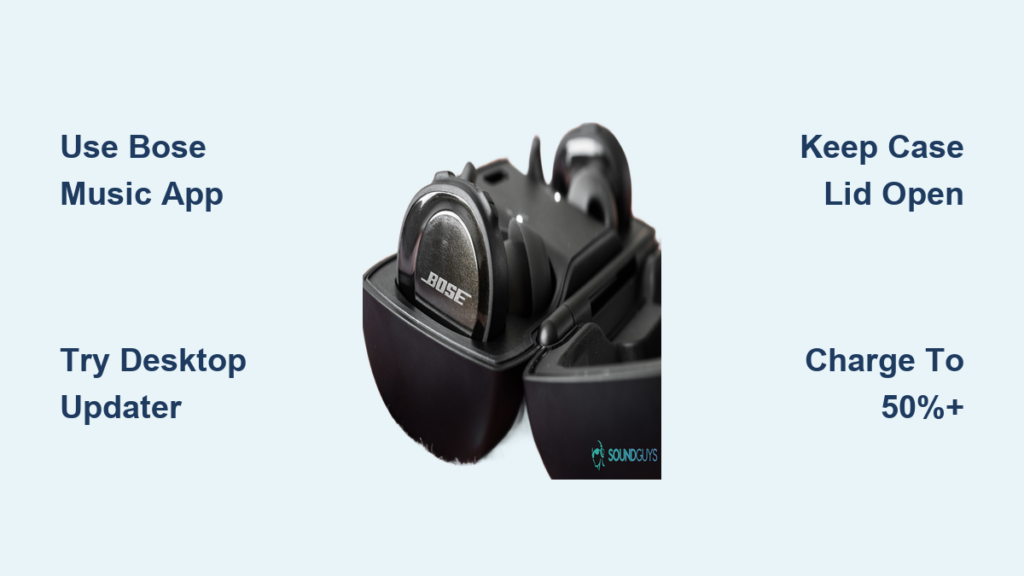
If your Bose Sport Earbuds aren’t connecting smoothly, draining battery too fast, or missing new features, a software update could be the fix. Outdated firmware often causes Bluetooth dropouts, audio imbalances, or unresponsive controls. The good news is that updating your earbuds is straightforward when you follow the right path.
Most users rely on the Bose Music app for routine updates, but when downloads stall at 75% or fail repeatedly, the Bose Software Updater desktop tool becomes essential. This guide covers both methods, troubleshooting tips, and critical best practices to keep your earbuds current. Whether you’re doing routine maintenance or rescuing a failed update, you’ll find clear steps to get your Bose Sport Earbuds software update back on track.
Update Bose Sport Earbuds Through the Bose Music App
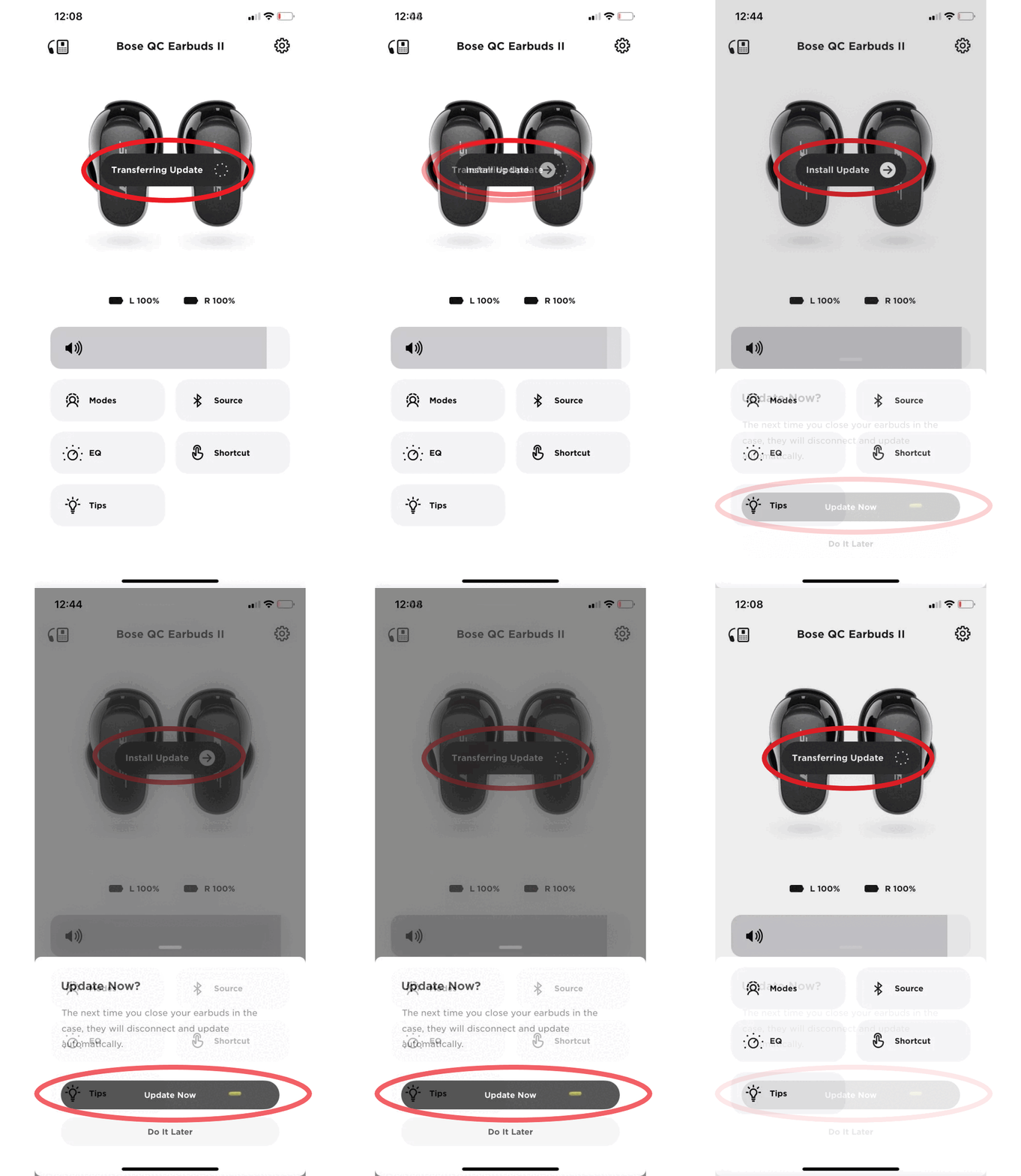
The Bose Music app is the standard way to deliver a Bose Sport Earbuds software update. It handles most firmware upgrades, bug fixes, and feature rollouts seamlessly when your connection and battery remain stable.
Check for Available Firmware Updates
Open the Bose Music app and confirm your earbuds are powered on and within Bluetooth range. Tap the device icon for your Bose Sport Earbuds, then select the gear icon in the top-right corner. Navigate to Product Update from the menu.
If a new version is ready, you’ll see a Download button. Tap it to begin the process. If the button appears grayed out, your earbuds already run the latest firmware and no action is needed.
Install Firmware via Mobile Device
Once the download finishes, installation starts automatically. Keep your phone nearby and the app open in the foreground. The progress bar must reach 100% without interruption.
Avoid these actions during installation:
– Closing the Bose Music app
– Switching to another app for extended periods
– Moving out of Bluetooth range
– Letting the earbud battery die
The process typically takes 5 to 15 minutes. After completion, the earbuds may reboot automatically. Confirm success by checking the firmware version in the Product Update or About section.
View Version Numbers and Release Notes
The app displays your current firmware version, helping you verify updates were applied correctly. When an update is pending, release notes appear detailing improvements like:
– Enhanced Bluetooth stability
– Improved bass response
– New voice prompts
– Bug fixes for uneven volume
This information helps you understand what changed and why the Bose Sport Earbuds software update matters.
Fix Failed Updates with the Bose Software Updater
When the mobile update stalls at 75%, times out, or fails repeatedly, switch to the Bose Software Updater. This desktop method is faster, more reliable, and often the only fix for corrupted or stuck firmware.
Install the Bose Software Updater
Download the Bose Software Updater from the official Bose support website. It supports:
– Windows 10 or later (64-bit)
– macOS 10.14 (Mojave) or later
On Windows, run the installer and follow the prompts. On Mac, open the .dmg file and drag the app into your Applications folder. Launch the updater and select your preferred language.
Connect Earbuds to Your Computer
Place both earbuds in the charging case. Use a data-capable USB cable to connect the case directly to your computer.
Critical step: Keep the case lid OPEN during the entire process. Closing it interrupts communication and can corrupt the firmware permanently.
Start and Complete the Desktop Update
The software detects your device automatically. Click Check for Updates or Update if a version is available.
The update takes 7 to 10 minutes, significantly faster than a failing mobile attempt. Do not:
– Unplug the USB cable
– Close the case lid
– Shut down the computer
Wait for the confirmation message before disconnecting. The desktop tool logs the update in its Update History, letting you verify success.
Troubleshoot Common Bose Sport Earbuds Update Failures
Even with the right tools, updates can fail. Knowing how to respond saves time and prevents permanent damage to your earbuds.
Resolve the 75% Stall on iPhone
This is a known iOS issue where the progress bar freezes and the process never completes, even after hours of waiting.
Solution: Stop the mobile attempt immediately. Use the Bose Software Updater on desktop instead. This bypasses iOS background restrictions and Bluetooth instability.
Fix Earbuds Not Detected by App or PC
If your device isn’t recognized, try these steps:
– Restart the Bose Music app or desktop updater
– Reboot your phone or computer
– Place earbuds in the case, close the lid for 10 seconds, then reopen
– Try a different USB cable that supports data transfer
– Plug into a different USB port, avoiding hubs
On Windows, install the latest USB drivers if detection continues to fail.
Understand the Grayed-Out Download Button
This means your earbuds already run the latest firmware version. Check the current version in the app and compare it to Bose’s official release notes. If they match, no update is available.
Prepare for a Successful Bose Sport Earbuds Software Update
Avoiding problems starts before you click Update. Follow these steps to maximize your success rate.
Maintain 50% Battery Minimum
Low power is a top cause of failed updates. Before starting, charge your earbuds to at least 50%. For best results, fully charge them before initiating the process.
Never update with dead or near-dead batteries. Interruptions can brick the firmware and leave the device unusable.
Ensure a Stable Connection
For mobile updates:
– Use strong Wi-Fi and avoid weak cellular data
– Keep your phone close to the earbuds
– Don’t switch networks during the download
For desktop updates:
– Use a high-quality USB cable
– Connect directly to your computer, not through a hub
Prevent Interruptions During the Process
Do not:
– Play audio during the update
– Make phone calls
– Let your phone go to sleep
– Close the app or switch tasks for long periods
Treat the update like firmware surgery. Any disruption risks permanent damage.
Why Firmware Updates Matter for Your Earbuds
Keeping your Bose Sport Earbuds updated isn’t just about accessing new features. It directly impacts performance, reliability, and longevity.
Improve Bluetooth Connection Stability
Updates refine pairing protocols, reducing dropouts during workouts or commutes. You’ll experience fewer disconnects and faster reconnections when removing and reinserting the earbuds.
Enhance Audio Quality
Firmware tweaks the DSP (Digital Signal Processing) algorithms to balance bass, mids, and treble. Some updates unlock new EQ settings or improve stereo separation for a richer listening experience.
Extend Battery Life
Optimized power management means longer playback time and more efficient charging. Updates can fix bugs that cause one earbud to drain faster than the other.
Unlock New Features
Recent updates have introduced capabilities like Spotify Tap for one-touch playback, customizable voice prompts, and better voice assistant integration. Without updating, you miss these enhancements.
Avoid Critical Mistakes During the Update Process
A few simple errors can permanently damage your earbuds. Avoid these pitfalls at all costs.
Never Close the Case Lid During Desktop Updates
This is the most important rule. Keep the lid open while using the Bose Software Updater. Closing it cuts the signal, halting the flash process and risking firmware corruption.
Only Use Official Bose Software
Download the Bose Music app from the App Store or Google Play. Get the Bose Software Updater only from bose.com. Third-party tools may install malware or incompatible firmware that bricks your device.
Don’t Interrupt the Process Once Started
Once an update begins, let it finish completely. Unplugging, shutting down, or force-closing the app can leave the earbuds in an unbootable state. If this happens, the desktop tool is your only recovery option.
Reset Your Earbuds After a Problematic Update
If your earbuds act strangely after an update, such as uneven volume, no sound, or pairing issues, a reset can restore normal function.
Perform a Factory Reset
Place both earbuds in the charging case. Press and hold the button on the back of the case for 10 to 15 seconds until the LED flashes red and white.
This clears all settings and pairing history. After resetting, re-pair your earbuds with your phone and check for updates again in the Bose Music app.
Re-pair with Your Device
Go to your phone’s Bluetooth settings and forget the Bose Sport Earbuds device. Then open the case near your phone to trigger the pairing prompt. Follow the on-screen instructions to reconnect.
Frequently Asked Questions About Bose Sport Earbuds Software Updates
Why does my Bose Sport Earbuds update stop at 75%?
This is a known iOS issue where the progress bar freezes indefinitely. The mobile Bluetooth connection becomes unstable during the final installation phase. Switch to the Bose Software Updater desktop tool to bypass this problem and complete the update in 7 to 10 minutes.
Can I update Bose Sport Earbuds without the app?
Yes, you can use the Bose Software Updater on Windows or macOS. This desktop tool connects via USB cable to the charging case and often resolves issues when the mobile app fails. It’s especially useful for corrupted firmware or stuck updates.
How long does a Bose Sport Earbuds software update take?
Mobile updates typically take 5 to 15 minutes when working correctly. Failed mobile updates can stall for over 2 hours. The desktop updater method is faster, usually completing in 7 to 10 minutes with a stable wired connection.
What happens if I close the case lid during a desktop update?
Closing the case lid interrupts the data transmission between the computer and earbuds. This halts the flash process immediately and can corrupt the firmware, potentially leaving the earbuds in an unbootable state. Always keep the lid open until the software confirms completion.
Do I need to charge my earbuds before updating?
Yes, charge your earbuds to at least 50% before starting any update. Low battery is a leading cause of failed updates. Interruptions from power loss can permanently damage the firmware, so a full charge provides the safest margin.
How do I know if my Bose Sport Earbuds need an update?
Open the Bose Music app, tap your earbuds device icon, and select the gear icon. Navigate to Product Update. If a Download button appears, an update is available. If the button is grayed out, your earbuds already run the latest firmware.
Key Takeaways for a Successful Bose Sport Earbuds Software Update
Regular updates keep your Bose Sport Earbuds running smoothly, securely, and with the latest features. Start with the Bose Music app for routine maintenance, but don’t hesitate to use the Bose Software Updater on desktop if mobile updates fail or stall.
Always charge your earbuds above 50% before starting, maintain a stable connection, and avoid any interruptions during the process. Keep the case lid open when using the desktop tool, and only download software from official Bose sources.
Your next step: Open the Bose Music app right now and check your current firmware version. If an update is pending, follow the preparation steps in this guide before tapping Download. Your earbuds will thank you with better sound, longer battery life, and reliable connectivity.



