
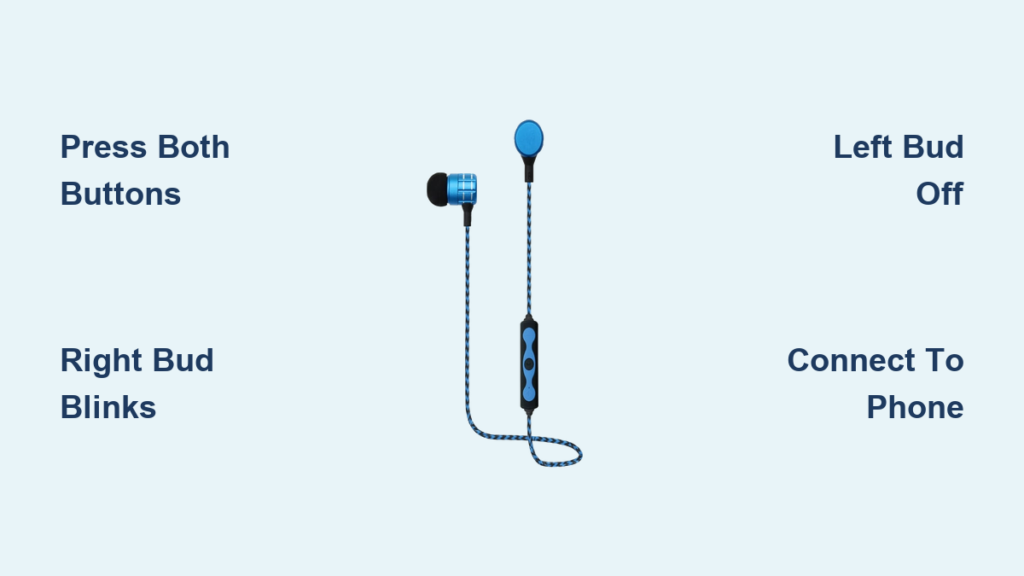
You just pulled your new Photive Sport wireless earbuds out of the box, hit the power button, and now only one side is playing. Sound familiar? These budget-friendly, sweatproof earbuds deliver impressive sound for workouts and runs, but their True Wireless Stereo (TWS) pairing system works differently from standard Bluetooth earbuds. The right earbud connects to your device, while the left earbud syncs automatically to the right one.
Getting this pairing process right is essential. Skip a step or press only one button, and you’ll end up with mono audio or no connection at all. This guide walks you through every step, from initial setup and single-bud use to troubleshooting failed connections. By the end, you’ll know exactly how to pair Photive Sport wireless earbuds with confidence and get back to your workout.
Activate Pairing Mode on Photive Sport Wireless Earbuds

Before your phone can detect the earbuds, both units must enter pairing mode at the same time. Because Photive Sport earbuds use a master-slave TWS architecture, pressing only one button will leave the other bud disconnected.
Press Both Buttons at the Same Time
To wake up the pairing sequence, follow these steps:
• Remove both earbuds from any storage or carrying clip
• Press and hold the power button on the left and right earbuds simultaneously
• Hold for approximately 3 seconds until the indicator lights respond
The right earbud will begin blinking, signaling it is in discovery mode. The left earbud’s light will turn off, which is completely normal. That light-off state means the left bud has successfully synced to the right as the slave unit.
⚠️ Common mistake: Pressing only the right earbud. If you skip the left bud, it won’t connect, and you’ll hear sound from only one side.
Confirm the Master-Slave Sync
Before moving to your phone, verify the sync worked correctly. The right earbud should show a blinking light, while the left earbud stays dark. If both lights blink, the master-slave handshake failed. Repeat the dual 3-second press to retry.
Connect to Your Phone or Tablet

With the earbuds in pairing mode, your device can now detect them. This step is straightforward once the TWS sync is confirmed.
Find the Earbuds in Bluetooth Settings
- Open Settings on your smartphone or tablet
- Tap Bluetooth and make sure it is toggled On
- Wait a few seconds for the scan to complete
Look for a device name like “Photive Sport R”, “Photive_R”, or simply “Photive”. This name refers to the right master earbud that broadcasts the Bluetooth signal to your phone.
Complete the Pairing Handshake
Tap the listed device name and wait 5 to 10 seconds. You should hear a confirmation tone in both earbuds, and audio will begin routing through both sides. The blinking lights will stop, confirming a successful connection.
✅ Success signs: Audio plays in both earbuds, calls and media controls work normally, and no lights blink after pairing.
Use One Earbud in Mono Mode
Want to save battery or stay aware of your surroundings on an outdoor run? You can use either earbud on its own. The process differs depending on which side you choose.
Connect the Right Earbud Alone
The right bud is the master, so connecting it solo is simple:
- Keep the left earbud powered off or stored away
- Remove the right earbud and let it start blinking
- Open Bluetooth settings on your device
- Select “Photive Sport R” or similar
- Tap to connect
Audio will stream only to the right side. This mode works reliably because the right bud is the primary broadcaster.
Connect the Left Earbud Alone
Using the left earbud solo requires a slightly different approach since it normally syncs to the right. To pair the left bud independently:
- Make sure the right earbud is powered off or stored away
- Press and hold the button on the left earbud until it starts blinking
- Open Bluetooth settings and look for “Photive Sport L” or “Photive_L”
- Select it to connect
💡 Pro tip: Left-bud solo mode may have slightly less stable connectivity because it wasn’t designed as the primary broadcaster.
Troubleshoot Common Pairing Problems

Even with clear steps, issues can pop up. Here are fixes for the most frequent problems users face when trying to pair Photive Sport wireless earbuds.
Fix No Sound in One Earbud
Cause: The left earbud failed to sync with the right master unit.
Solution:
1. Turn both earbuds off completely
2. Press and hold the buttons on both buds for 3 seconds again
3. Watch for the right bud to blink and the left bud light to go out
4. Reconnect via your phone’s Bluetooth menu
This re-establishes the internal TWS link between both units.
Solve Earbuds Not Showing in Bluetooth List
Cause: The earbuds aren’t in discovery mode, or interference is blocking the signal.
Diagnose and fix:
• Confirm both buttons were pressed together for 3 or more seconds
• Verify the right earbud is actually blinking
• Turn off Bluetooth on other nearby devices to reduce interference
• Forget previous pairings by tapping any old “Photive” entry and selecting Forget This Device
• Restart your phone’s Bluetooth toggle or reboot the phone entirely
Then retry the pairing process from the beginning.
Address Blinking Light with No Connection
Cause: Pairing mode is active, but the handshake with your device failed.
Action steps:
1. Cancel the current connection attempt in Bluetooth settings
2. Turn off both earbuds by holding each button until the lights go dark
3. Repeat the dual 3-second press to re-enter pairing mode
4. Re-scan and try connecting again
Be patient and avoid tapping multiple times quickly, as this can confuse the pairing system.
Recover from Failed Sync After Charging
Sometimes the earbuds won’t reconnect after sitting on the charger. A quick reset usually solves this:
- Plug both earbuds in and charge for at least 5 minutes
- Unplug them from the cable
- Immediately press and hold both power buttons for 3 seconds
- Re-pair to your device as usual
The charge cycle often clears stuck internal memory, especially after long storage periods.
Maintain a Stable Bluetooth Connection
Once paired, keeping your Photive Sport earbuds connected smoothly requires awareness of their range and limitations.
Stay Within the 33-Foot Range
Bluetooth 4.1 supports up to 33 feet (10 meters) in open space. Walls, metal objects, Wi-Fi routers, and other wireless signals can shrink that effective range significantly.
• Move closer to your device if audio starts cutting out
• Remove physical obstructions between your phone and the earbuds
• Avoid placing your phone in a back pocket during workouts
📱 Tip: Keep your phone in a front pocket or armband to maintain a clear line-of-sight signal.
Prevent Unwanted Disconnections
These earbuds may drop the connection if they sit unused for several minutes or lose power from a low battery. Interference from crowded wireless environments can also cause drops.
Prevention tips:
• Fully charge before each use (takes 1.5 to 2 hours)
• Store the unused earbud in a case or pocket when using mono mode
• Avoid placing your phone near microwaves, USB hubs, or multiple Bluetooth devices
Charge and Protect Your Earbuds
Proper charging habits ensure reliable performance and help prevent pairing issues caused by low power.
Use the Micro USB Port Correctly
The charging port sits on the earbud stem under a protective rubber cap. Pull back that cap before plugging in the included Micro USB cable. A red LED means charging is in progress, while a solid white light means the battery is full.
⚠️ Never charge with the cap closed. Moisture could enter the port, damaging the internal circuitry.
Preserve the Sweatproof Seal
The rubber cap is critical for keeping sweat and debris out of the charging port. Always reseal the cap immediately after charging to protect the electronics. Wipe the port gently with a dry cloth if lint or debris builds up over time.
Battery life expectations:
• 6 hours of continuous playback per full charge
• Recharges fully in 1.5 to 2 hours
• Ideal for long workouts, commutes, or podcast sessions
Get a Secure Fit with the Active Ear Stabilizer

Even perfect pairing fails if the earbuds fall out mid-run. The hook-based Active Ear Stabilizer is the defining feature of the Photive Sport design.
Insert the Earbuds Properly
- Rotate the earbud so the hook fits into the ridge of your outer ear (antihelix)
- Gently push the tip into your ear canal until snug
- Adjust the angle for maximum comfort and a tight seal
✅ A proper seal improves sound quality and passive noise isolation significantly.
Choose the Best Ear Tip Size
The package includes two sizes: Small and Large. Most users find that the smaller tips create a better seal with less canal pressure. Try both sizes and pick whichever feels secure without causing discomfort.
Perform a Full Reset When Needed
If nothing else works, a hard reset clears corrupted connection data and restores factory settings.
Force a Hard Reset
- Turn both earbuds off completely
- Press and hold the power buttons on both earbuds for 10 seconds
- Release when the lights flash rapidly or go dark
- Re-pair from scratch using the standard method
This step wipes old pairing memory and forces a fresh TWS sync between the two buds.
Frequently Asked Questions About Pairing Photive Sport Wireless Earbuds
Why won’t my Photive Sport wireless earbuds pair together?
The most common cause is pressing only one earbud’s button. You must press and hold both the left and right buttons simultaneously for about 3 seconds. The right bud blinks while the left light turns off, confirming the master-slave sync worked.
How do I reset my Photive Sport earbuds?
Turn both earbuds off, then press and hold both power buttons for 10 seconds until the lights flash or go dark. Release the buttons and re-pair the earbuds to your device using the standard pairing sequence.
Can I use just one Photive Sport earbud at a time?
Yes. Use the right earbud alone for the most stable connection, since it acts as the master broadcaster. The left earbud can also work solo, but connectivity may be slightly less reliable because it normally syncs through the right side.
Why is only one earbud working?
This usually means the left earbud failed to sync with the right. Turn both off, then press and hold both buttons for 3 seconds to re-establish the TWS link. Look for the right bud blinking and the left light turning off before connecting to your phone.
How long does the battery last on Photive Sport earbuds?
You get up to 6 hours of continuous playback per charge. A full recharge takes about 1.5 to 2 hours using the included Micro USB cable. There is no charging case included with the standard package.
What do the LED lights mean on Photive Sport earbuds?
A blinking light on the right earbud means pairing mode is active. A solid red LED means the earbud is charging, while a solid white light means it is fully charged. If the left earbud light is off, that is normal and indicates it has synced to the right.
Key Takeaways for Pairing Photive Sport Wireless Earbuds
Pairing Photive Sport wireless earbuds comes down to three critical steps: press both buttons at the same time for 3 seconds, confirm the right bud blinks while the left light turns off, then connect through your phone’s Bluetooth menu under the “Photive Sport R” name. If something goes wrong, a 10-second hard reset clears the memory and forces a fresh sync.
Now that you know exactly how to pair Photive Sport wireless earbuds, charge them fully, grab the included carrying clip, and head out for your next workout. If issues persist after trying all the steps above, reach out to Photive’s customer support team for warranty assistance and repair options.



