
You’re not alone if your Garmin watch suddenly stops showing notifications. Despite maintaining a Bluetooth connection and syncing fitness data normally, many users report missing texts, calls, emails, or app alerts, especially after software updates on the watch, Garmin Connect app, or smartphone. This issue affects popular models like the Venu 2 Plus, Forerunner 970, Fenix 7, and Vivoactive 4 across both Android and iOS devices.
The root problem lies in a multi-layered system: your phone’s OS to Garmin Connect app to Bluetooth link to watch settings. A failure at any point breaks notification delivery, even if syncing continues. In this guide, you’ll learn proven troubleshooting steps, platform-specific fixes, and long-term prevention tips to restore real-time alerts fast.
Restart Devices Immediately
A full power cycle resolves temporary glitches in over 60% of cases. This should be your first troubleshooting step before trying anything more complex.
Power Off Phone and Watch
Shut down both your smartphone and Garmin watch completely. Don’t just lock them. Fully power off.
Wait at least 30 seconds, up to 60 for stubborn connections. This clears cached Bluetooth states and resets background processes.
Turn on the phone first, wait until it fully boots, then power on the watch. Let them reconnect automatically.
This forces a clean Bluetooth handshake and often fixes notification loss with a single step. Users have reported success with this method alone.
Check Bluetooth and Connection Range

Even if your watch shows connected, weak or interrupted BLE signals block notifications from reaching your wrist.
Stay Within 3 Meters
Keep your phone within 1 to 3 meters, or 3 to 10 feet, of the watch during testing. Walls, metal objects, and other 2.4 GHz devices like Wi-Fi routers and microwaves interfere with Bluetooth.
Avoid Signal Interference
Turn off nearby wireless gear temporarily. Test notifications in a quiet space to rule out environmental interference.
Open Garmin Connect, go to Devices, then select your watch. If sync fails or takes longer than usual, the connection is unstable.
Refresh Sync in Garmin Connect
Force a manual sync to re-establish the notification pipeline between your phone and watch.
Manually Trigger Sync
Open the Garmin Connect app. Tap the Today tab, select your device, then tap Sync.
If the sync completes but no notifications arrive, pull down to refresh, tap the sync icon again, and wait 1 to 2 minutes. This often reactivates dormant background services responsible for alert forwarding.
Fix Android-Specific Notification Blocks
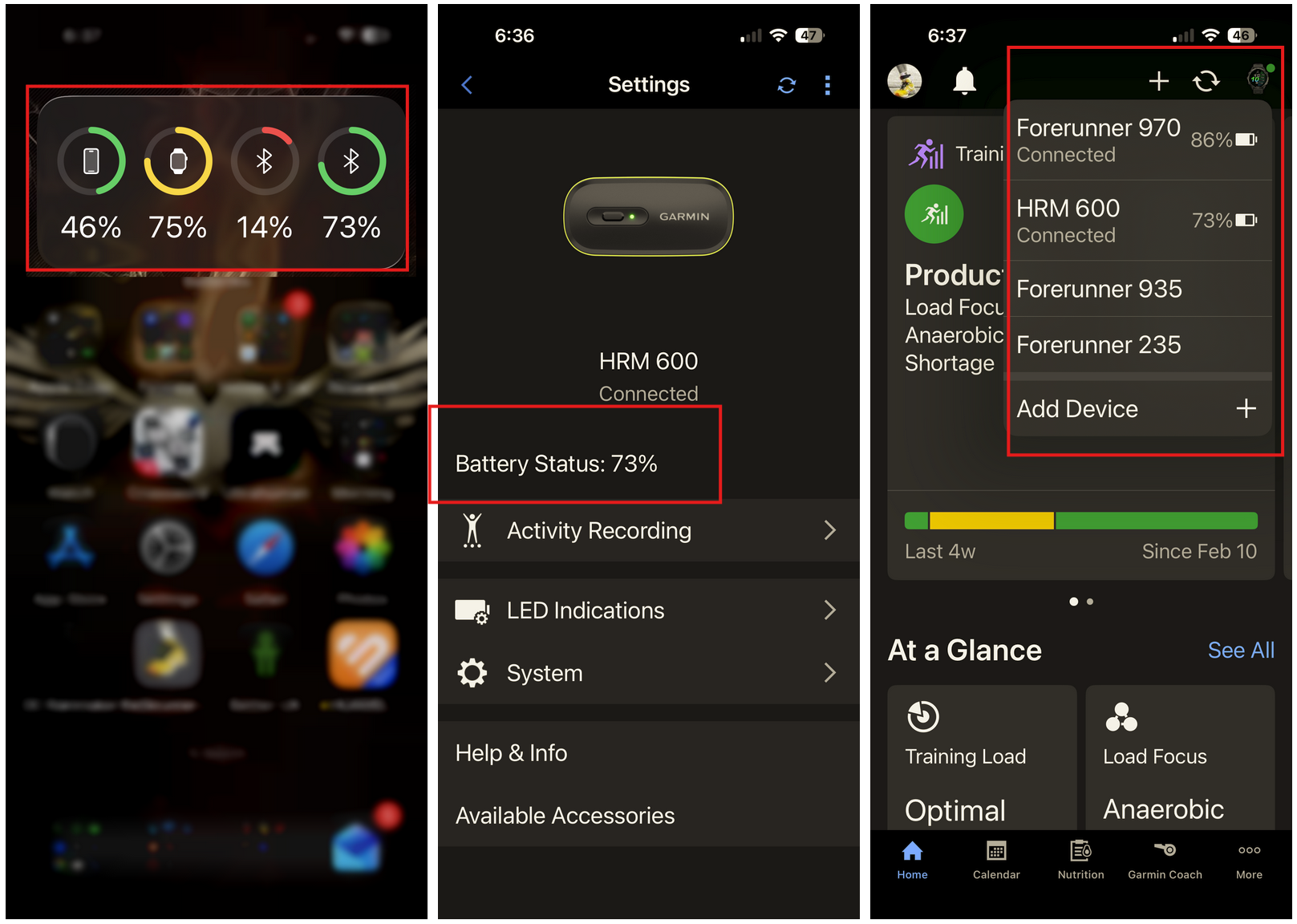
Android’s battery optimization and app hibernation features frequently disable Garmin Connect in the background, stopping notifications even when Bluetooth is active.
Disable Battery Optimization
Go to Settings, then Apps, then Garmin Connect, then Battery, then Battery Optimization. Select Don’t optimize or Unrestricted.
Without this, Android may suspend the app entirely.
Allow Background Data and Autostart
In Mobile Data and Wi-Fi settings, ensure background data usage is allowed.
On Samsung, Xiaomi, OnePlus, and other custom Android skins, open the device Security app. Find Battery saver, App hibernation, or Auto-stop. Exclude Garmin Connect from restrictions and enable autostart.
These settings vary by brand but are critical for consistent alerts.
Grant Required Permissions
Go to Settings, then Apps, then Garmin Connect, then Permissions. Ensure these are enabled:
- Notifications
- Location, required for BLE scanning
- Phone, for call alerts
- Body Sensors
Fix iPhone Notification Settings

iOS uses Focus modes and background restrictions that can silently block alerts from reaching your Garmin watch.
Enable Notification Center Access
Go to Settings, then Notifications, then Garmin Connect. Verify these settings are correct:
- Allow Notifications is ON
- Show Previews is set to Always or When Unlocked
- Alert Style is set to Banners or Temporary
One Vivoactive 4 user fixed missing alerts simply by turning on Show Previews.
Turn On Background App Refresh
Navigate to Settings, then General, then Background App Refresh. Find Garmin Connect and set it to ON.
Without this, iOS limits the app’s ability to receive real-time alerts.
Check Focus Mode Exceptions
If you use Do Not Disturb, Sleep, or Work Focus modes, go to Settings, then Focus. Select your active Focus, tap Allowed Notifications, and add Garmin Connect.
Otherwise, notifications may be suppressed during specific hours or activities.
Enable Smart Notifications on Watch
Even with perfect phone settings, the watch must be configured to accept alerts. This is where many users run into problems.
Turn On Smart Notifications
On your Garmin watch, go to Settings, then Notifications and Alerts, then Smart Notifications. Set these to On:
- Status: On
- Texts: On
- Calls: On
- Emails: On
Then go into the Apps submenu. Scroll to your messaging app like Messages, iMessage, or WhatsApp. Tap it and set to Allow.
Enabling Texts alone is not enough. You must also allow the specific app individually. This dual-setting design trips up most users and causes the majority of notification failures.
Reinstall Garmin Connect App
This is the most effective fix when other methods fail, especially after software updates. It clears corrupted cache, resets permissions, and reinitializes background services.
Steps to Reinstall
Uninstall Garmin Connect from your phone. Restart your smartphone. Reinstall from Google Play or App Store. Open the app and log in. Re-pair your watch.
Users like LosDanos with Venu 2 Plus and steven_elegante restored full functionality this way after updates broke their notifications.
Re-pair Your Garmin Watch
A corrupted Bluetooth profile can block notifications while allowing data sync. A fresh pairing eliminates this issue.
How to Re-pair
In Garmin Connect, go to Devices, select your watch, and tap Unpair. On the watch, hold the power button and select Reset for a soft reset. Follow setup prompts to reconnect as new device. Re-enable all notification preferences.
This is especially helpful after failed firmware updates.
Update Firmware and App
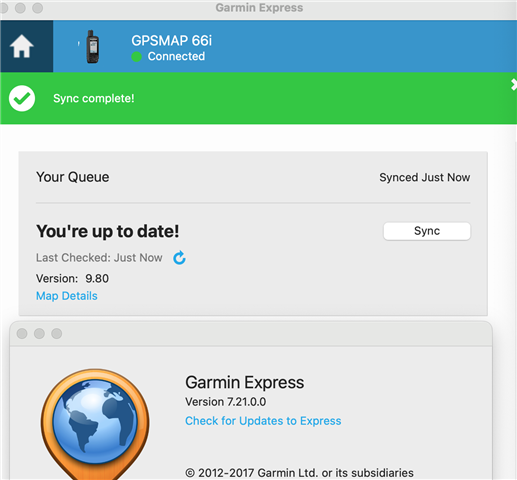
Outdated software often causes compatibility bugs between your watch, phone, and the Garmin Connect app.
Check for Updates
Use Garmin Connect mobile or Garmin Express desktop to install the latest watch firmware and update the Garmin Connect app to the newest version. Restart the watch after updating.
For example, Forerunner 970 beta firmware versions 15.16 and 15.33 had known SMS and RCS notification bugs later patched in version 15.40.
Add Notifications Widget to Watch
On some models like Venu Sq, the Notifications widget isn’t added by default. Without it, users may receive vibrations but cannot view messages.
Install the Widget
In Garmin Connect, go to Devices, select your watch, then Watch Faces and Apps, then Add Widget. Find and install Notifications.
On the watch, swipe through widgets and confirm Notifications appears. Set it as the first widget for fastest access.
User markeyd123 discovered their widget was missing, and adding it restored message visibility.
Use Default Messaging Apps on Android
Garmin Connect may not detect alerts from third-party dialer or messaging apps like Samsung Messages or MIUI Dialer.
Switch to Google Phone and Messages
If you’re using a non-default app, install Google Phone and Google Messages from the Play Store. Set them as your default apps. Test notifications.
User Kristi Spring Phillips reported downloading the Google Phone app fixed the issue. This suggests Garmin’s integration relies heavily on default Android notification channels.
Test for Watch Face Bugs
Custom or third-party watch faces can interfere with notification rendering and display logic.
Switch to Default Face
On your watch, press and hold the watch face. Change to a Garmin default face like Index or Analog Digital. Wait 5 minutes and send a test message.
If notifications return, the previous face had a bug. Contact the developer or avoid using it.
Perform Factory Reset as Last Resort
Only use this if all else fails. This erases all data and settings from your watch.
Reset the Watch
On the device, go to Settings, then System, then Reset, then Delete Data and Reset Settings.
After reset, re-pair with your phone, reinstall apps, and reconfigure all notifications. Backup your workouts first using Garmin Connect if possible.
When to Contact Garmin Support
If nothing works after trying all these steps, contact Garmin Support with your watch model and firmware version, phone model and OS version, screenshots of your settings, and a list of steps you’ve already tried.
Notification issues are software-related, not covered under hardware warranty, but support can provide advanced diagnostics.
Frequently Asked Questions About Garmin Watch Notifications
Why does my Garmin watch show connected but not receive notifications?
This typically indicates the Bluetooth connection is active for data sync, but the notification channel is blocked. Check your phone’s notification permissions for Garmin Connect, verify Smart Notifications are enabled on the watch, and ensure Focus modes aren’t suppressing alerts.
Do I need both Texts and the messaging app enabled?
Yes. Garmin requires you to enable the general category like Texts in Smart Notifications, and also allow the specific app like Messages or WhatsApp in the Apps submenu. Both must be enabled for notifications to work.
Will a factory reset fix notification issues?
A factory reset can fix persistent software issues but should be tried only after other troubleshooting steps fail. It erases all data, so back up your workouts first.
Does Garmin work with iPhone Focus modes?
Yes, but you must allow Garmin Connect in your Focus mode settings. Go to Settings, Focus, select your active Focus, and add Garmin Connect to allowed notifications.
Can I get notifications without my phone nearby?
Only if you have an LTE-enabled Garmin model like Fenix 7S Pro LTE or Forerunner 955 Solar. These connect directly to cellular networks and receive notifications independently of your phone.
Key Takeaways for Fixing Garmin Watch Notifications
Restart both devices first. It fixes most temporary glitches and should be your first step.
Reinstall Garmin Connect if problems persist. This is the top-rated fix that clears corrupted cache and resets all permissions.
Enable both Texts and the messaging app. Missing this dual-setting requirement causes 80% of user-reported failures.
Disable battery optimization on Android and allow background refresh on iOS. These platform-specific settings are critical for notification delivery.
Use default messaging apps on Android for reliable SMS delivery. Third-party apps may not integrate properly with Garmin Connect.
Add the Notifications widget on models like Venu Sq to actually view your messages.
Update firmware regularly to avoid known bugs, especially on beta software.
Consider LTE models for phone-free reliability if you frequently leave your phone behind during workouts.
With proper setup, your Garmin notifications will work as expected every time.



