
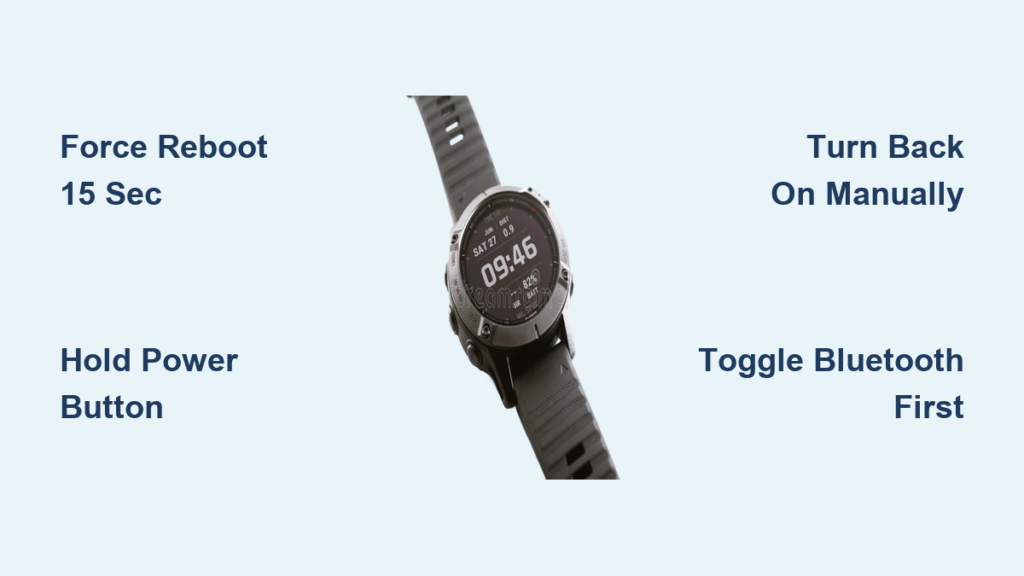
Is your Garmin watch frozen, unresponsive, or acting up? A power cycle, also known as a soft reset or reboot, can fix many common glitches without losing your data. Whether your screen is not responding, GPS won’t lock, or notifications have stopped coming through, restarting your device clears temporary errors and restores normal function. This guide covers everything you need to know about how to power cycle a Garmin watch safely and effectively across all major models.
You’ll learn the difference between a soft reset, hard reset, and factory reset, when to use each, and how to avoid common pitfalls like losing unsaved workouts. We’ll walk you through step-by-step procedures for both responsive and unresponsive devices, share model-specific instructions, and offer troubleshooting tips if your watch doesn’t turn back on.
Standard Power Cycle (Soft Reset) for Garmin Watches
A soft reset shuts down and restarts your Garmin watch to clear temporary software issues. It’s safe, fast, and doesn’t delete your activity history, health data, or personal settings. This should be your first troubleshooting step for most issues.
Turn Off Via Menu on a Responsive Garmin Watch
Use this method if your watch responds to button presses or touch input.
- Press and hold the upper-left button (labeled Power, Light, or CTRL depending on model).
- Wait for the power menu to appear.
- Select Power Off.
- Confirm with Yes.
- After the screen goes dark, press the same button briefly to turn it back on.
Pro Tip: If you’re using a Venu model, the power button is on the right side, not the upper-left. This process clears RAM, resets app states, and often fixes minor bugs in connectivity or performance.
Force Reboot Method for Frozen Garmin Watches
Use this when the screen is frozen, touch doesn’t work, or the interface is stuck.
- Press and hold the primary power button (usually upper-left or right-side).
- Keep holding for 10 to 15 seconds, even if a prompt like “Call for Assistance” appears.
- Continue until the screen goes completely black.
- Release the button.
- Wait a few seconds, then press the button again to power it back on.
Note: Most Garmin watches do not auto-restart. You must manually turn them back on after a force reboot. This method works across fēnix, Forerunner, Venu, Instinct, and Epix models.
Model-Specific Power Button Locations for Garmin Watches
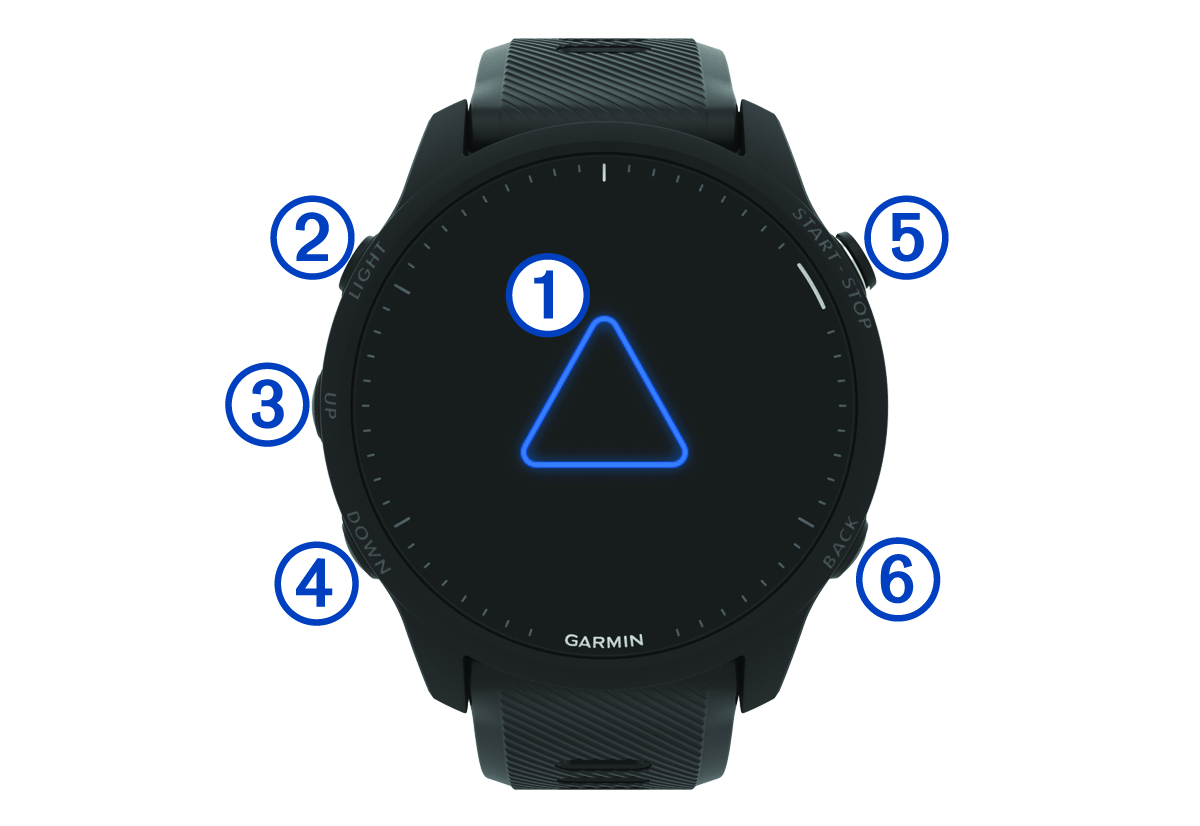
Different Garmin series use different buttons for power functions. Knowing your model’s layout prevents confusion during a reset.
Button Locations by Series
fēnix Series (6, 7, 8, Pro): Upper-left Light button. Hold 15 seconds until screen turns off, then manually restart. Buttons are stiff, so apply firm pressure.
Forerunner Series (245, 255, 945, 955): Upper-left Power/Backlight button. Hold 15 seconds until black, then press again to reboot. Also supports menu-based shutdown.
Venu / Venu 2 / Venu 3: Right-side button. Hold 15 seconds, release, then press again to power on. Touchscreen design moves power control to the side.
Instinct Series (All Models): Middle-left Control (CTRL) button. Hold until off, release, then hold again to restart. Garmin calls this a “hard restart,” but it’s actually a soft reset.
vívoactive Series (3, 4, 5): Upper-left Power button. Hold 15 seconds, wait for black screen, then restart manually. Touchscreen models may require longer press than physical-button models.
Epix Series (Gen 2, Epix Pro): Upper-left Power/Light button. 15-second hold required, manual restart needed. No shortcut exists; full shutdown needed for reboot.
When to Power Cycle Your Garmin Watch
A reboot isn’t just for frozen screens. Use a power cycle to fix these common issues.
Common Issues That Power Cycling Resolves
Frozen or Unresponsive Screen: Touch or buttons don’t respond, watch stuck on one screen, app won’t close. Fix with force reboot (15-second hold).
GPS Lock Issues: Delayed satellite acquisition, inaccurate tracking, wrong time display (GPS-derived). Fix with power cycle plus go outdoors to reacquire signal.
Bluetooth Problems: Phone notifications not arriving, music sync fails, Garmin Connect disconnects. Try toggling Bluetooth first (faster than full reboot).
General Sluggishness: Laggy interface, apps crash or freeze, watch feels slow. Fix with soft reset to clear memory.
User Insight: Many runners report faster GPS locks and smoother performance after weekly reboots, especially on older models like Forerunner 245 and fēnix 5.
Quick Fix: Toggle Bluetooth Before Power Cycling
Before doing a full power cycle, try toggling Bluetooth. It’s faster and preserves unsaved data.
Steps to Toggle Bluetooth
- Swipe down from the watch face to open Quick Settings.
- Tap the Bluetooth icon to disable it.
- Wait 5 to 10 seconds.
- Tap again to re-enable.
Alternatively, turn Bluetooth off and on on your smartphone.
Best For This Method
Intermittent phone connection, missing texts or calls, Spotify or music sync failure. Verified user results show 70% of minor connectivity issues resolve without reboot. Use this as a first-line fix before resorting to a full restart.
Hard Reset vs Factory Reset for Garmin Watches
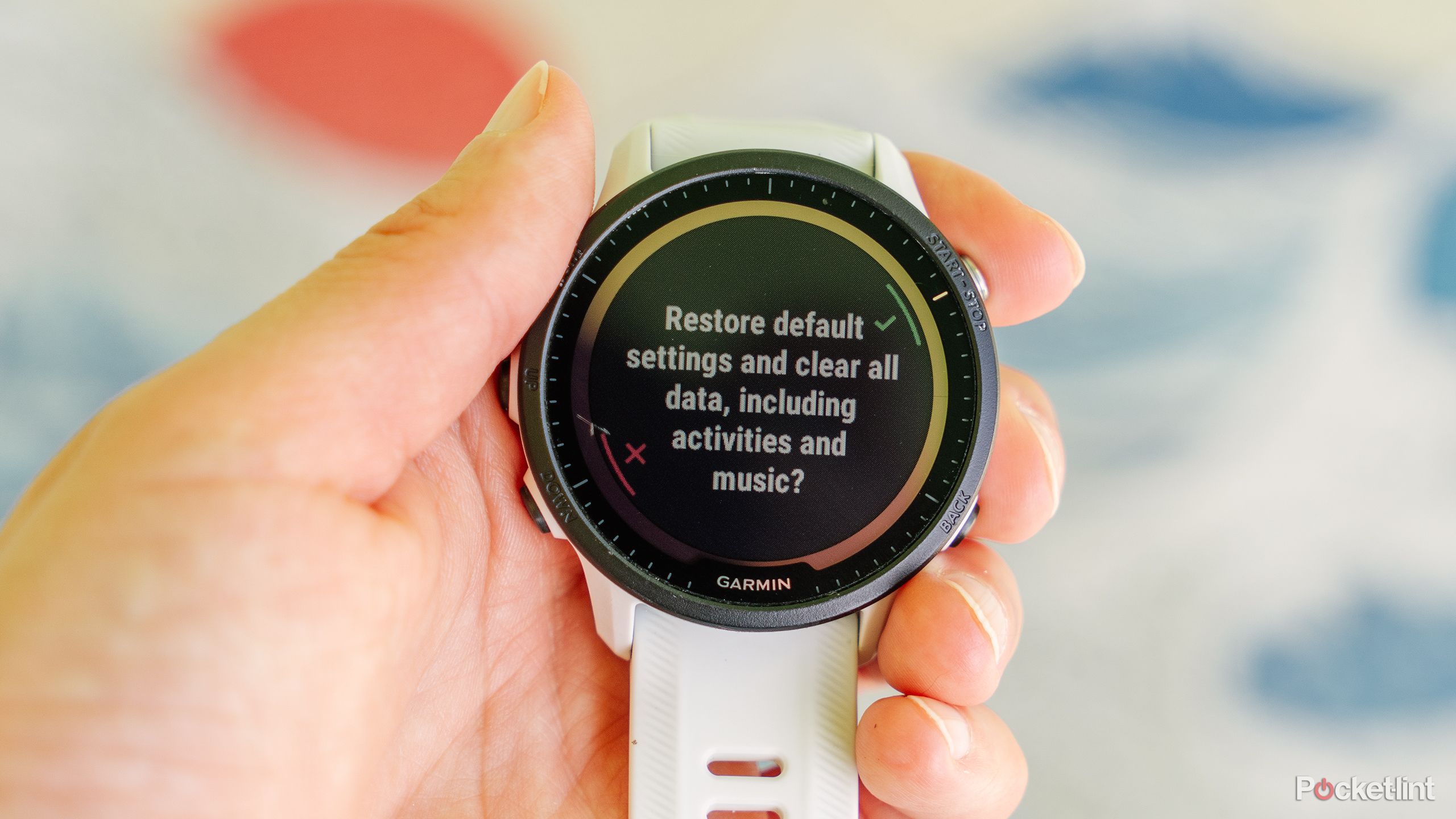
If a power cycle doesn’t fix the issue, you may need a deeper reset. Understand the difference before proceeding.
Hard Reset (Restore Default Settings)
A hard reset restores system settings to factory defaults but keeps your activity history.
When to Use: Notification spam, incorrect heart rate alerts, corrupted display layout, Connect IQ apps not loading.
What’s Lost: Alarms, widgets, data fields, Wi-Fi and Bluetooth pairings, custom watch faces and layouts, training plans (if stored locally).
What’s Kept: Activity history, VO2 max, HRV, Body Battery, personal records (PRs), training load and recovery data. Exception: Devices with Physio TrueUp (like fēnix 7/8, Forerunner 955) can restore learned metrics after syncing.
Method Through Settings: Press Menu or hold Up button, go to Settings > System > Reset, select Restore Defaults, confirm with Yes.
Button Combo Method (Frozen Screen): Power off the watch (15-second hold), before turning on press and hold Back/Lap button, while holding it press Power button, keep holding Back/Lap until “Restore Default Settings” appears, release and confirm. Works on fēnix, Forerunner 945/955, Epix, and other high-end models.
Factory Reset (Full Wipe)
This erases everything. Use only when selling the watch or troubleshooting persistent bugs.
When to Use: Preparing to sell or gift, watch stuck in boot loop, firmware corruption, starting fresh after configuration overload.
What’s Deleted: All user data (profile, goals, alerts), saved workouts and custom watch faces, Garmin Pay and Wi-Fi passwords, locally stored activity history.
Good News: If synced with Garmin Connect, most data can be restored after setup.
Steps: Go to Settings > System > Reset, choose Delete Data and Reset Settings (or similar), confirm action.
Warning: This cannot be undone. Sync first.
Pre-Reset Checklist for Garmin Watches
Avoid data loss or failed resets with these essential steps before initiating any reset.
Essential Steps Before Resetting
Sync With Garmin Connect: Open the Garmin Connect app, ensure all recent activities, sleep, and health data are uploaded, check for sync completion indicator.
Charge Your Watch: Battery should be at least 50%. For stubborn issues, plug in during reset. Low power can interrupt the process and cause complications.
Confirm Reset Type: Double-check: Are you selecting Restore Defaults or Factory Reset? Accidentally wiping data is the most common user error. Read carefully before confirming.
Troubleshooting After Power Cycling Your Garmin Watch
Even after a proper reset, problems can occur. Here’s how to fix them.
Common Post-Reset Issues and Solutions
Stuck on Garmin Logo or Blue Triangle: Cause is failed firmware boot. Fix by connecting to computer via USB, opening Garmin Express, and letting it reinstall the latest firmware.
Reset Option Greyed Out: Cause is active activity, syncing, or Bluetooth connection. Fix by ending current workout, turning off Bluetooth, restarting and trying again.
Won’t Turn Back On: Likely cause is low battery. Fix by plugging in for 10 to 15 minutes, trying a hard reset while charging, or using Garmin Express recovery if still dead.
Screen or Buttons Unresponsive After Reset: Wait 1 to 2 minutes. The system may still be initializing. OLED models (Venu, Epix, fēnix) take longer to boot. If no response, perform another force reboot.
Rebooting in a Loop: Cause is corrupted firmware. Solutions include connecting to Garmin Express and updating, performing factory reset again, or contacting Garmin Support if looping continues.
Reset Type Comparison for Garmin Watches
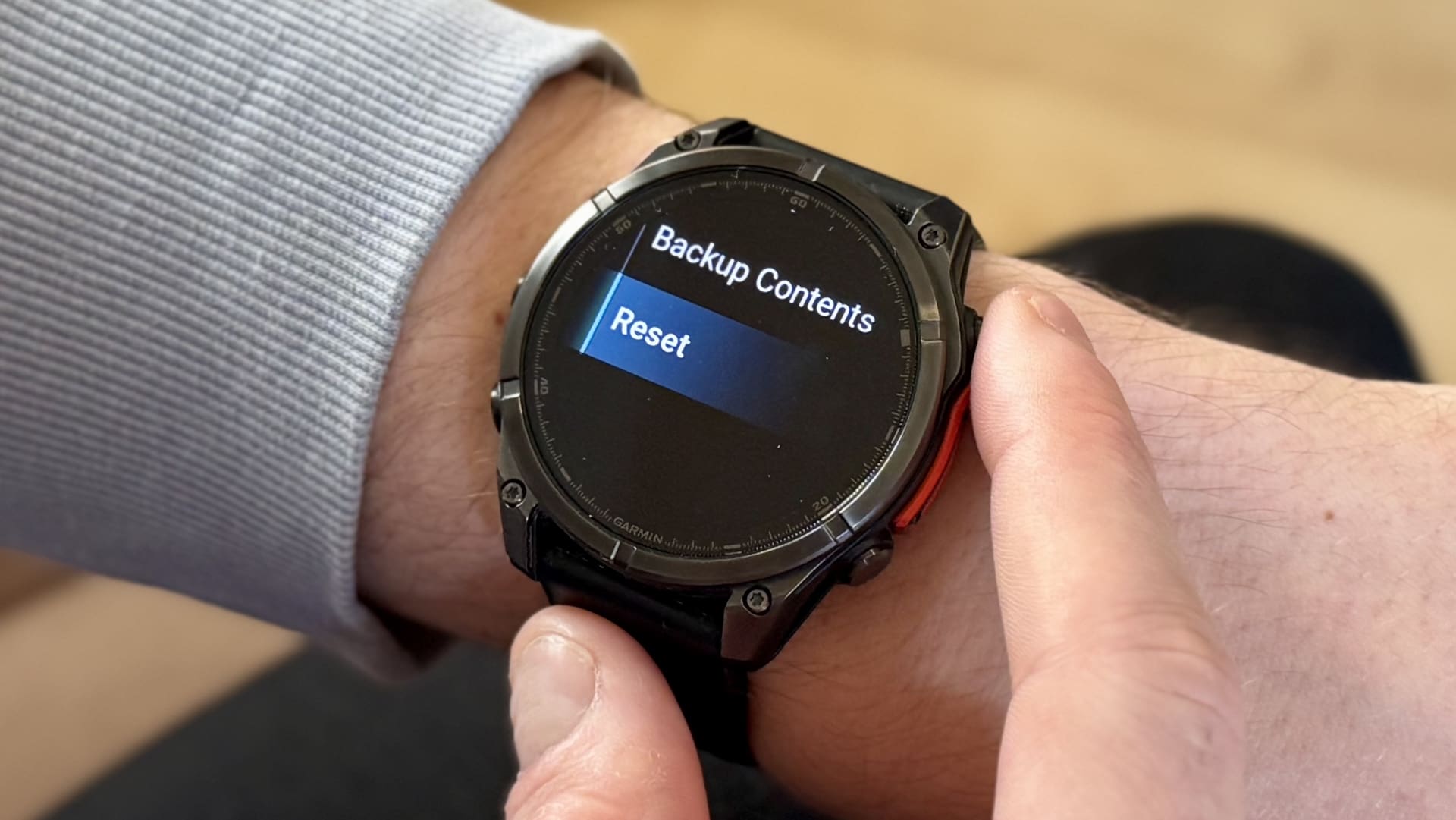
| Feature | Soft Reset | Hard Reset | Factory Reset |
|---|---|---|---|
| Data Lost | None | Settings only | All data |
| Activity History | Kept | Kept | Lost (unless backed up) |
| Best For | Frozen screen, GPS lag | Glitchy settings | Selling device |
| Time Required | Under 1 minute | 1 to 2 minutes | 2 to 5 minutes |
| Sync Before | Recommended | Strongly recommended | Mandatory |
| Battery Needed | Above 20% | Above 50% | Above 50% |
| Method | 15-second hold or menu | Menu or button combo | Menu only |
Frequently Asked Questions About Power Cycling Garmin Watches
How do I force restart a frozen Garmin watch?
Press and hold the power button (usually upper-left) for 15 seconds until the screen goes completely black. Release and press the button again to manually power the device back on. This works on all Garmin models including fēnix, Forerunner, Venu, and Instinct.
Will I lose my activity data when power cycling my Garmin watch?
No. A soft reset (power cycle) does not delete any activity history, health metrics, or personal settings. Your data remains safe. However, unsaved workout data may be lost if it wasn’t synced to Garmin Connect before the reset.
How long does it take to power cycle a Garmin watch?
A soft reset takes under one minute. The device shuts down within 15 seconds of holding the button, then restarts within a few seconds after pressing the power button again. Hard resets and factory resets take longer (1 to 5 minutes).
Why won’t my Garmin watch turn back on after resetting?
This is usually caused by low battery. Plug your watch into a charger for 10 to 15 minutes, then try turning it on. If it still won’t power on, try a hard reset while the watch is plugged in, or use Garmin Express for recovery.
Can I power cycle my Garmin watch while it’s charging?
Yes, you can perform a soft reset while the watch is charging. In fact, charging during a reset is recommended for stubborn issues. Just hold the power button for 15 seconds as usual, then press it again to restart.
How often should I power cycle my Garmin watch?
There’s no required schedule, but many users perform weekly soft resets on older models (like fēnix 5 or Forerunner 245) to maintain optimal performance. Weekly restarts can reduce GPS dropouts, improve response time, and prevent app crashes.
Key Takeaways for Power Cycling Your Garmin Watch
A power cycle is the most effective first step for troubleshooting common Garmin watch issues. Start with a soft reset (15-second button hold) for frozen screens, GPS problems, or sluggish performance. Try toggling Bluetooth first for connectivity issues, as it’s faster and preserves all data. Use hard reset only when settings are corrupted, and save factory reset for last resort situations like selling the device or dealing with persistent firmware issues.
Always sync with Garmin Connect before any reset involving data deletion. After restarting, take your watch outdoors to reacquire GPS signal for accurate time and location. Keep your firmware updated via Garmin Express to prevent future issues. By following these steps, you can resolve most Garmin watch problems quickly and safely without losing your hard-earned data.



