
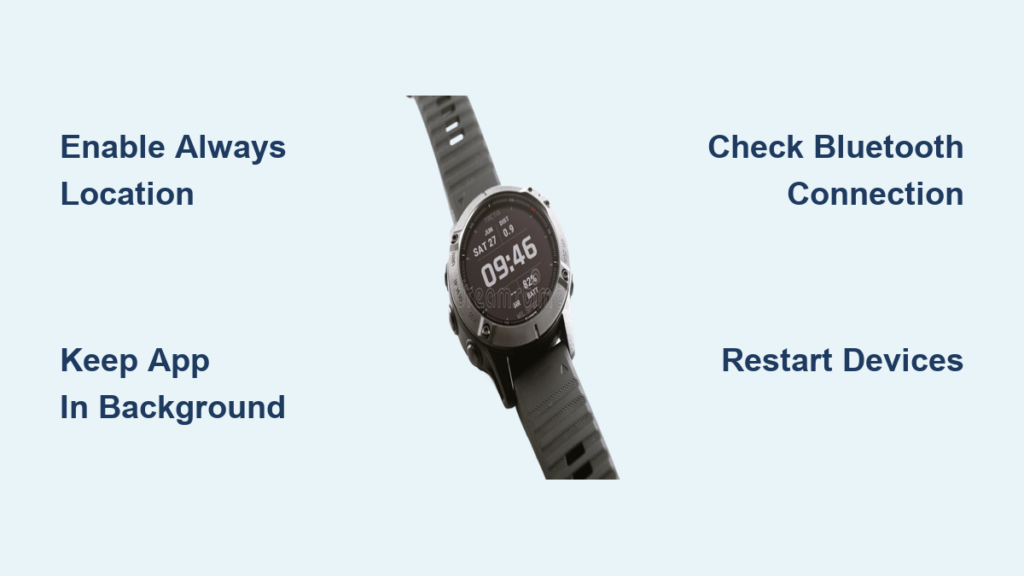
If your Garmin watch isn’t showing weather, you’re not alone. Thousands of users across Forerunner, Venu, Fenix, and Instinct models report blank weather widgets, double dashes, or stuck temperatures. The frustrating part? Other features like heart rate and activity tracking work perfectly fine. The good news is this is almost never a hardware problem. Your watch is simply not receiving weather data due to location permissions, background app restrictions, or Bluetooth sync issues.
In this guide, you’ll learn the exact troubleshooting steps to restore live weather data on your Garmin watch. These fixes work across iOS and Android, and most take under five minutes to complete. Let’s get your weather widget working again.
Set Location Permissions to Always
Garmin Connect needs constant location access to fetch weather data. If it’s set to “While Using” or “Only Once,” updates will fail silently.
iOS: Enable Always Location Access
Navigate to Settings > Privacy & Security > Location Services on your iPhone. Find Garmin Connect in the list and tap it. Select Always from the permission options. Enable Precise Location if the option appears. Open Garmin Connect and trigger a manual sync. This single change resolves the majority of weather display failures on iOS devices.
Android: Allow All the Time
Open your phone’s Settings and go to Apps > Garmin Connect > Permissions. Tap Location and select Allow All the Time. Return to Garmin Connect and verify that location access is enabled in More > Settings > Phone Permissions. Android users often forget this step after system updates reset app permissions.
Keep Garmin Connect Running in Background
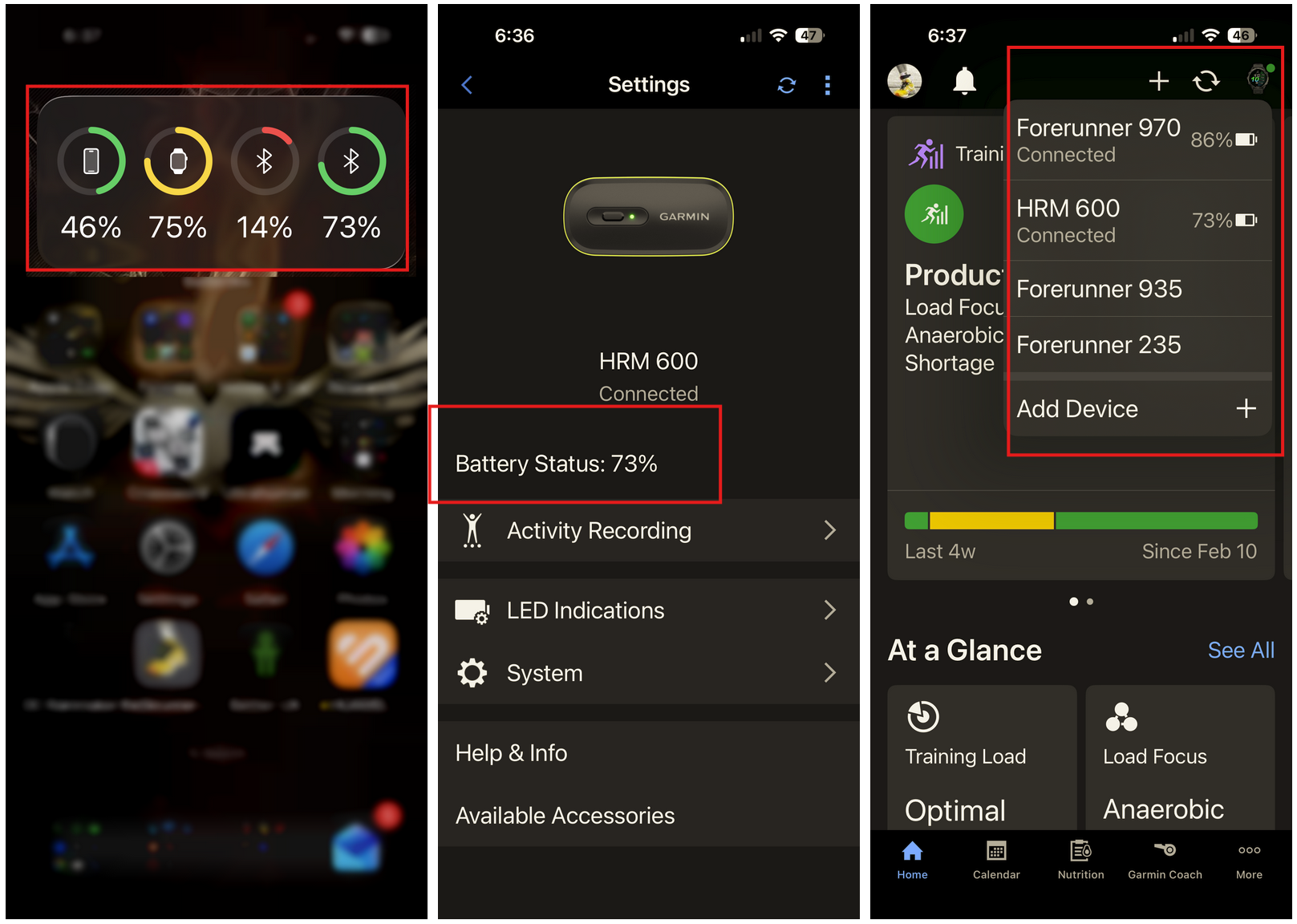
The Garmin Connect app must run quietly in the background to receive weather updates every 30 to 60 minutes. Force-closing the app breaks the data pipeline entirely.
Never Force-Close the App
Garmin officially states that force-closing interrupts weather data flow. The app consumes minimal battery when running in the background. Treat it like a navigation app that needs persistent access to work properly.
Disable Battery Optimization
On Android, go to Settings > Apps > Garmin Connect > Battery and set to Unrestricted. This prevents the operating system from killing the app during low-power states. On iOS, avoid using Low Power Mode, as it limits background app refresh. Adding Garmin Connect to your battery optimization whitelist ensures consistent weather updates.
Check Bluetooth Connection Status
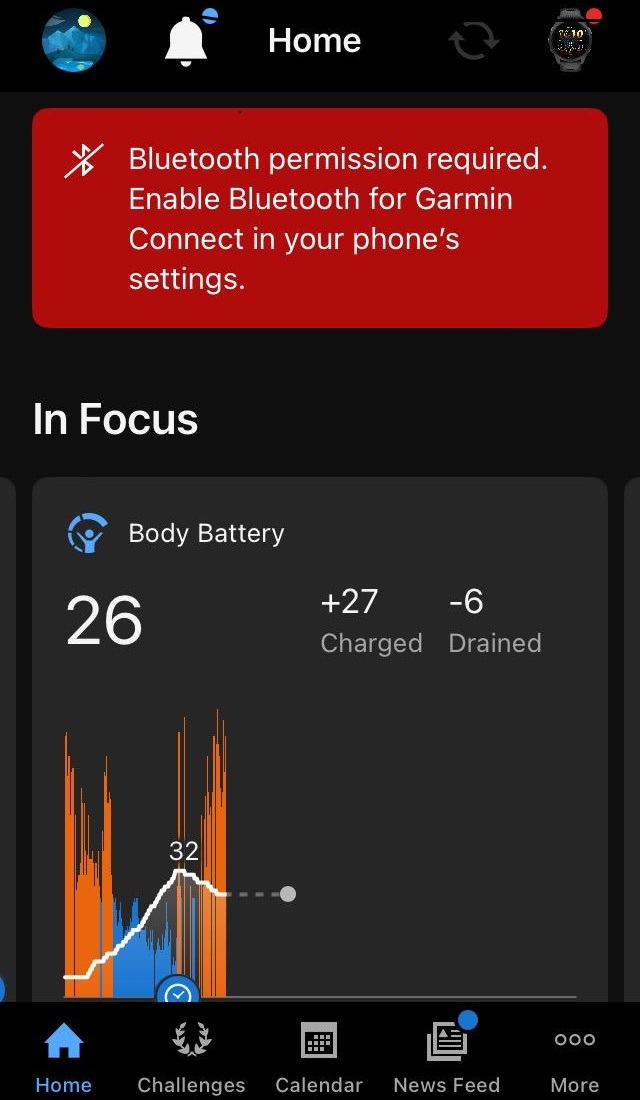
No Bluetooth connection means no data transfer to your watch. The Garmin Connect app displays connection status clearly.
Verify Green Dot in App
Open Garmin Connect and look at the device icon in the top-right corner. A green dot means your watch is connected and ready to receive data. No dot or a gray icon indicates a disconnection that must be resolved first.
Reconnect If Needed
Bring your watch within 10 feet of your phone. Pull down on the Garmin Connect screen to trigger a manual sync. If the connection remains broken, unpair and re-pair your device through the Bluetooth settings on both devices. Bluetooth interference from other devices or walls can cause persistent disconnection issues.
Restart Both Devices
A full reboot clears stuck processes and refreshes all system connections. This simple step resolves approximately 70% of weather display issues.
Step-by-Step Reset
Power off your Garmin watch completely. Power off your smartphone. Wait 30 seconds, then turn your phone back on first and wait for it to fully boot. Power on your watch next. Open Garmin Connect and wait for the green dot to appear. Sync your devices and wait 5 to 10 minutes for weather data to populate on your watch.
Force a GPS Location Update
Stale GPS coordinates prevent accurate weather requests. Forcing a fresh location update often unsticks frozen weather data.
Use Update Current Location
On your watch, open the Weather Glance widget. Press the GPS button, usually located bottom-left. Select Update Current Location and wait 1 to 2 minutes for satellite lock. Sync through the app afterward.
Start a GPS Activity
Step outside with a clear view of the sky. Begin a walk or run activity and let GPS stabilize for 1 to 2 minutes. End the activity and sync your watch. This method forces accurate geolocation and frequently resolves temperature readings stuck at outdated values.
Change to Fixed Weather Location
When current location keeps failing, switch to a fixed location with reliable weather data coverage.
Set a Reliable Location
Open Garmin Connect and go to Settings > User Settings > Weather Location. Change from Use Current Location to Use Fixed Location. Select a major city or international airport such as JFK, Heathrow, or your nearest large airport. Sync your watch and wait for weather to appear.
Airports have high-quality real-time weather stations, making them ideal for diagnostic purposes. This workaround proves whether the issue stems from your local weather provider coverage rather than a sync problem.
Switch Internet Connection
Some Wi-Fi networks block Garmin’s weather servers through firewall or DNS restrictions. Testing with mobile data confirms whether your network is the culprit.
Test Mobile Data or New Wi-Fi
Turn off Wi-Fi and use cellular data for the sync test. Alternatively, connect to a different network such as a mobile hotspot. Sync your watch and check if weather returns. One user reported weather only appeared after switching from home Wi-Fi to LTE, confirming network-level blocking was the issue.
Reboot Your Smartphone
Stuck weather data in your phone’s other apps often mirrors the same problem in Garmin Connect. A phone reboot clears cached location and weather data, forcing fresh API calls.
Why It Works
Rebooting your smartphone clears outdated cached information that may prevent proper weather synchronization. Several users fixed persistent Garmin weather issues by simply restarting their phones after noticing other weather apps showed stale data.
Diagnose Post-Update Weather Failures
Software updates often reset app permissions, causing weather to disappear immediately after firmware or app changes.
After Any Update
Recheck your location permissions and confirm they’re still set to Always. Restart both your watch and phone. Manually sync and wait 10 minutes for data to appear. This pattern occurs frequently because iOS and Android both reset permissions to default after major updates.
Rule Out UI Rendering Bugs
Weather data may be syncing correctly but failing to display in the glance widget. Checking deeper into the Weather app confirms whether this is a display bug.
Check Beyond the Glance Widget
Open the full Weather app on your watch rather than just the glance widget. Navigate to hourly or daily forecast views. If data appears there, the issue is a rendering problem, not a sync failure. Restarting your watch or updating your watch face typically resolves display bugs.
Avoid Third-Party Watch Face Conflicts
Some custom watch faces can interfere with native weather functionality, though this is rare.
Test with Default Watch Face
Switch to a factory default watch face. Wait one complete sync cycle. Check if weather returns. Third-party faces using different weather APIs sometimes confuse users who expect native Garmin data, but they rarely break the system entirely.
Confirm Server-Side Data Availability
Garmin uses Tomorrow.io and other third-party providers. Rural or remote areas may lack reliable weather station coverage.
Regional Gaps Exist
Data interpolation in underserved regions can cause delays or blank readings. Using Fixed Location with a major city tests whether global data is working at all. One user confirmed global functionality by setting their location to Tokyo while physically in Europe.
Full Reset and Sync Procedure
When individual fixes fail, a complete system refresh often succeeds.
Complete Recovery Steps
Power off both your smartphone and Garmin watch. Wait 30 seconds. Power on your phone first and let it fully boot and connect to Wi-Fi or cellular. Power on your watch. Open Garmin Connect and wait for the green dot to appear. Do not touch or close the app. Wait 10 or more minutes for weather to populate naturally.
Prevent Future Weather Failures
Keep weather working reliably with these maintenance practices.
Monthly Maintenance Checklist
Verify location permission is still set to Always. Ensure battery saver isn’t blocking background apps. Update watch and app firmware regularly. Manually sync after extended periods without connectivity. Test Fixed Location once a year if you live in a rural area. Quarterly permission checks prevent surprises after system updates.
When to Contact Garmin Support
If weather still doesn’t appear after trying all these steps, gather information for support escalation.
Escalate With This Info
Collect your device model and firmware version. Note your phone OS version. Take screenshots of all location permission settings. List every troubleshooting step you’ve already attempted. Document your sync status and any error patterns. Submit this information through Garmin Connect by going to More > Help > Contact Us or post in the community forums to report firmware-specific bugs.
Hardware issues are extremely rare with this problem. Focus on software and configuration first.
Frequently Asked Questions About Garmin Watch Weather Issues
Why does my Garmin watch show double dashes instead of temperature?
Double dashes indicate no weather data is being received. This typically happens when location permissions are set incorrectly, the app is force-closed, or Bluetooth connection is lost. Start by setting Garmin Connect location access to Always.
How long does it take for weather to update on a Garmin watch?
Weather updates approximately every 30 to 60 minutes depending on device activity and sync frequency. After making changes, wait 5 to 10 minutes for new data to appear. Manually triggering a sync speeds up the process.
Does Garmin use weather data from my phone or the watch itself?
Garmin Connect on your phone fetches weather data and pushes it to your watch via Bluetooth. Your watch doesn’t directly access weather servers. This is why phone permissions and connectivity are critical for weather display.
Can a damaged GPS antenna cause weather issues?
GPS issues cause location inaccuracies, which can result in wrong or missing weather data. However, complete GPS failure would affect activity tracking too. If other GPS functions work normally, the antenna isn’t the problem.
Will resetting my watch delete my activities and data?
A soft restart won’t delete anything. A full factory reset would require re-pairing and may affect saved data, but it’s rarely needed for weather issues. Try less invasive steps first before considering a reset.
Why does weather work on my phone but not my Garmin watch?
This indicates the data pipeline from phone to watch is broken. Check Bluetooth connection, ensure Garmin Connect is running in the background, and verify your watch is paired correctly. The phone likely has correct permissions while the sync to the watch is blocked.
Key Takeaways for Fixing Garmin Weather Display

Most weather failures stem from three root causes: incorrect location permissions, background app restrictions, or Bluetooth disconnection. Setting Garmin Connect to Always location access resolves the majority of cases. Keeping the app running in the background and maintaining a stable Bluetooth connection complete the essential setup. When individual fixes fail, a full restart of both devices followed by 10 minutes of patience typically restores weather data. For persistent issues, using Fixed Location with a major airport serves as an excellent diagnostic workaround. With correct configuration, your Garmin weather widget becomes as reliable as any smartwatch, giving you accurate conditions at a glance without asking your partner for the temperature.



