
You wake up early, reach for your Garmin watch, and see a darkened screen with minimal interaction. Sleep mode is still active. You tap, swipe, and press buttons, but nothing responds normally. This is a common frustration, especially when you’re trying to check the time, respond to a message, or start a morning workout. The good news: your watch isn’t broken. It is just in sleep mode, and there are several reliable ways to exit it quickly.
Whether your Garmin is stuck on the sleep screen, won’t respond to taps, or keeps reactivating, this guide delivers verified solutions, model-specific fixes, and expert workarounds to get your device back to normal. You will learn multiple methods to exit sleep mode, how to prevent unwanted activation, and what to do when your watch stays stuck in the darkened state.
Press and Hold the Upper Button
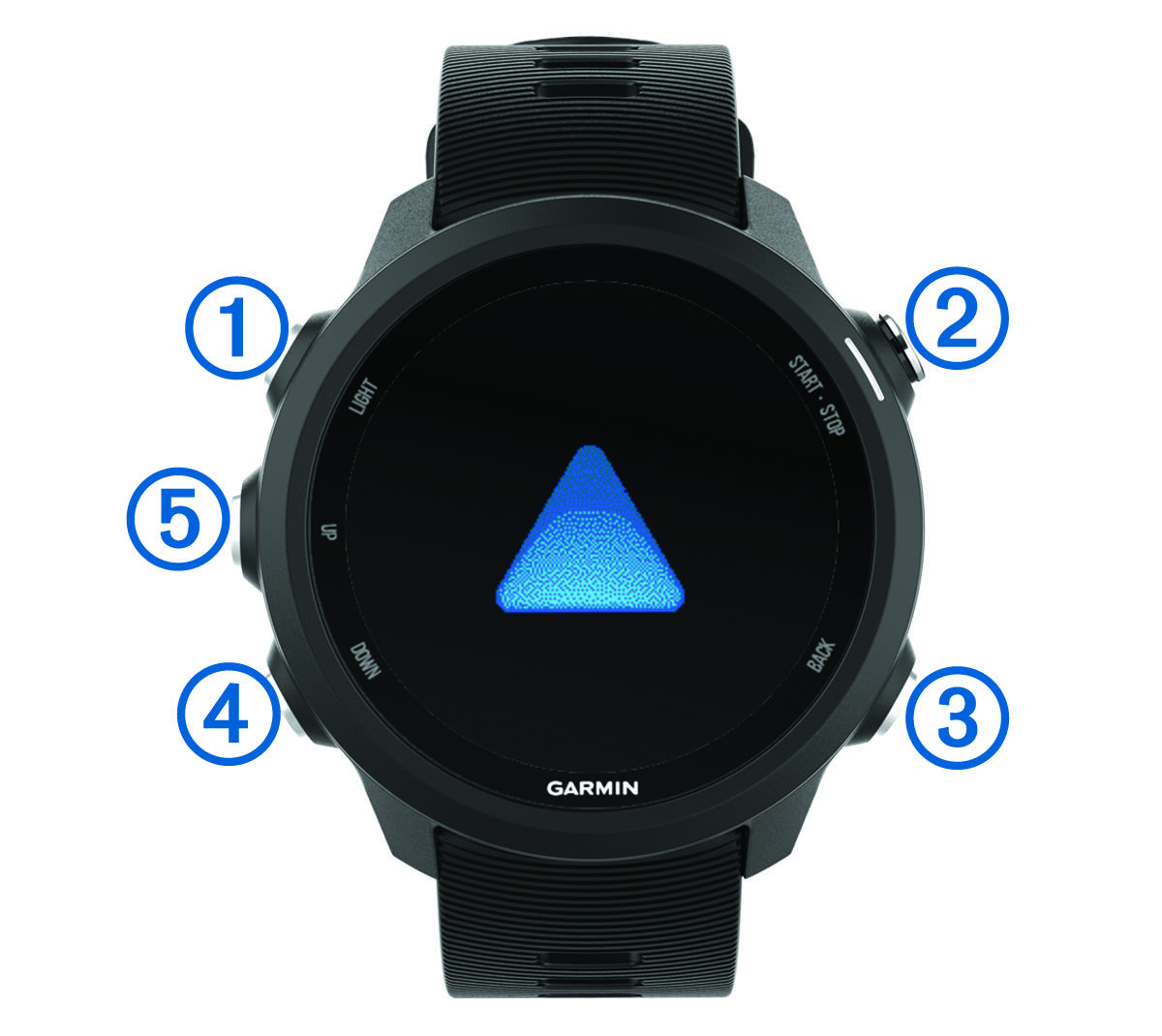
The most universal way to exit sleep mode is by using the upper button. This is typically the power or menu button on the right side of your watch.
How to Exit Sleep Mode
Press and hold the upper button for 2 seconds. A quick menu appears on the screen. Look for the Sleep Mode option and tap it to toggle the mode off. Your regular watch face and notifications return immediately.
This method works on Vivoactive 5, Venu 3, Forerunner 955, Forerunner 970, Vivoactive 6, and most post-2023 models. If sleep mode was scheduled through Garmin Connect, it will automatically disable at your set wake time unless you turn it off early. This method is fast and does not interrupt sleep tracking. Your sleep data remains intact even if you exit early.
Use the Control Wheel Shortcut

If your watch has a top-left button, often labeled Back or Light, you can access a control wheel to toggle sleep mode. This shortcut is ideal for users who manually toggle sleep mode daily.
Access Sleep Mode via Control Wheel
Press the top-left button to open the function wheel. Rotate the bezel or use the arrow keys to highlight the Sleep Mode icon. Tap the icon to disable it.
If you cannot see the Sleep Mode icon, you need to enable it first. Open the Garmin Connect app on your phone. Go to Devices, select your watch, tap Appearance, then Controls. Add Sleep Mode to your control ring. User Socrates confirmed this works by saying they hold the upper left button, rotate to the sleep mode icon, and tap to turn it off.
Press the GPS Button to Exit

On outdoor-focused models like the Fenix 7S, Epix 2, and Instinct 2X Solar, the GPS button doubles as a quick wake-up tool. This is a one-tap solution for users who need speed and reliability.
GPS Button Fix
Press the GPS button once. This often exits the sleep screen and returns you to the default watch face. If nothing happens, try pressing and holding the GPS button for 1 to 2 seconds.
This method is supported on Fenix, Epix, Instinct, and Forerunner series models with a dedicated GPS button. If the GPS button does nothing, check for software glitches or incorrect button mapping in your settings.
Remove Watch to Trigger Wake-Up
A clever hardware-level trick uses the optical heart rate sensor to force the watch out of sleep mode. This method is perfect for early risers who do not want to wait for the scheduled wake time.
Fake Wrist Removal
Take the watch off your wrist for 2 to 3 seconds. The HR sensor detects no skin contact and assumes you are awake. Put it back on your wrist. Your morning sleep summary or normal watch face appears.
User Shae Williams shared that they simply take their watch off for a second and it wakes up. This only works if wrist detection is enabled and the sensor is clean.
Start a Workout to Force Exit
If all else fails, launching a workout acts as an emergency override to exit low-power states. This is the last-resort method when buttons and menus are not responding.
Workout Override Steps
Press the Start/Stop button on your watch. Select any activity such as Indoor Walk, Treadmill, or Other. Immediately stop the workout. The watch stays awake and returns to full functionality.
The drawback is that you will log a 1-second workout, but this is harmless. This works on all Garmin models even when sleep mode is frozen.
Accept Sleep Mode to Restore Screen
Some models prompt you to confirm sleep mode when it activates. If you missed it, accepting it can restore normal screen behavior. This does not stop tracking. It just ends the darkened interface.
Confirm to Wake
When sleep mode activates, press the Select button. Choose Accept or Enter Sleep Mode. The watch may display your sleep summary and return to normal.
User walldodge noted that pushing the select button and accepting existing sleep mode wakes the screen.
Create a Custom Button Shortcut
Advanced users can assign a hotkey to toggle sleep mode instantly. This is ideal for shift workers or frequent travelers who need quick access.
Set Up a Hotkey
Go to Settings on your watch. Look for Buttons if available on your model. Assign a custom action to a button combination such as GPS plus Down Button. Use ConnectIQ apps for deeper customization if needed.
User Content_Cut1698 reported creating a hotkey with GPS and down button to turn sleep mode on and off easily. This is available on Fenix, Forerunner 955, Forerunner 970, Venu 3, and other high-end models.
Set an Alarm to Wake the Screen
An alarm can override sleep mode low-power display and force the screen on. This is best for scheduled wake-ups rather than instant fixes.
Alarm Wake Method
Open the Alarm app on your watch or in Garmin Connect. Set an alarm for a few minutes ahead. When it triggers, the screen lights up and exits sleep mode.
This works even if Always-On Display is turned off. Use this method if you want to ensure your watch wakes at a specific time.
Wait for Automatic Exit
If you do not need immediate access, sleep mode ends automatically at your scheduled wake time. This is the simplest solution if you can wait.
How It Works
Sleep mode starts at your bedtime set in Garmin Connect. It ends at your wake-up time, for example 6:00 AM. The screen returns to normal after that time.
Some users report the watch stays in sleep mode all day. User Accomplished_Sleep22 said they had this screen the whole day once while wearing the watch. This suggests a software bug or sensor misreading. If this happens, try a restart or master reset.
Fix the Stuck Sleep Screen Bug
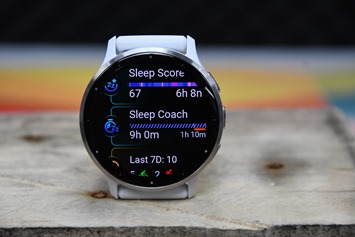
A known issue affects Vivoactive 5, Venu 3, and Venu 6. The sleep screen stays on even after disabling sleep mode. This is frustrating but fixable.
Why It Happens
The watch is set to change the watch face during sleep. After sleep mode ends, it does not revert to the original face. This causes the darkened interface to persist.
Permanent Fix
On your watch, go to Settings, then System, then Display, then During Sleep. Change from Change or Sleep Watch Face to Dont Change. Confirm when prompted by selecting Watch Face.
User RhubarbCapable advised holding the menu, going to system, going to sleep mode, and setting watchface to dont change. This is the only reliable fix for the persistent dark screen. If Always-On Display is off, the screen will go black during sleep and wake normally on tap.
Disable Sleep Schedule for Manual Control
If you hate automatic sleep mode, disable the schedule and use manual activation instead. This gives you full control, ideal for irregular sleepers or shift workers.
Turn Off Auto Sleep Mode
Open the Garmin Connect app on your phone. Tap More, then Health Stats, then Sleep, then Sleep Schedule. Toggle off Sleep Schedule.
The result is no automatic sleep mode activation. You can still manually turn it on via control wheel or hotkey whenever needed.
Troubleshoot Persistent Sleep Mode
Sometimes your watch refuses to exit sleep mode no matter what you try. This requires deeper troubleshooting.
Watch Will Not Exit Sleep Mode
Symptoms include the GPS button doing nothing, the control wheel turning sleep mode off but it immediately turning back on, and the screen staying dark.
User ThurmanMurman907 reported that turning off sleep mode in the control menu does not help because it just turns back on.
Solutions
First, restart the watch by holding the power button until it reboots. Second, perform a master reset as a last resort. This erases all data and restores factory settings. Third, update your firmware. Ensure your watch and Garmin Connect app are up to date.
Most bugs are resolved with a reboot or update. Follow the official Garmin master reset guide if needed.
Customize Sleep Mode Settings
Take control of how sleep mode behaves on your device. Customization improves comfort and reduces accidental wake-ups.
Silence or Allow Notifications
Go to Settings, then Focus Modes, then Sleep, then Notifications. Choose from Silence All, Allow Alarms Only, or Allow Selected Contacts.
Adjust Brightness and Timeout
Set brightness manually before sleep to prevent glare. Adjust sleep timeout to control how long the screen stays on after a tap. Find this in Settings, then Display, then Sleep Timeout.
Model-Specific Tips
Different Garmin models have unique features and behaviors for sleep mode.
Fenix 7S, Epix 2, Instinct 2X Solar
Use the GPS button to exit. Access sleep mode via Menu, System, Sleep Mode. Supports custom button assignments.
Vivoactive 5, Venu 3
These models are prone to the sleep screen bug. Fix this with the Dont Change display setting. Supports manual toggle via upper button hold.
Forerunner 955, 970
These use the Focus Modes system. Access sleep mode via top-left button shortcut. Features accurate sleep tracking with HRV and respiration monitoring.
Since 2024, most models use Focus Modes, unifying sleep, DND, and driving modes.
Final Tips to Avoid Sleep Mode Issues
Set Dont Change under Display, During Sleep to prevent stuck screens. Disable the sleep schedule if you have irregular hours. Use the wrist removal trick for quick wake-ups. Assign a hotkey for one-tap control. Keep firmware updated to fix known bugs. Restart weekly to clear glitches.
Advocate for Garmin to add manual-only sleep mode in future updates by sharing your feedback through their support channels.
Frequently Asked Questions About Getting a Garmin Watch Out of Sleep Mode
How do I force my Garmin watch out of sleep mode quickly?
Press and hold the upper button for 2 seconds. Select Sleep Mode from the menu and toggle it off. This works on most recent Garmin models including Vivoactive 5, Venu 3, and Forerunner series.
Why does my Garmin watch stay in sleep mode all day?
This is typically a software bug or sensor issue. Try restarting your watch. If the problem persists, perform a master reset or update your firmware to the latest version.
Can I disable automatic sleep mode on my Garmin watch?
You cannot fully disable the sleep schedule, but you can set it to a 1-minute window in Garmin Connect. Alternatively, disable the Sleep Schedule toggle in Settings, Focus Modes, Sleep to prevent automatic activation.
What is the fastest way to wake up a Garmin watch in sleep mode?
Press the GPS button once on Fenix, Epix, or Instinct models. On other models, press and hold the upper button or remove the watch from your wrist for 2 to 3 seconds.
Why does my Garmin watch screen stay dark after exiting sleep mode?
This is a known bug on Vivoactive 5 and Venu 3 models. Go to Settings, System, Display, During Sleep and change the setting to Dont Change. This prevents the sleep watch face from persisting.
Does exiting sleep mode early affect sleep tracking?
No, your sleep data remains intact even if you exit sleep mode early. The watch has already recorded your sleep data up to that point.
Key Takeaways for Getting Your Garmin Watch Out of Sleep Mode
Getting your Garmin watch out of sleep mode does not have to be frustrating. Whether you use the GPS button, control wheel, or wrist removal trick, you now have multiple proven methods to regain control. The most universal solution is pressing and holding the upper button, which works across nearly all recent Garmin models.
For persistent issues, disable the sleep schedule, fix the watch face bug by setting Dont Change in your display settings, or perform a restart. The wrist removal trick and workout override serve as reliable backup methods when standard buttons fail.
If you experience the stuck sleep screen bug common on Vivoactive 5 and Venu 3 models, the permanent fix is changing your Display, During Sleep setting to Dont Change. This prevents the sleep watch face from persisting after you exit sleep mode.
With these fixes in your toolkit, you will never be stuck on a dark screen again. Keep your firmware updated, set up a custom hotkey for quick access, and enjoy full control over your Garmin sleep experience.



