
You glance at your wrist during a meeting or mid-run, only to be interrupted by a buzz from your Garmin watch. A text, social media alert, or email you didn’t need right then. If you’re looking to turn off notifications on your Garmin watch, you’re not alone. Many users want to reduce distractions, protect privacy, or simply enjoy uninterrupted focus. The good news? You can fully disable or finely tune these alerts using just your watch or the Garmin Connect app, and it only takes a few taps.
Whether you own a Forerunner, Venu, Fenix, Instinct, or Vivoactive model, this guide walks you through step-by-step methods to silence all or select smartphone notifications. We’ll cover differences between Android and iPhone, show how to block specific apps like WhatsApp or Facebook, explain why some settings do not appear on iOS, and help troubleshoot when alerts still come through after being turned off.
Disable Notifications Directly on Your Garmin Watch
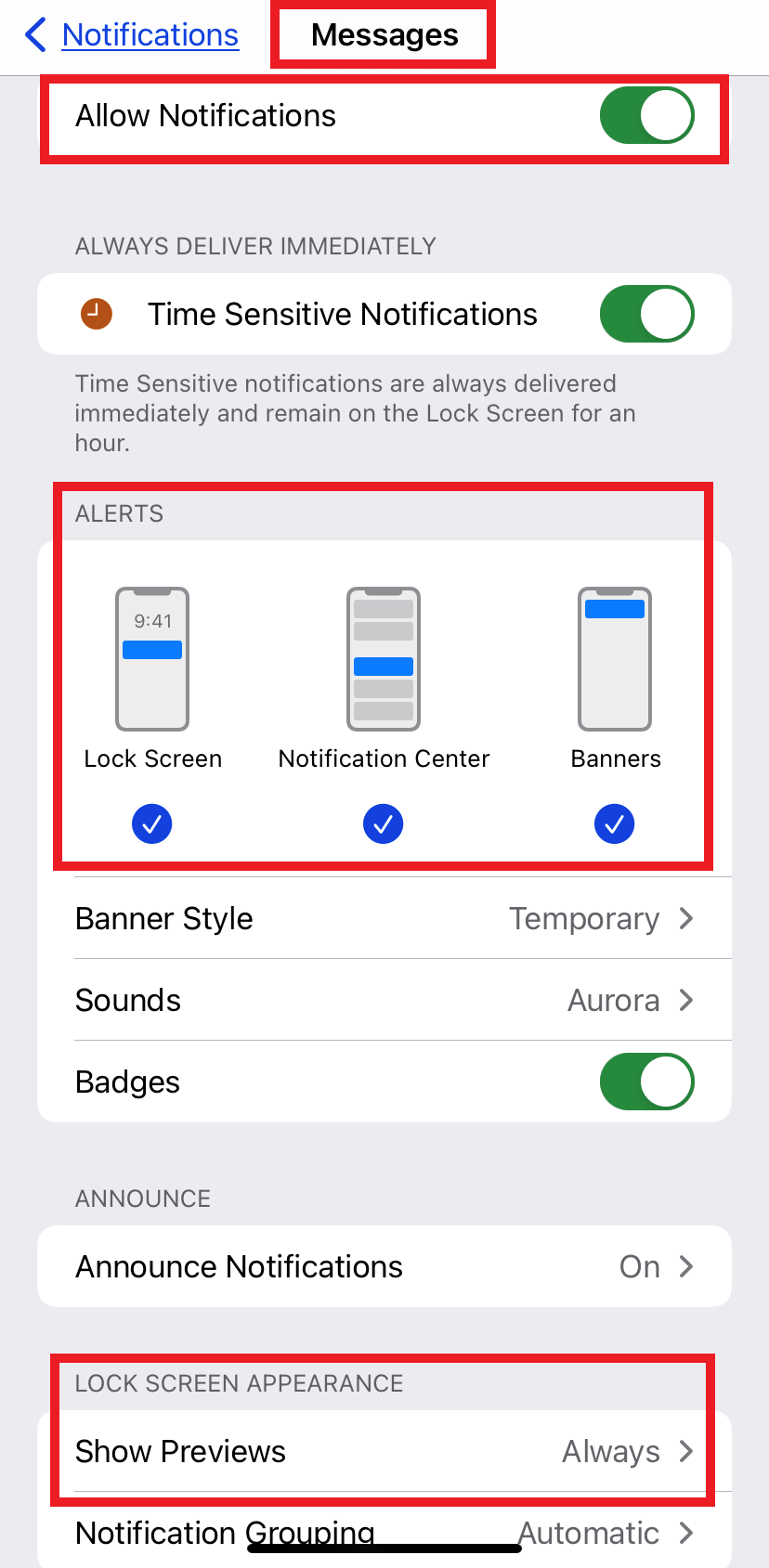
You can quickly turn off smart notifications directly from your watch, no phone required. This method works across all modern Garmin models and is ideal for immediate silencing.
Turn Off All Notifications Using Watch Buttons
- Long-press the MENU or UP button (usually top-left or middle-left on the watch).
- Scroll to Settings, then select Phone or Notifications and Alerts.
- Choose Smart Notifications.
- Select either General Use (default mode) or During Activity (while exercising).
- Toggle Smart Notifications to OFF.
This stops all incoming calls, texts, emails, and app alerts from appearing on your watch. Bluetooth remains active for syncing data with Garmin Connect, so your workout tracking continues normally.
Customize Alert Types Directly on the Watch
Even with notifications enabled, you can reduce disruptions by adjusting how alerts behave. Navigate to the same Smart Notifications menu and look for these options:
- Calls: Keep on for emergencies, turn off for silence
- Text Alerts: Disable to block SMS and iMessage pop-ups
- App Notifications: Turn off to stop social media, email, Slack, and other apps
- Alert Style: Choose vibration only, beep only, silent (visual only), or both beep and vibration
These options can be set separately for General Use and During Activity contexts. This means you can allow calls during workouts but block them during meetings.
Use Garmin Connect App to Turn Off Notifications
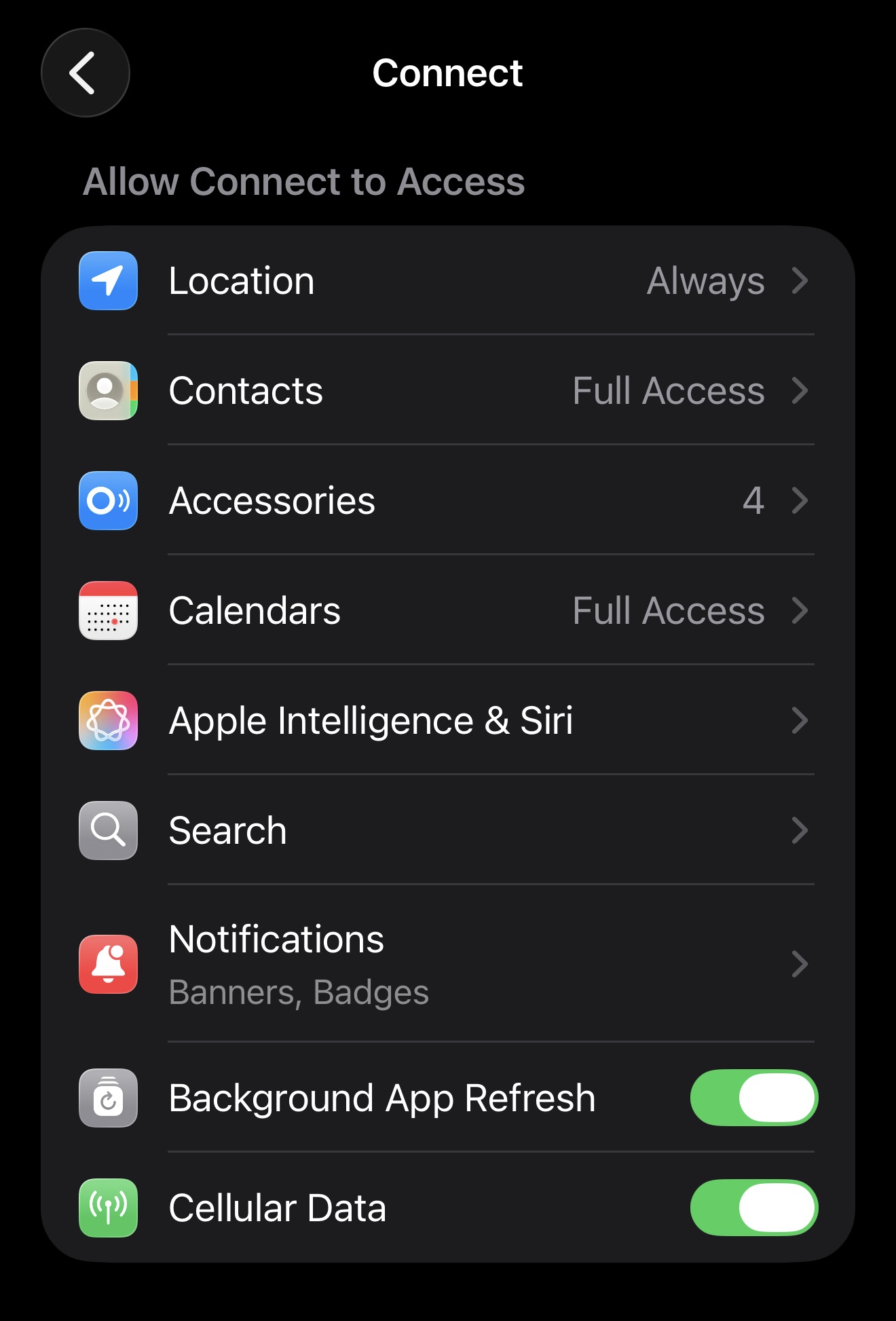
For more precise control, especially on Android devices, use the Garmin Connect app. It offers advanced filtering, including per-app blocking, that is not available directly on the watch.
Step-by-Step: Disable Notifications in the App
- Open Garmin Connect on your smartphone.
- Tap the Devices tab (watch icon).
- Select your paired Garmin watch.
- Go to Sounds and Alerts, then Smart Notifications. Alternatively, navigate to Notifications and Alerts, then Smartphone Notifications.
- Adjust settings for General Use and During Activity separately.
- Toggle OFF the categories you want to disable: Calls, Text Alerts, Email, Social Media Apps, and Other App Alerts.
- To disable everything at once, set Status to Off.
Changes sync automatically within 30 to 60 seconds once your watch reconnects via Bluetooth. You will see a confirmation on your watch when the new settings take effect.
Block Specific Apps on Android Devices

If you use an Android phone, you can selectively block individual apps like Facebook, Instagram, WhatsApp, or Slack from sending alerts to your watch. This level of granular control is only available on Android due to deeper OS integration.
How to Filter Notifications by App
- In Garmin Connect, go to Devices, then select your watch.
- Navigate to Notifications and Alerts, then Smart Notifications, then Apps.
- View the full list of installed apps that can send notifications.
- Toggle OFF the apps you want to block, such as WhatsApp, Gmail, Twitter, Slack, or TikTok.
- Leave toggled ON only the apps you want to receive, such as calls and text messages.
This approach lets you allow only essential alerts while blocking all social media and entertainment apps entirely. Many users find this significantly reduces distractions throughout their day.
iPhone Users: Workaround to Stop App Notifications
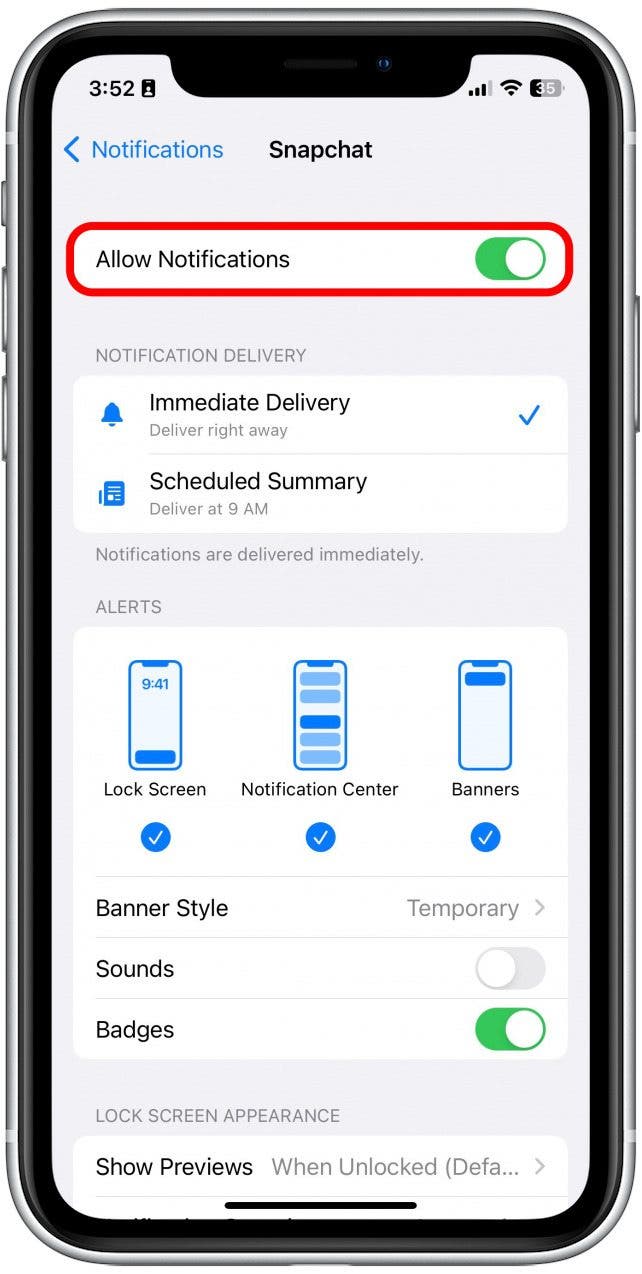
On iPhone, the Garmin Connect app does not offer per-app filtering. You can only toggle calls, texts, and apps collectively. To block specific apps like Facebook or Instagram, you must adjust settings on your iPhone itself.
How to Block Individual Apps on iPhone
- On your iPhone, open Settings, then go to Notifications.
- Tap the app you want to block, such as Facebook or Instagram.
- Scroll down to Notification Center and toggle it OFF.
This works because Garmin pulls alerts from the iPhone’s Notification Center. If an app does not appear there, it will not sync to your watch. This is the key workaround for iPhone users who want app-level control.
Fix: No Notifications Appearing at All
If you see no alerts at all after setup, check your iPhone settings. Go to Settings, then Notifications, then Show Previews. Set this to Always or When Unlocked. If set to Never, no content will mirror to your watch, even when Garmin settings appear correct. This is a common cause of missing notifications.
Customize Notification Behavior on Your Watch
Even if you keep some alerts enabled, you can reduce their intrusiveness by changing how notifications arrive.
Choose Alert Style
Set how your watch responds when a notification arrives. You can find this in the Smart Notifications menu on your watch or in Garmin Connect.
| Option | Best For |
|---|---|
| Vibration only | Meetings, public spaces |
| Silent (visual only) | Quiet environments |
| Beep only | Hearing-focused users |
| Both beep and vibration | Default setting |
You can set different styles for General Use and During Activity. This lets you stay fully alert during workouts while remaining discreet in office settings.
Enable Privacy Mode
Privacy Mode hides message content to protect sensitive information. When enabled, your watch shows only the sender name or app icon, not the body of texts, emails, or social media messages. This prevents others from reading your messages over your shoulder.
Find this option in Garmin Connect under Smart Notifications, then Privacy Mode. Toggle it ON to enable. Note that there is no password protection on Garmin watches, so the presence of a notification is still visible even with Privacy Mode enabled.
Set Different Rules for Workouts and Daily Use
Garmin lets you define separate notification rules for when you are active versus when you are not. This powerful feature helps maintain focus during runs, rides, or swims without losing emergency accessibility.
Configure Context-Specific Settings
In Garmin Connect or directly on your watch, look for the During Activity section within Smart Notifications. You can set different rules for:
- General Use: Allow calls and texts, block social media and entertainment apps
- During Activity: Disable all except calls (for safety during workouts)
This separation ensures you stay focused during training sessions while remaining reachable in emergencies. Many athletes keep call alerts on during activities specifically for safety reasons.
Troubleshoot Notifications That Still Appear
Sometimes settings do not apply as expected. Here is how to fix common issues.
Smart Notifications Missing in Garmin Connect?
If the Smart Notifications option is missing, possible causes include an outdated app version, iOS interface variation, or a sync glitch. Try these fixes:
- Update Garmin Connect to the latest version from your app store
- Restart both your phone and watch
- Unpair and re-pair the Bluetooth connection
- Try an alternative navigation path: More, then Devices, then select your watch, then Notifications and Alerts, then Smart Notifications
On iPhone, remember that per-app filtering is not supported, so you must manage app blocking through iOS settings instead.
Notifications Still Appear After Turning Off?
If alerts still come through after disabling them, check these items:
- Ensure both General Use and During Activity settings are OFF
- Confirm Privacy Mode is not just hiding content (the notification still triggers)
- On iPhone, verify that Notification Center is disabled for unwanted apps in iOS settings
- Reboot both devices to force a fresh connection
- Unpair and re-pair the Bluetooth connection
Wait up to 60 seconds after making changes for them to sync to your watch.
No Notifications Appear at All?
If nothing arrives on your watch, common causes include Show Previews set to Never on iPhone, Bluetooth disconnection, Do Not Disturb enabled on your phone, or app-specific alerts disabled in your phone OS. Fix this by setting Show Previews to Always or When Unlocked, keeping your phone within 30 feet of your watch, and checking that Phone Status is ON in your watch settings.
Best Practices for Managing Garmin Notifications
Follow these expert-backed tips to master alert management on your watch.
Recommended Settings by Use Case
- Use Garmin Connect for full control, especially on Android devices where per-app filtering is available
- Disable non-essential alerts during workouts to stay focused while keeping call alerts on for safety
- Manage iPhone apps via iOS settings since Garmin Connect lacks app-level filtering on iOS
- Regularly clear clutter by swiping left on individual alerts or clearing them on your phone
- Test your configuration by sending yourself a test text or making a test call after changing settings
- Consult your specific watch manual for exact button paths, as each model may vary slightly
Frequently Asked Questions About Garmin Watch Notifications
Can I turn off all notifications on my Garmin watch at once?
Yes. You can disable all notifications by toggling Smart Notifications to OFF either directly on your watch (Settings, Phone, Smart Notifications) or in the Garmin Connect app (Devices, your watch, Sounds and Alerts, Smart Notifications). This stops calls, texts, emails, and app alerts from appearing on your watch.
Can I block specific apps like Facebook or WhatsApp?
On Android, yes. Open Garmin Connect, go to your device settings, select Notifications and Alerts, then Smart Notifications, then Apps. Toggle off individual apps. On iPhone, you must go to Settings, Notifications, select the app, and turn off Notification Center.
How do I stop notifications during workouts but keep them during daily use?
In Garmin Connect or on your watch, configure settings separately under General Use and During Activity. Keep alerts enabled for General Use while disabling non-essential alerts for During Activity. Keep calls enabled during activity for safety.
Why do notifications still appear after I turned them off?
Check that both General Use and During Activity settings are OFF. On iPhone, verify that Notification Center is disabled for those apps in iOS settings. Reboot both devices and re-pair Bluetooth if the issue persists.
Can I hide the content of notifications for privacy?
Yes. Enable Privacy Mode in Garmin Connect under Smart Notifications. This shows only the sender name or app icon without revealing message text. Note that the notification itself is still visible on your watch face.
Key Takeaways for Controlling Your Garmin Notifications
Turning off notifications on your Garmin watch is simple and powerful. Whether you are pursuing digital detox, improving focus, conserving battery, or protecting privacy, you now have the tools to take back control. Use the watch menu for quick toggles, the Garmin Connect app for detailed filtering on Android, and iPhone settings to block specific apps when the app will not let you. With separate rules for daily use and workouts, customizable alerts, and privacy options, your Garmin can be as connected or disconnected as you choose. Now go enjoy that meeting, run, or quiet moment without another unnecessary buzz.



