
Is your Garmin watch showing the wrong time even after syncing with your phone? You’re not alone. Many users across the Fenix, Instinct, and Forerunner series report that their watch fails to automatically update the time via Bluetooth, despite having auto-time and auto-timezone enabled on both devices. This persistent issue affects models like the Fenix 5/6/7, Instinct 2/2S, and likely refers to the Forerunner 945 or Fenix 6X when “Phoenix 8” is mentioned. The problem isn’t hardware failure; it’s a firmware-level bug in Garmin’s automatic time sync mechanism. But there are reliable fixes. In this guide, you’ll learn how to force a time sync, use GPS as a fallback, reset satellite data, and prevent future drift, all backed by user-tested methods and Garmin support insights.
Manual Time Sync Fix
The most effective workaround for Garmin watches stuck with incorrect time is a simple toggle trick that forces the system to re-sync. Even though your watch should auto-sync, it often doesn’t unless you manually trigger the process.
Toggle Auto/Manual in Garmin Connect
This method works on Fenix 6X, Instinct 2S, and Fenix 7 models. Users confirm it forces an immediate time correction, proving the sync capability exists but isn’t triggered automatically.
To perform this fix:
- Open the Garmin Connect app on your phone.
- Tap More, then My Devices, then System, then Time, then Set Time.
- Switch from Auto to Manual.
- Wait a few seconds, then switch back to Auto.
- Return to the app’s home screen and force a sync by pulling down to refresh.
Why this works: Changing the setting resets the sync flag in the firmware, prompting the watch to pull the correct time during the next data exchange.
Pro Tip: Do this weekly if you notice time drift, especially after Daylight Saving Time changes.
Force Sync via Watch Menu
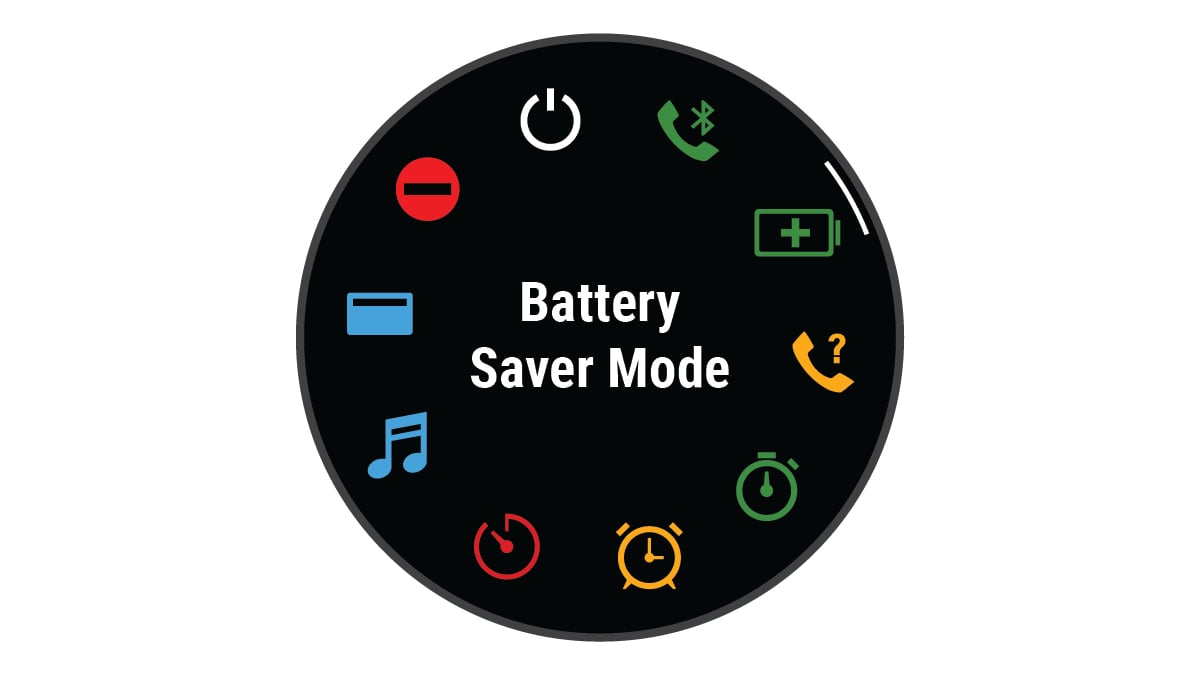
If your phone sync isn’t updating the time, bypass the app and trigger sync directly from the watch. This method is especially useful after traveling or when DST shifts aren’t reflected.
Sync Time from Watch Settings
User reports confirm this resolved persistent DST sync failures on Fenix 7 watches in Europe, where automatic updates failed for days post-transition.
To sync from the watch:
- On your Garmin watch, press Menu.
- Go to System, then Time, then Time Sync.
- Select Sync with Phone.
- Make sure Bluetooth is on, Garmin Connect is running (or recently used), and the watch is within range of the phone.
Wait for the sync confirmation. The time should update within seconds.
Visual Cue: Look for the Bluetooth icon on your watch face. If it’s grayed out, the connection is inactive. Open Garmin Connect to restore pairing.
Use GPS to Correct Time
When Bluetooth sync fails, GPS is Garmin’s official fallback for time correction, and it’s highly accurate. GPS satellites broadcast atomic clock time, which your watch can use to self-correct.
Start a GPS Activity Outdoors
This method works best for travelers, users in areas with spotty Bluetooth, or those who don’t sync daily.
To update time via GPS:
- Go outside with a clear view of the sky.
- Start any outdoor activity (walk, run, bike).
- Let the watch acquire GPS (this can take 1 to 5 minutes).
- After signal lock, exit the activity.
- Check the time. It should now be correct.
Garmin Support Note: Even a 10 to 20 minute outdoor session is enough to update time and satellite almanac.
Refresh EPO File via Garmin Express
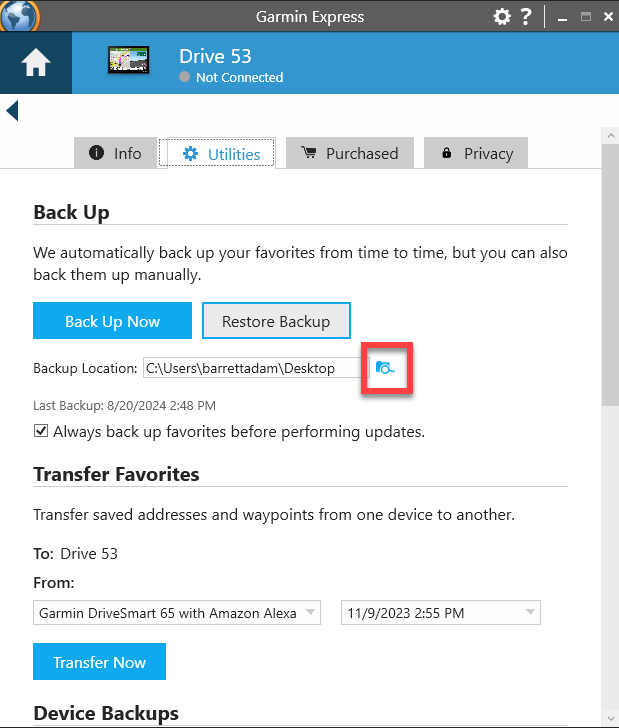
If GPS takes too long to lock or fails to update time, outdated satellite data may be the culprit. The EPO (Extended Prediction Orbit) or CPE (Compact Predicted Ephemeris) file helps your watch acquire GPS faster. When corrupted or stale, it delays sync.
Delete and Reload EPO/CPE File
After traveling over 300 miles, your watch may struggle to find satellites without updated orbit data. A fresh EPO file restores quick acquisition.
To refresh the EPO file:
- Connect your watch to a computer via USB.
- Open Garmin Express.
- On your computer, navigate to the watch drive: //GARMIN/REMOTESW/.
- Delete the EPO or CPE file (if present).
- In Garmin Express, click Check for Updates.
- Allow the software to download a fresh EPO file.
- Disconnect the watch.
- Go outside and acquire GPS to confirm faster lock and time update.
Maintenance Tip: Repeat this monthly if you travel frequently or notice slow GPS locks.
Fix Bluetooth Sync and Battery Drain

Unstable Bluetooth pairing doesn’t just break time sync. It can drain your battery fast. One user reported their Fenix 5 drained from 100% to 0% in 14 hours due to failed Bluetooth reconnection attempts.
Ensure Stable Bluetooth Connection
To prevent battery drain and sync issues:
- Keep Garmin Connect running in the background.
- Avoid force-closing the app. This breaks background sync.
- Re-pair the device if connection drops frequently:
1. On your phone, go to Bluetooth settings.
2. Forget the Garmin device.
3. In Garmin Connect, remove the device.
4. Re-pair from scratch.
Warning: Continuous Bluetooth polling can increase power usage by up to 75%. Use Wi-Fi or USB sync when possible.
Fix for Triangle Error: If you see a triangle icon (software crash), reset the watch to the home screen, enable auto-time, and sync via the app.
Perform a Reset (Soft or Factory)
When all else fails, a reset can clear corrupted settings blocking time sync.
Soft Reset (No Data Loss)
Use this first if the watch is unresponsive or stuck:
- Press and hold the Light/Power button for 20 or more seconds.
- Wait for the Garmin logo to appear.
- Release and let the watch reboot.
This clears temporary glitches without losing workouts or settings.
Factory Reset (Last Resort)
Only use if time sync still fails:
- On the watch, go to System, then Reset.
- Choose Reset Default Settings (keeps data) or Erase All Data (full wipe).
- Re-pair with phone and reconfigure.
Garmin Support Advice: If the issue persists after a factory reset, the device may qualify for warranty replacement.
Model-Specific Fixes
Different Garmin models respond to different solutions. Here’s what works best per device.
Fenix 5/5 Plus
- Issue: Time drift, slow GPS after travel.
- Fix: Delete EPO file plus Garmin Express update.
- Note: Older models lack newer sync optimizations. Manual intervention is often needed.
Fenix 6X
- Issue: Requires manual toggle to sync.
- Fix: Use the Auto to Manual to Auto trick weekly.
- Prevention: Sync daily via app to minimize drift.
Fenix 7
- Issue: Failed DST updates in Europe.
- Fix: Use Time Sync, then Sync with Phone after clock changes.
- Tip: Ensure your phone’s timezone is set to automatic.
Instinct 2/2S
- Issue: Drifts up to 1 or more minute.
- Fix: Combine manual toggle with weekly GPS sync.
- Battery Note: Less efficient Bluetooth. Avoid constant connection.
Forerunner (Phoenix 8 Reference)
- Likely Model: Fenix 6X or 7 Sapphire (no “Phoenix 8” exists).
- Issue: Triangle error, failed app sync.
- Fix: Reset to home screen, enable auto-time, and sync via app.
Prevent Future Sync Issues
Don’t wait for the time to drift. Set up a routine to keep your watch accurate.
Enable Auto Settings Everywhere
Make sure all auto options are turned on:
| Device | Setting | Location |
|---|---|---|
| Garmin Watch | Set Time = Auto | System > Time > Set Time |
| Garmin Watch | Time Zone = Automatic | System > Time > Time Zone |
| Smartphone | Set Time Automatically | Settings > Date and Time |
| Smartphone | Location Services ON | Settings > Privacy > Location |
Critical: Location services help detect timezone changes. Disable them, and auto-sync fails.
Sync Daily, Use Wi-Fi or USB
- Daily App Sync: Pull down in Garmin Connect to force sync.
- Wi-Fi Sync: Available on newer models. More stable than Bluetooth.
- USB Sync: Use Garmin Express weekly for full system health.
Update Firmware Regularly
Outdated software is a common root cause.
- In Garmin Connect, go to Device Settings, then Software Update.
- Check for updates weekly.
- On your computer, keep Garmin Express updated.
Current Status: As of firmware v16.11, the auto-sync bug remains unfixed. Users expect a patch in future releases.
Why This Happens: The Real Cause
Despite working GPS, Bluetooth, and app connectivity, automatic time sync fails silently, but manual methods work. This confirms a software bug, not hardware failure.
Root Cause Breakdown
- Bug Confirmed: The sync routine doesn’t trigger during normal data sync.
- Manual Workarounds Succeed: Toggling settings forces the system to act.
- GPS Sync Works: Proves time source accuracy isn’t the issue.
- Systemic Issue: Affects iOS and Android, multiple models. Points to firmware flaw.
User Verdict (Don MC): “There. Is. A. Bug.” The fact that a toggle fixes it proves the system can sync, just not automatically.
Final Recommendations
Garmin has not yet released a firmware fix, so users must rely on workarounds. Here’s your action plan:
- Weekly: Use the Auto to Manual to Auto toggle in Garmin Connect.
- After Travel or DST: Force a GPS sync or use Time Sync, then Sync with Phone.
- Monthly: Refresh EPO file via Garmin Express if you travel often.
- Always: Keep firmware and app updated.
- If Out of Warranty: Consider third-party repair or alternative brands if sync issues persist.
Garmin users deserve reliable timekeeping without manual fixes. Until the company releases a firmware patch, these steps will keep your watch accurate and your frustration low.
Frequently Asked Questions About Garmin Watch Time Sync
Why does my Garmin watch not update time automatically?
Garmin watches have a firmware bug where the automatic time sync routine fails to trigger during normal data synchronization. The watch can sync time correctly when forced manually, but the automatic background sync doesn’t work as intended.
How do I force my Garmin watch to sync time with my phone?
Open the Garmin Connect app, go to My Device, then System, then Time, then Set Time. Switch from Auto to Manual, wait a few seconds, then switch back to Auto. Force a sync by pulling down on the app home screen.
Can I use GPS to fix incorrect time on my Garmin watch?
Yes. Go outside with a clear sky view, start any outdoor activity (walk, run, bike), and let the watch acquire GPS. After signal lock (1 to 5 minutes), exit the activity. The time should update automatically using atomic clock data from GPS satellites.
Does the EPO file affect time sync on Garmin watches?
Yes. The EPO (Extended Prediction Orbit) file contains satellite trajectory data. When corrupted or outdated (especially after traveling over 300 miles), it delays GPS lock and can affect GPS-based time correction. Delete the EPO file from //GARMIN/REMOTESW/ and refresh it via Garmin Express.
Will resetting my Garmin watch fix the time sync issue?
A soft reset (holding the power button for 20 seconds) can clear temporary glitches without losing data. A factory reset is a last resort. If the issue persists after a factory reset, contact Garmin support about warranty replacement, as the bug may indicate a hardware defect in some cases.
How can I prevent time drift on my Garmin watch in the future?
Enable auto-time and auto-timezone on both your watch and phone. Sync daily via Garmin Connect, use Wi-Fi or USB when possible, and update firmware regularly. After DST changes or travel, manually trigger Time Sync on the watch to ensure accuracy.



