

You just got a new smartwatch or are tired of staring at the same default watch face every day. Whether you’re using an Apple Watch or a Samsung Galaxy Watch, changing your watch face is one of the easiest ways to personalize your device. But with recent software updates, especially on Apple Watch, many users are confused about how to switch or customize faces. This guide cuts through the clutter and delivers step-by-step instructions for both platforms, including how to restore swipe functionality, use personal photos, buy premium designs, and reapply lost faces.
You’ll learn not just how to change your watch face, but also why certain features behave differently across devices and how to fix common issues when faces won’t sync or appear. Let’s get your watch looking fresh in under a minute.
Apple Watch: Switch Faces Fast
Tap, Hold, and Swipe (Default Method)
To change your Apple Watch face quickly, follow these steps:
- Press and hold the current face until it wiggles and editing tools appear.
- Swipe left or right to browse saved faces.
- Tap the screen to set your choice and exit edit mode.
This works on all watchOS versions. No need to open apps or menus. This method bypasses the app grid, letting you cycle through your favorite faces instantly once you know the gesture.
Restore Swipe to Switch (After watchOS 10.2)
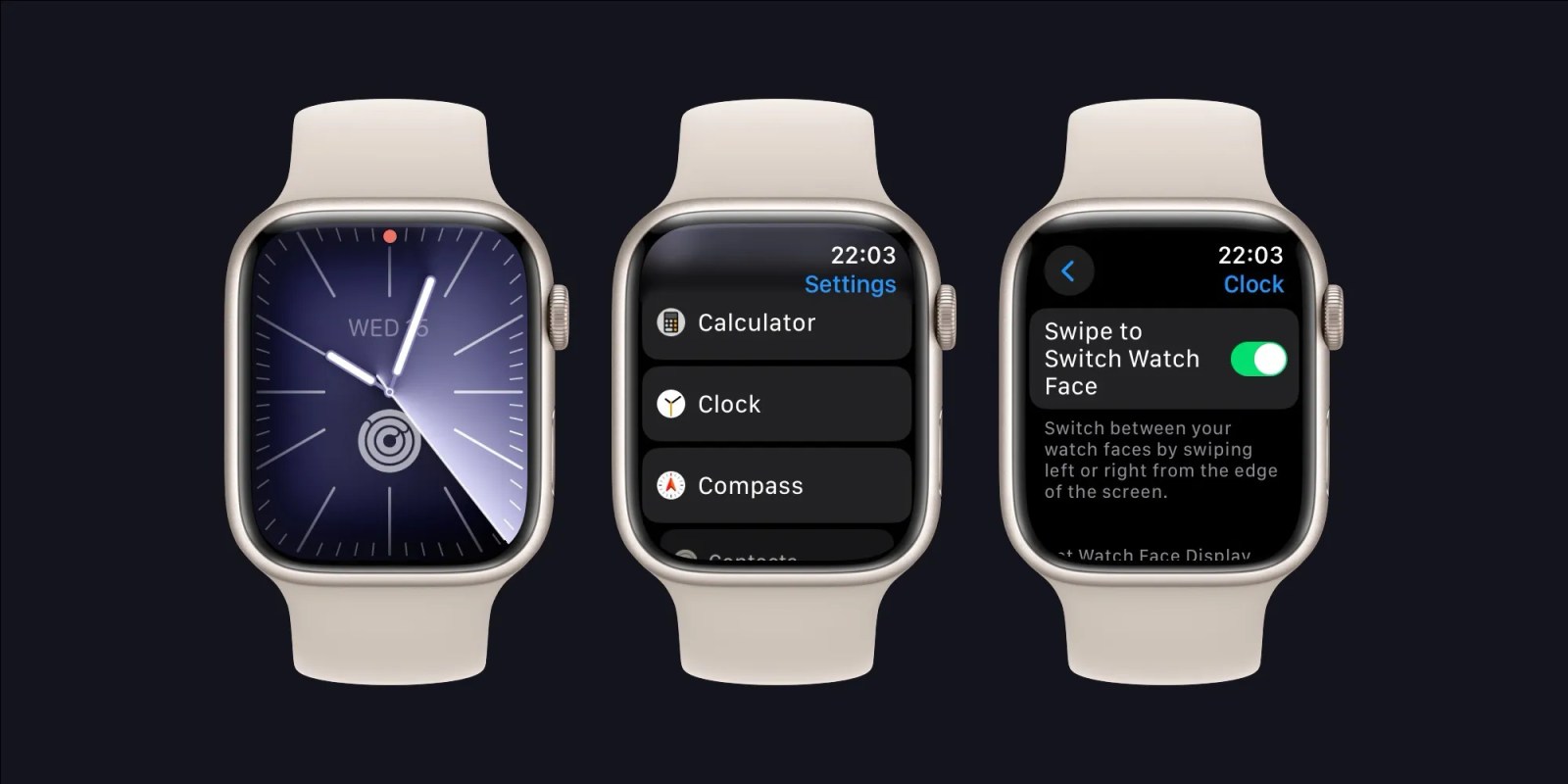
Apple removed the ability to swipe between faces from the home screen in watchOS 10.2. But there is a fix available.
Enable Edge Swipe
Follow these steps to restore swipe functionality:
- Press the Digital Crown to go to the app grid.
- Open Settings.
- Go to Clock.
- Turn on “Swipe to Switch Watch Face.”
After enabling this setting:
• Return to your watch face
• Swipe from the edge (left or right) to scroll through faces
Note that swipe must start near the bezel. Center swipes still open the app grid.
Fix Missing Watch Faces
If your faces are not showing up, try these solutions:
• Open the Watch app on iPhone, then go to My Faces
• Confirm faces are listed in the app
• If missing, re-add them by tapping a face and selecting Add
• Restart both devices if syncing fails
• Check that “Show in App” is enabled for each face in the Watch app
This issue is common after iOS and watchOS updates. Re-syncing usually resolves it.
Samsung Galaxy Watch: Change and Customize
Change Face via Smartphone App
The easiest way to pick and personalize faces is through the Galaxy Wearable app.
Follow these steps:
- Open Galaxy Wearable app on your phone.
- Tap Watch Faces.
- Browse or search designs.
- Tap a face, then tap Allow and install.
- Wait for download to complete, then tap again to apply instantly.
This method gives full access to customization before applying.
Customize with Your Photos

Only certain Samsung faces support photo backgrounds. Use My Photo+ or My Style for full personalization.
Use My Photo+
Follow these steps to add your own photos:
- In Galaxy Wearable app, go to Watch Faces, then Customise.
- Under Background, select Gallery.
- Pick an image and adjust cropping.
- Change font, time color, or widgets if supported.
- Tap Save.
This works only with compatible faces. Look for the Gallery option during setup. Your photo becomes the background, perfect for memories, pets, or favorite scenery.
Apply Face Directly from Watch
No phone nearby? No problem. You can download directly from the watch.
From Galaxy Store on Watch
Follow these steps:
- Open Galaxy Store on your Galaxy Watch.
- Tap Watch Faces.
- Choose a design and download it.
- Go to Settings, then Watch Faces, then Select Watch Faces.
- Pick the new face and confirm.
This requires Wi-Fi or Bluetooth connection. Best for quick changes when your phone is not nearby.
Buy and Reapply Premium Watch Faces
Purchase a Paid Watch Face
Samsung offers high-end designer faces for purchase through the Galaxy Store.
Buy via Galaxy Store
Follow these steps:
- Open Galaxy Store (phone or watch).
- Go to Watch, then Watch Faces.
- Tap a premium face’s price or download button.
- Accept permissions.
- Enter payment details and tap Pay Now.
- After purchase, wait for 100% download.
- Tap the play icon to apply.
Payment is saved to your Samsung account. It is a one-time purchase for lifetime access. Purchased faces sync across devices linked to the same account.
Reapply Lost or Deleted Faces
Face disappeared after reset or update? Reinstall without repurchasing.
Steps to Reinstall
Follow these steps:
- Open Galaxy Store.
- Tap the three dots menu, then tap My Page.
- Tap All under purchases.
- Find your watch face.
- Tap to transfer or download.
- Once complete, tap the play icon to apply.
Your purchases are permanent. Just re-download when needed. No more paying twice.
Use AI-Powered My Style Face
Create a dynamic, personalized face that evolves from your photos using Samsung’s AI technology.
Set Up My Style
Follow these steps:
- Open Galaxy Wearable app, then tap Watch Faces.
- Scroll to Wallpaper section and tap My Style, then Customise.
- Choose either Take a new photo or Pick from Gallery.
- Adjust the circular overlay to highlight key colors.
- Select a pattern style (abstract, ripple, or geometric).
- Add complications like heart rate, weather, or other widgets.
- Tap Done, then tap Save.
The result is a smart, adaptive face that uses your photo’s palette to generate unique backgrounds. For example, a sunset photo creates warm gradients that shift subtly over time. This is perfect for users who want a one-of-a-kind look with zero design effort.
Compare Apple vs Samsung Features
| Feature | Apple Watch | Samsung Galaxy Watch |
|---|---|---|
| Switch Faces | Tap and hold plus swipe (or edge swipe if enabled) | Long-press or use app |
| Photo Backgrounds | Limited (only some faces support photos) | Full support via My Photo+, My Style |
| Download Source | Watch app on iPhone | Galaxy Wearable or Galaxy Store |
| Paid Faces | None (all free) | Available (one-time purchase) |
| Reapply Purchases | Not applicable | Via Galaxy Store, My Page |
| Customization Depth | Moderate (colors, complications) | High (fonts, widgets, AI art) |
| Post-Update Issues | watchOS 10.2 broke swipe gesture | No major disruptions |
Samsung offers deeper customization and paid options. Apple focuses on simplicity and integration.
Common Mistakes to Avoid
• Apple users: Forgetting to enable Swipe to Switch after updates leads to confusion when swiping does not work
• Samsung users: Assuming all faces support gallery images. Only My Photo+ and My Style do
• Both platforms: Not checking sync status after changing devices or resetting
• Samsung buyers: Closing the app before download completes means the face will not appear
Pro tip: Always wait for 100% progress and see the play apply button before assuming success.
Final Tips: Keep Faces Synced and Fresh
For Apple Watch Users
• Manage all faces in the Watch app under My Faces
• Use Favorites to keep go-to designs at the front
• Restart both devices if faces fail to sync
For Galaxy Watch Users
• Save payment info in Samsung Account for faster purchases
• Use My Page to audit and restore past downloads
• Try My Style weekly by changing the source photo for a fresh AI-generated look
Change your watch face as often as you change your phone wallpaper. It is free, fast, and fun.
Frequently Asked Questions About How to Change Watch Face
How do I change the watch face on my Apple Watch?
Press and hold the current watch face until it enters edit mode. Swipe left or right to browse available faces, then tap to select. On watchOS 10.2 and later, enable Swipe to Switch in Settings, Clock to swipe from the edge.
Why can I not swipe between watch faces on my Apple Watch?
Apple removed center-swipe functionality in watchOS 10.2. To restore it, go to Settings, Clock, and turn on Swipe to Switch Watch Face. Then swipe from the edge of the screen rather than the center.
Can I use my own photo as a watch face on Samsung Galaxy Watch?
Yes. Use the My Photo+ or My Style watch face. In Galaxy Wearable app, go to Watch Faces, select Customise, choose Gallery under Background, and pick your image. Adjust the crop and save.
How do I re-download a watch face I previously purchased on Samsung?
Open Galaxy Store, tap the three dots, go to My Page, tap All purchases, find the face, and tap to download again. Once complete, tap the play icon to apply. You will not be charged again.
Are paid watch faces worth buying on Samsung Galaxy Watch?
Paid faces offer unique designs and premium quality. They are a one-time purchase tied to your Samsung account and can be re-downloaded anytime. If you value customization and unique aesthetics, they are worth considering.
What should I do if my watch faces will not sync to my device?
For Apple Watch, open the Watch app on iPhone, go to My Faces, and re-add any missing faces. Restart both devices. For Samsung, try closing and reopening the Galaxy Wearable app, then check your connection and try again.
Key Takeaways for Changing Your Watch Face
Changing your watch face should take seconds, not frustration. With the right settings enabled and knowing which tools to use, you can switch, personalize, or buy a new look in under a minute. Apple users should remember to enable the Swipe to Switch setting after updates, while Samsung users have more customization options including photo backgrounds and AI-generated faces through My Style. For Samsung buyers, your purchases are permanent and can be re-downloaded anytime through Galaxy Store. Whether you are on Apple or Samsung, this guide gives you the exact steps, fixes, and pro tips to stay in control. Now go make your watch uniquely yours.



