
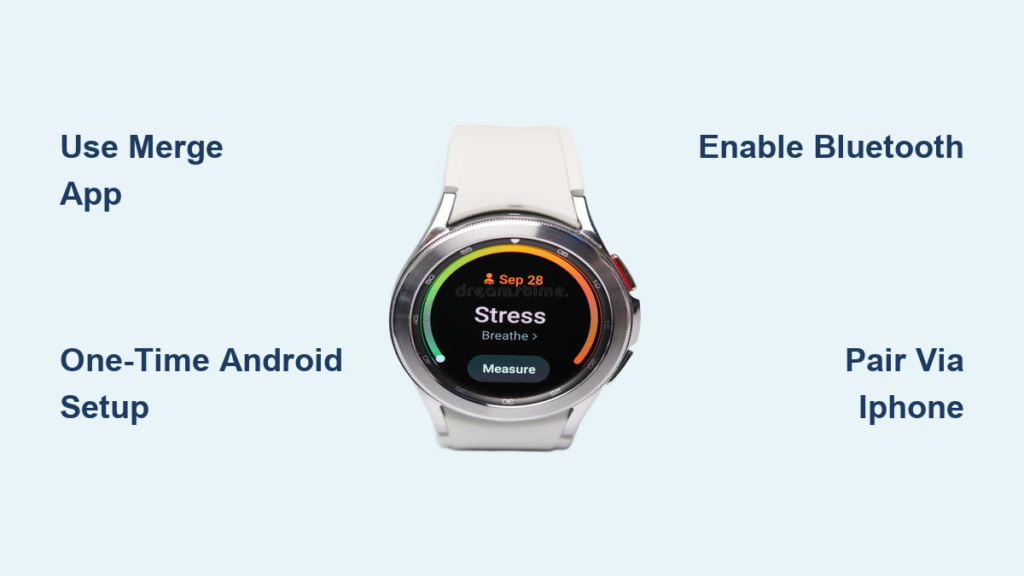
You’ve switched to an iPhone but aren’t ready to give up your Samsung Galaxy Watch. The good news is that you can connect a Samsung watch to iPhone, even though Samsung doesn’t officially support this pairing. While the Galaxy Wearable app falls short on iOS, a reliable third-party solution called Merge bridges the gap between your Android-powered wearable and Apple’s ecosystem.
In this guide, you’ll learn exactly how to pair your Galaxy Watch with your iPhone, what features work after connecting, and how to avoid common setup pitfalls. Whether you love your watch for its design, battery life, or fitness tracking, we’ll help you keep it functional without needing an Android phone long-term.
Galaxy Watch iPhone Compatibility: What Works and What Doesn’t
Samsung Galaxy Watches are built for Android, not iOS. This means there’s no native way to pair your watch directly through standard Samsung software. However, connectivity is still achievable with workarounds.
Supported Galaxy Watch Models
All recent Galaxy Watch models run Wear OS, which opens the door for third-party tools. The following models can connect to iPhone using the method outlined in this guide.
The models that work include Galaxy Watch 4, Galaxy Watch 5, Galaxy Watch 6 and Watch 6 Classic, and Galaxy Watch Ultra.
Why the Galaxy Wearable App Falls Short
The Galaxy Wearable app exists on iOS but only handles limited Samsung phone accessories. It won’t properly pair or manage a Galaxy Watch when used with an iPhone. Most users encounter pairing failures, dropped connections, and non-functional notifications or settings.
Skip the official app for pairing purposes. Use Merge instead for real results.
Using the Merge App to Pair Samsung Watch with iPhone
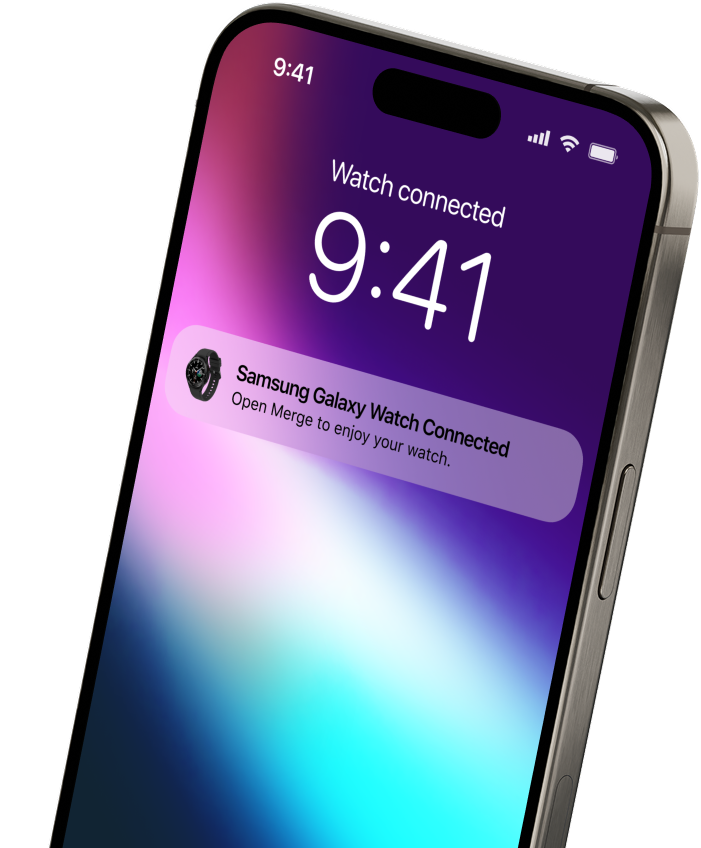
Merge is the only proven method to connect your Galaxy Watch to an iPhone with stable functionality. This app enables Bluetooth pairing between Wear OS watches and iPhones, delivering notifications, call alerts, music control, and fitness tracking while bypassing Samsung’s ecosystem lock.
The setup requires a one-time Android device detour, but after that, your watch stays connected to your iPhone without needing the Android device anymore.
Step-by-Step: Initial Android Setup for Your Galaxy Watch
You must first set up the watch using an Android phone. This one-time step is unavoidable because Samsung requires initial configuration through their ecosystem.
Options for the Required Android Device
You can borrow a friend’s Android phone, use a demo unit at a retail store, or rent or buy a cheap used Android device temporarily.
Setup Process
Turn on your Galaxy Watch and open the Galaxy Wearable app on the Android phone. Follow the prompts to connect via Bluetooth, set up Wi-Fi, sign in with a Google account, and install any available updates. Once complete, open the Google Play Store on the watch and search for “Merge” to install it.
After setup, go to the Android phone’s Bluetooth settings and forget the watch to prevent connection conflicts later.
Installing and Setting Up Merge on Your iPhone
Now switch to your iPhone to complete the connection process.
Open the App Store and search for “Merge Android.” Download and install the Merge app, then open it and allow the necessary permissions including notifications, Bluetooth, and Background App Refresh.
If the app doesn’t appear in search, scan the QR code from merge.tech to download it directly.
Pairing Your Galaxy Watch to iPhone Using Merge
The final step links both devices together through the Merge app.
On your iPhone, open the Merge app and tap “Start Pairing.” On your Galaxy Watch, open the Merge app and tap “Pair with iPhone,” then confirm the pairing request on both screens. Wait 10 to 30 seconds for the connection to establish. Once connected, you’ll see a confirmation message.
Success. Your Galaxy Watch now works with your iPhone.
Features You Get When Connecting Samsung Watch to iPhone
After pairing via Merge, here’s what you can expect from your connected watch.
What Works
Notifications function properly, including calls, texts, emails, and social media alerts. Call alerts work with vibrate and display for incoming calls. Message previews let you read messages directly on the watch screen. Remote camera control allows you to use the watch as a shutter button. Music control enables play, pause, and skip functions for iPhone audio. Fitness tracking records steps, heart rate, and workouts. Sleep tracking data stores and displays on the watch. GPS tracking provides accurate outdoor activity logs.
What Doesn’t Work
Samsung Health isn’t available on iOS, so you can’t view data on your phone. Software updates require an Android device. Watch face changes are limited and must be done during Android setup or via sideloading. You cannot install new apps from your iPhone.
You’ll miss full phone sync, but core daily functions remain intact.
Standalone Setup: No Android Phone Required
Avoid borrowing a phone by setting up your Galaxy Watch in standalone mode instead.
How to Bypass Android Setup
Power on the watch. When prompted to connect to a phone, tap the Wear OS icon rapidly five to seven times. A prompt will appear saying “Hold for 3 seconds.” Hold the icon until the screen changes to “Starting…” Release and wait for the boot process to complete.
The watch now starts in standalone mode. Connect to Wi-Fi directly on the watch, add a Google account manually, open Play Store, install Merge, and complete pairing with your iPhone as described earlier.
Note that a Google account is still required, but no Android phone is needed.
Troubleshooting Common Connection Issues
Even with Merge, problems can occur. Here’s how to fix them.
Merge App Not Appearing in Play Store
This happens due to regional restrictions, outdated OS, or app filtering. Update the watch to the latest OS, search using the exact term “Merge Android,” try installing from the iPhone app first which may push to the watch, or use a different Google account.
Pairing Fails or Keeps Dropping
Restart both devices and toggle Bluetooth off and on again on both the iPhone and watch. On your iPhone, go to Settings, General, Transfer or Reset iPhone, Reset, and select Reset Network Settings. Reinstall Merge on both devices, enable Background App Refresh for Merge, and keep devices within three feet during pairing.
Most dropouts resolve after network reset and re-pairing.
Health Data Not Showing on iPhone
Samsung Health isn’t available on iOS, but your data is still being tracked just not synced to your phone. View stats directly on the watch, export data via Samsung Cloud before switching phones, or manually record key metrics like sleep, heart rate, and steps.
Pro tip. Take screenshots of your health dashboard weekly for trend tracking.
Model-Specific Tips for Galaxy Watch 4, 5, 6, and Ultra
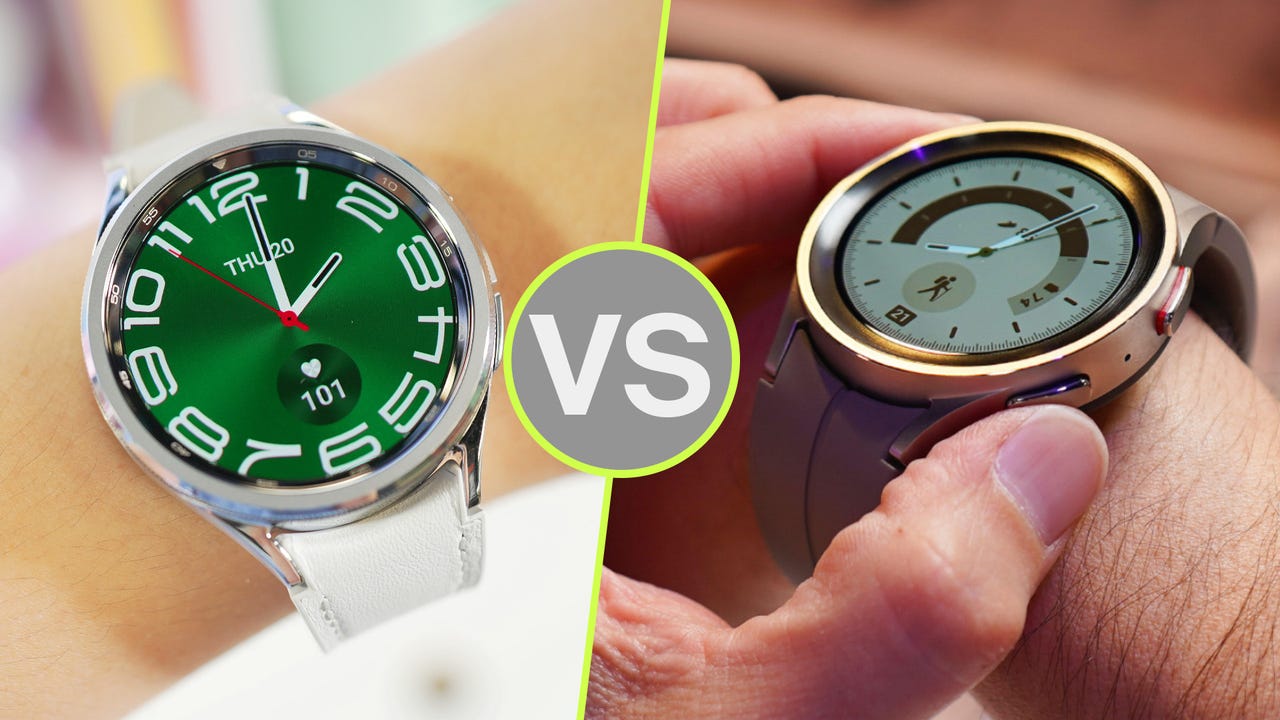
Different Galaxy Watch models have varying levels of compatibility with the Merge solution.
Galaxy Watch 4
Some firmware versions block Merge installation. Update the watch OS before installing Merge. If Merge isn’t in Play Store, try installing from the iPhone app first.
Galaxy Watch 5
Fully compatible with no known issues. Reliable daily use with iPhone is confirmed by multiple users.
Galaxy Watch 6 and Watch 6 Classic
Works flawlessly with Merge. Users report stable long-term connections with all core features functional.
Galaxy Watch Ultra
Confirmed working by multiple users with strong Bluetooth stability. Ideal for fitness-focused iPhone users who want reliable connectivity.
Limitations and Trade-offs to Consider

Before committing to this setup, understand the trade-offs involved.
Ecosystem Barriers
Apple and Samsung lock features to their own devices. Galaxy Watch plus iPhone means compromise, not full integration. Some features will simply never work as well as they would with their native platforms.
Long-Term Risks
Future iOS or Wear OS updates may break Merge functionality. There’s no guarantee of ongoing support. Third-party apps can be removed from app stores at any time.
Privacy Considerations
Merge accesses notifications and usage data. A Google account is required on the watch. Review permissions and privacy policy before installation.
Use a secondary Google account if privacy is a concern.
Frequently Asked Questions About Connecting Samsung Watch to iPhone
Can I pair my Galaxy Watch directly to an iPhone without any extra apps?
No. The official Galaxy Wearable app does not support full pairing between Galaxy Watches and iPhones. You need the Merge app as a workaround to enable connectivity.
Do I need an Android phone permanently to use my Galaxy Watch with an iPhone?
No. You only need an Android phone for the initial setup. After that, the watch stays connected to your iPhone via Merge without needing the Android device.
What features work when I connect Samsung Watch to iPhone?
Notifications, call alerts, message previews, music control, fitness tracking, sleep tracking, and GPS tracking all work. You cannot access Samsung Health on your phone or install new apps from iPhone.
Will my Galaxy Watch get software updates while connected to iPhone?
No. Software updates require an Android device. Your watch won’t receive OS updates through this connection method.
Can I use Galaxy Watch 4, 5, 6, or Ultra with iPhone?
Yes. All these models work with the Merge app. Galaxy Watch 5, 6, and Ultra have no known issues. Galaxy Watch 4 may need a firmware update before Merge installs properly.
Is the Merge app free to use?
Yes. Merge is free to download as of 2025. Possible premium features may be introduced in the future, but core pairing functionality remains free.
Key Takeaways for Connecting Samsung Watch to iPhone
You can connect a Samsung watch to iPhone using the Merge app, despite no official support from Samsung. The process requires a one-time Android setup, but after that, your Galaxy Watch stays linked to your iPhone permanently.
Core features work well. Notifications, call alerts, fitness tracking, music control, and GPS all function reliably after pairing. You will lose access to Samsung Health on your phone and can’t update the watch OS from iPhone, but these trade-offs are manageable for most users.
Merge has become the go-to solution for users refusing to abandon their favorite wearable. With thousands of positive reviews and real-world stability, it’s the most viable cross-ecosystem bridge available in 2025. If you love your Galaxy Watch and are moving to iPhone, don’t trade it in. Pair it, keep it, and wear it proudly.



