
Your Garmin watch has been acting up, maybe freezing, failing to sync, or feeling sluggish. Perhaps you’re preparing to sell or gift it and want to wipe all personal data. A factory reset can solve both problems, returning your device to its original out-of-the-box state. But if you’re unsure how to factory reset a Garmin watch, you risk losing workouts, health metrics, or triggering the wrong type of reset.
This guide cuts through the confusion. You’ll learn the exact steps to fully erase your Garmin watch, model-specific methods, what data you’ll lose and what’s safe, and how to restore everything afterward. Whether you’re using a Fenix, Forerunner, Venu, or Instinct, we have the precise instructions.
Understanding the Three Types of Garmin Resets
Not all resets are the same. Choosing the wrong one could leave problems unresolved or delete data unnecessarily.
Soft Reset: Restart a Frozen Device
A soft reset is a forced reboot useful when your watch freezes or becomes unresponsive. It clears temporary glitches but does not erase any data or settings.
How to perform a soft reset:
- Press and hold the Power/Light button for 15 to 20 seconds
- Wait for the screen to go black and the Garmin logo to reappear
- Tap the power button briefly to turn it back on if it does not restart automatically
This works on all Garmin models including Fenix, Forerunner, Venu, and Instinct series. Use it when the screen is frozen, GPS won’t lock, or the app isn’t responding.
Hard Reset: Restore Settings While Keeping Data
A hard reset returns all preferences to default without deleting workouts, music, or user profiles. This clears corrupted settings while preserving your activity history.
Menu method for touchscreen and button models:
- Press and hold the Menu button
- Go to Settings, System, Restore and Reset, Reset, Reset Default Settings
- Confirm and wait for the device to reboot
Button combo method for unresponsive watches:
- Power off the watch
- Hold the Back/Lap button
- Press and hold the Power button to turn it on
- Release when Restore Default Settings appears and confirm
This is supported on Fenix 6/7, Forerunner 945/955, Venu 2/3, and most modern models. Warning: on some devices, this combo may trigger a full factory reset, so always check the on-screen prompt before confirming.
Full Factory Reset: Erase All Data
This is the only option that completely wipes your Garmin watch. It deletes local activities, music, pairings, and settings, ideal before selling, gifting, or deep troubleshooting.
Standard method through menu:
- From the watch face, open the app menu by pressing bottom-right or long-pressing the screen
- Tap Settings (gear icon)
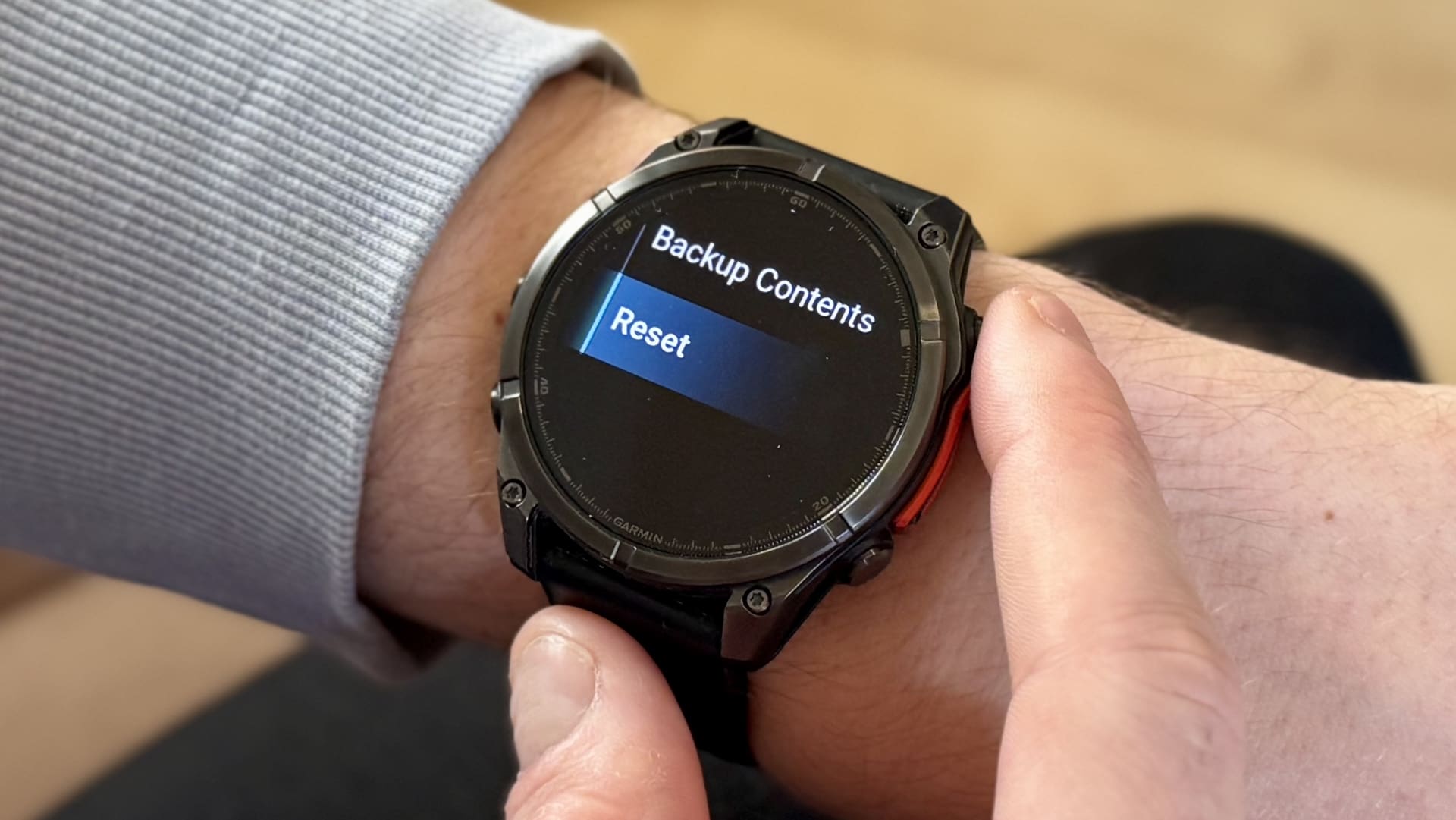
- Scroll to System, then Reset
- Select Delete data and reset settings
- Confirm both prompts: “Restore default settings and clear all data, including activities and music?” and “Are you sure you want to delete all data?”
The watch powers off and reboots into setup mode. On touchscreen models, confirm with the green checkmark instead of physical buttons.
Button-Based Reset for Frozen or Unresponsive Watches
If your Garmin won’t respond to touch or menu commands, use this recovery method to force a factory reset.
Steps to force factory reset:
- Power off the device
- Hold the Back/Lap button (bottom-left)
- Press and hold the Power/Light button to turn it on
- Keep holding Back/Lap until a system menu appears
- Use available buttons to select Erase All Data and Restore Settings
- Confirm with Yes
On older Fenix or Forerunner models, this may only show “Restore Default Settings,” so double-check the screen text. Never skip reading the prompt, as some sequences trigger a soft or hard reset instead.
Model-Specific Factory Reset Instructions

Button layouts and menu paths vary slightly across models. Follow your device’s exact path.
Venu 3, Venu 2, Venu Sq
These touchscreen models use tap navigation. Path: Settings, System, Reset, Delete data and reset settings. Confirm with tap (green checkmark).
Fenix 7/8, Epix Gen 2, Forerunner 965
Physical button navigation with buttons on the left side: top is Menu/Back, middle is Select, bottom is Scroll. Path: Menu, Settings, System, Reset, Delete data and reset settings. Confirm using the middle (Select) button.
Forerunner 265, Vivoactive 4
AMOLED touchscreen with gesture support. Reset path mirrors the Venu series. Supports both touch and button inputs.
Older Models (Fenix 5, Forerunner 935, Vivoactive 3)
These may lack the “Delete data” option in the menu. They require the button combo method to access full reset. They do not display explicit warnings, so proceed carefully.
Instinct 2/3 Series
Rugged design with simplified UI. Path: Settings, System, Reset, Delete data and reset settings. Navigate and confirm using physical buttons.
What Data Is Lost vs. Saved After Reset
Knowing what vanishes and what survives after a factory reset helps you prepare properly.
Data deleted (local storage only):
- Activity history not synced to Garmin Connect
- Custom watch faces, data fields, and layouts
- Offline music from Spotify, Amazon, Deezer
- Paired smartphones and Bluetooth devices
- Saved Wi-Fi networks
- User profile including weight, goals, alerts
- Connect IQ apps and widgets
Data preserved (if synced to cloud):
- All synced workouts and health data in Garmin Connect
- Training plans, challenges, and events
- Body Battery, sleep score, HRV, Recovery Time
- VO2 Max and training insights on devices with Physio TrueUp
No recovery is possible after reset if data wasn’t synced. Always verify sync status before resetting.
Pre-Reset Checklist: Six Essential Steps
Avoid regret with these essential precautions before initiating any reset.
Complete these steps:
- Sync with Garmin Connect by opening the app and ensuring all activities and metrics are uploaded. Check the web dashboard to confirm recent syncs.
- Back up critical data by exporting key workouts or health logs as PDF or CSV via Garmin Connect website.
- Unpair Bluetooth devices by removing headphones, heart rate monitors, and sensors from device settings.
- Sign out of third-party apps by disconnecting Spotify, Strava, MyFitnessPal, or Amazon Music in Connect IQ.
- Charge the watch to at least 50%, ideally 100%, to prevent interruption during the reset process.
- Note key settings by writing down preferred watch face layout, goals, sleep schedule, and notification settings for easy re-setup.
Post-Reset Setup Guide
After reset, your Garmin acts like a brand-new device. Reconfigure it properly to get back up and running.
Re-Pair with Smartphone
- On your phone, go to Bluetooth settings
- Forget the Garmin device if listed
- Open Garmin Connect app
- Follow pairing prompts
- Keep the watch screen awake by tapping it during pairing to boost success
Restore Data from Garmin Connect
- In Garmin Connect, tap the watch icon (top-right)
- Select your device
- Go to System, Back Up and Restore
- Start the cloud restore process
This takes 30 minutes to several hours depending on data volume. Keep the watch charging throughout.
Reinstall Apps and Reconfigure Settings
- Re-download Connect IQ apps, watch faces, and widgets
- Re-enable music streaming and download offline playlists
- Turn on smartphone notifications, calendar sync, weather, and incident detection
- Manually set time and date if GPS hasn’t synced yet
Troubleshooting Common Post-Reset Issues
Watch Won’t Turn On
Hold the power button for 20 seconds. Charge for 30 or more minutes before retrying.
Pairing Fails Repeatedly
Forget the device in your phone’s Bluetooth settings. Restart both phone and watch. Reopen Garmin Connect and try again.
Data Not Restoring
Confirm you’re logged into the correct Garmin account. Check your internet connection (Wi-Fi or cellular). Wait, as large histories take time to sync.
Missing Apps or Music
Reinstall via Garmin Connect or Connect IQ. Re-sync music libraries manually.
Boot Loop or Freeze
Attempt the button-based reset again. If unresolved, contact Garmin Support.
When to Factory Reset: Use Case Guide
| Scenario | Recommended Action |
|---|---|
| Watch freezes or lags | Try soft reset first, then hard reset |
| GPS won’t lock | Soft reset |
| Settings are corrupted | Hard reset (keeps data) |
| Selling or gifting watch | Full factory reset |
| Firmware update fails | Hard or factory reset before retrying |
| Elevation or sensor errors | Factory reset after backup |
| Stuck in boot loop | Use button combo, then contact support |
Key Precautions and Best Practices
Before Reset
- Sync all data to Garmin Connect
- Charge the watch fully
- Note down settings you want to restore
- Ensure stable Wi-Fi for post-reset sync
During Reset
- Do not interrupt the process
- Allow 5 to 10 minutes for reboot and initialization
After Reset
- Install any pending firmware updates
- Re-pair all sensors and accessories
- Re-sync health and fitness data
Frequently Asked Questions About Factory Resetting Garmin Watches
Does a factory reset delete all my workouts?
A full factory reset deletes all local activity history stored on the watch. However, if you synced your workouts to Garmin Connect before resetting, they remain safe in the cloud and can be restored.
How long does a factory reset take on a Garmin watch?
The actual reset process takes only a few minutes. However, the post-reset setup and data restoration can take 30 minutes to several hours depending on how much data you need to sync back.
What’s the difference between Reset Default Settings and Delete Data and Reset Settings?
Reset Default Settings is a hard reset that restores preferences to factory defaults while keeping your activities and user profile. Delete Data and Reset Settings is a full factory reset that erases everything, including all workouts, music, and personal data.
Can I undo a factory reset on my Garmin watch?
No, a factory reset cannot be undone. Once data is erased from the device, it cannot be recovered unless it was previously backed up to Garmin Connect.
Will factory reset fix GPS accuracy issues?
A factory reset may help if GPS issues are caused by software corruption. However, try a soft reset first, as this often resolves temporary GPS problems without data loss.
Do I need to unpair my Garmin watch before selling it?
Yes, you should perform a full factory reset to delete all personal data, then unpair the watch from your phone’s Bluetooth settings. This ensures the new owner can pair it without conflicts.
Key Takeaways for Resetting Your Garmin Watch
A factory reset is a powerful troubleshooting tool that can resolve persistent software issues, fix performance problems, and prepare your watch for sale or gifting. The key is choosing the right type of reset for your situation. A soft reset fixes temporary glitches without any data loss, a hard reset restores corrupted settings while preserving your workouts, and a full factory reset erases everything for a completely clean slate.
Always sync your data to Garmin Connect before proceeding. Check that your battery is charged to at least 50% and note down any settings you want to restore afterward. The difference between “Reset Default Settings” and “Delete data and reset settings” is critical, so read each prompt carefully before confirming.
After resetting, re-pair your watch with the Garmin Connect app, restore your data from the cloud, and reinstall any Connect IQ apps or watch faces you previously used. If you encounter issues like pairing failures or data not restoring, troubleshoot systematically by checking your internet connection and ensuring you’re logged into the correct account.
For most users, following these steps will fully reset your watch and get it running like new. If problems persist after a proper reset, consult Garmin Support or use the Garmin Connect app’s troubleshooting tools for further assistance.



