
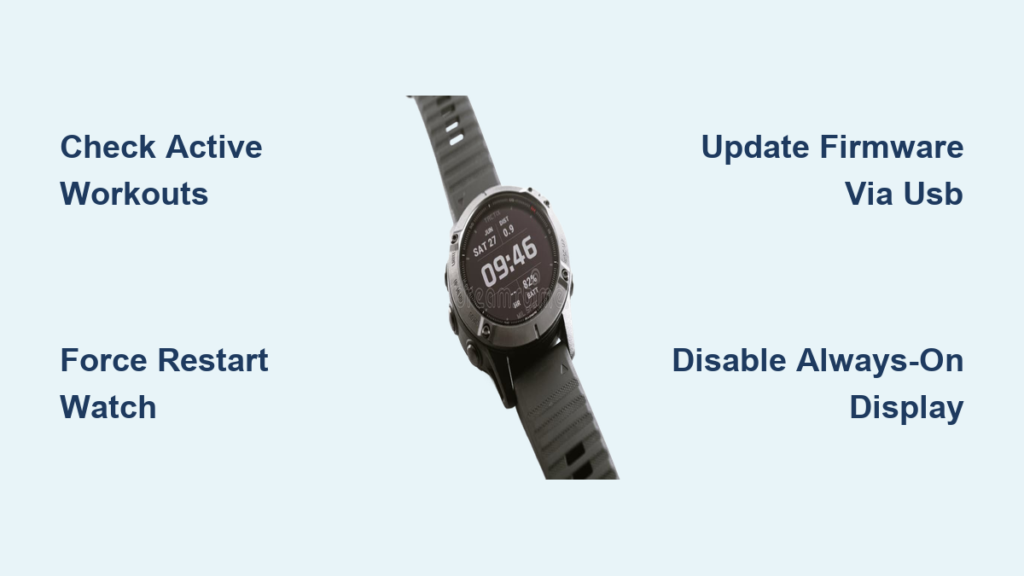
You charge your Garmin watch overnight, only to find it at 30% by lunchtime. You are not alone. Up to 80% of Garmin users experience rapid battery drain at some point, and in most cases, the issue is fixable without replacing your device.
This guide gives you a step-by-step action plan to stop the drain. Whether your Fenix 7 dropped from 100% to 50% overnight or your Venu 2 will not last a full day, you will learn how to diagnose, fix, and prevent battery issues across all Garmin models.
Check for Active Workout Sessions Running in the Background
A forgotten workout is one of the most common causes of sudden battery drain. If your watch is stuck in record mode, it runs GPS, heart rate, and screen sensors nonstop, even when you are sitting at your desk.
How to Stop an Accidentally Started Activity
Look for these signs that your watch is actively recording. The timer is running on the screen. You see distance, pace, or heart rate fields visible. The main watch face is not displayed.
To fix this issue, follow these steps. Press the bottom-right button, which is typically labeled Lap or Save. Select End, then choose Save to stop the activity. Confirm the session saves and returns to your watch face.
This single step has resolved overnight drain issues for thousands of users. Always check this first before trying more advanced fixes.
Force Restart Your Garmin Watch to Clear System Glitches
A soft reset stops runaway background processes caused by firmware bugs or app crashes. It does not delete your data and takes under a minute to perform.
How to Perform a Force Restart
Press and hold the top-left power button. Hold for 15 to 30 seconds until the screen goes black. Wait 10 seconds, then press the power button again to turn it back on. Let it fully boot until you see the Garmin logo appear.
If your watch is unresponsive, hold the power button for 30 or more seconds. If it gets stuck on a blue triangle, repeat the process. Users with Fenix 6 and Venu 3 watches report immediate improvement in battery life after a restart.
Update Firmware Through Garmin Express for Complete Installation

Over-the-air updates often fail to install all firmware components, especially Sensor Hub, GPS, or Bluetooth modules. This leaves your watch unstable and power-hungry. Using USB ensures complete firmware installation and reduces the risk of problems.
Steps to Update via Garmin Express
Download Garmin Express on your PC or Mac. Connect your watch via the USB cable. Let it install the main firmware, Sensor Hub, ANT plus BLE stack, and GPS module. Do not disconnect until the installation is complete. Keep charging for 60 or more minutes after reaching 100% for full calibration.
Always use stable firmware and avoid beta versions unless you are testing. OTA updates are convenient but can be unreliable for complete system updates.
Re-Calibrate Your Battery Gauge for Accurate Readings
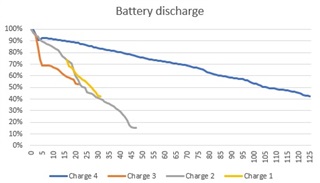
After firmware updates, your watch may misreport battery levels. The battery is not dead. It is just miscalibrated. This causes sudden drops like 50% to 10% in minutes and premature shutdowns.
Full Calibration Process
Use the watch until it shuts down automatically from low battery. Charge to 100%. Keep charging for 60 or more minutes after full charge to record true max voltage. Use until it shuts down again. Repeat this charge-discharge cycle one to two times.
This process re-learns the minimum and maximum voltage thresholds, restoring accurate percentage reporting. It does not harm lithium-ion batteries. The system prevents deep discharge.
Reset to Factory Settings to Remove Configuration Issues
Misconfigured settings, especially in background sensors or connectivity, can silently drain your battery. A reset clears these without deleting workouts, heart rate data, or your user profile.
How to Reset Your Garmin Watch
Go to Settings, then System, then Reset. Select Reset Default Settings. Confirm the action. Re-enable only essential features after the reset.
What gets reset includes the Always-On Display, Pulse Ox schedules, sensor search settings, Wi-Fi and Bluetooth behavior, and watch face configurations. After the reset, monitor battery life before re-adding widgets or apps.
Optimize Power-Draining Settings on Your Device
Even with clean firmware, the wrong settings can kill battery life fast. Tweak these to extend usage without losing functionality.
Disable Always-On Display
Always-On Display can halve battery life on AMOLED models like Venu and Forerunner 955. Go to Settings, then Display, then Always-On Display and turn it Off. Set the backlight timeout to 5 to 30 seconds. Disable gesture wake to prevent accidental screen turns.
Use simple watch faces. Avoid second hands, animations, or live data fields. Stock watch faces with minimal fields consume the least power.
Switch GPS to Single-Band Mode
Multi-band or multi-system GNSS improves accuracy but drains 3 to 5 times faster than GPS-only mode. Go to Settings, then GPS, then Mode, and select GPS Only. Set this as your global default to override sport profiles.
Multi-GNSS can use 25% battery per hour during hiking. GPS-only uses approximately 8%. Switch to multi-band only when signal is weak or precision is critical.
Turn Off High-Drain Sensors and Connectivity
Many sensors run in the background even when you are not using them. Disable Pulse Ox, especially all-day or sleep tracking. Turn off Move IQ, which auto-detects activities and drains fast during desk work. Disable automatic sensor search for HR monitors, foot pods, and cycling sensors. Turn off Wi-Fi, which disconnects slowly and can stay on for hours. Disable Bluetooth audio, which drains battery even without headphones connected.
Go to Settings, then Sensors and Accessories to turn off individual sensors. Go to Settings, then Connectivity to manage Wi-Fi and Bluetooth.
Manually Reinstall Firmware to Fix Corrupted Updates
If standard updates fail, manually install firmware files to force a clean system reload. This is an advanced step, but it has resolved issues when other methods did not work.
Finding and Installing Firmware Files
On Windows, firmware files are stored in C:\ProgramData\Garmin\CoreService\Downloads\Firmware. Enable hidden folders to see ProgramData. Look for .gsp files matching your model.
Copy the main firmware file to the root GARMIN folder on your watch. Place Sensor, GPS, or ANT files in the GARMIN/RemoteSW folder. Safely eject from your computer. When the watch prompts you to install firmware, confirm the action. The device resets to factory defaults.
This erases all data. Only use it if other fixes fail. One Fenix 5 Plus owner fixed 10% hourly drain by manually installing the Sensor Hub firmware that was missed in an OTA update.
Contact Garmin Support for Hardware Replacement
Reach out if battery drain persists after full reset, firmware update, and calibration. This is especially important if you own a known problematic model like Venu 2 or if your device is under warranty and underperforming.
How to Contact Garmin
Go to support.garmin.com. Log in and select your device. Click Contact Us for More Help. Choose chat, phone, or email.
Most Garmin watches come with a 1-year limited warranty. Possible outcomes include repair, replacement, or return shipping label. Users report that Garmin support often replaces devices that cannot be fixed. Call them. If they cannot fix it, they will likely replace it.
Frequently Asked Questions About Garmin Watch Battery Drain
Why does my Garmin watch battery drain overnight even when not in use?
This is usually caused by an accidentally started workout recording, firmware glitches after an OTA update, or miscalibrated battery readings. Check for active activities first, then try a force restart and firmware update via USB.
Does always-on display really affect battery life that much?
Yes. On AMOLED models like Venu 2, Always-On Display can cut battery life in half. Disabling it is one of the most effective ways to extend runtime.
How long should my Garmin watch battery last?
It varies by model. Fenix 7 lasts up to 18 days in smartwatch mode. Forerunner 955 lasts up to 20 days. Venu 2 lasts up to 11 days. Instinct 2 Solar can last up to 26 days with daily sun exposure.
Can I fix battery drain by recalibrating the battery?
Yes. Full calibration (drain to shutdown, charge to 100%, repeat) fixes false battery readings caused by lost voltage threshold data after firmware updates.
Should I use OTA updates or USB for firmware?
USB is more reliable. OTA updates often fail to install all firmware components, leading to system instability and battery drain. Always use Garmin Express via USB for complete installations.
When should I contact Garmin for a replacement?
Contact them if battery drain persists after all software fixes, including firmware update, calibration, and reset. Also reach out if your watch is under warranty and showing abnormal behavior.
Key Takeaways for Fixing Your Garmin Watch Battery
Ninety percent of battery drain issues are software-related. Start with the basics. Check for active workouts, perform a force restart, and update firmware via USB. Move to calibration and settings optimization if needed.
The eight-step action plan works for most users. Check for active activities, force restart, update via USB, calibrate the battery gauge, reset defaults, optimize settings, manually reinstall firmware if needed, and contact Garmin as a last resort.
Regularly audit your battery usage in the Garmin Connect app, keep firmware updated through USB, and avoid OTA updates when possible. With the right settings, your Garmin can last days, not hours.



