
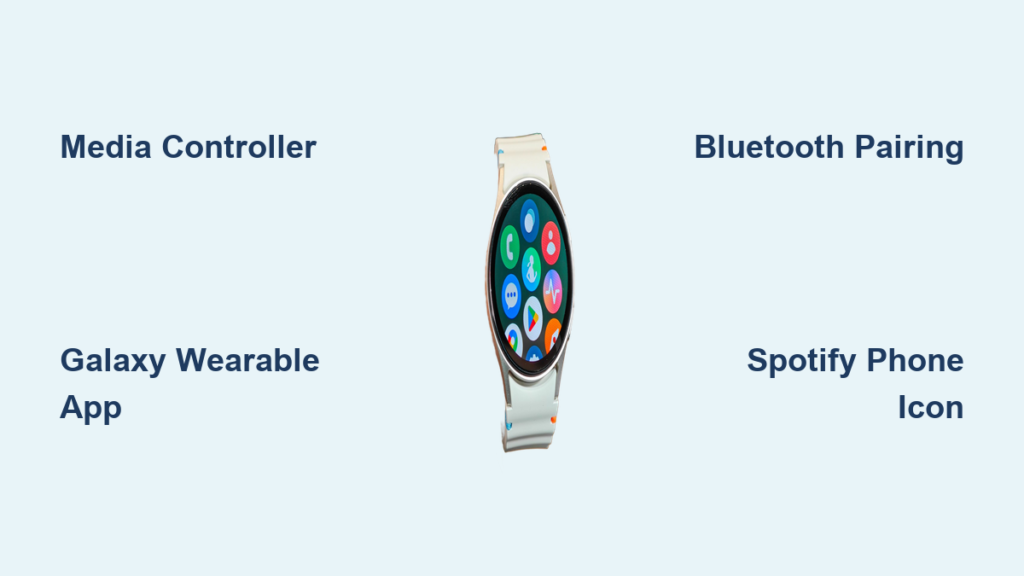
You just got your Samsung Galaxy Watch 7 and want to adjust the volume—whether for music, calls, or notifications—but can’t find a quick way to do it. You’re not alone. Many users expect a simple button shortcut like on other smartwatches, only to realize Samsung’s approach is slightly different. The good news? You can control every aspect of your Galaxy Watch 7’s audio—but knowing where and how to do it makes all the difference.
The Galaxy Watch 7 doesn’t offer a native long-press button shortcut for volume, but it gives you full control through intuitive on-watch menus and the Galaxy Wearable app. Whether you’re adjusting ringtone levels, fine-tuning media playback, or managing sound for hearing aids, this guide shows you exactly how to control volume on your Galaxy Watch 7—fast and efficiently.
Adjust Volume Directly on Your Galaxy Watch 7
You can customize sound levels right from your wrist using the built-in settings menu. This method is ideal for setting default volumes for calls, alerts, and system sounds.
Access Volume Settings Quickly
To adjust volume directly on the Galaxy Watch 7:
- Press the Home button or raise your wrist to wake the screen.
- Swipe up from the watch face to open Quick Settings.
- Tap the Settings (gear) icon.
- Go to Sounds and Vibration > Volume.
Here, you’ll see individual sliders for:
• Ringtone
• Media
• Notifications
• System sounds
Use the digital bezel, touch drag, or side button to fine-tune each level. Swipe right when done to return.
Pro Tip: The physical side button lets you make small, precise adjustments—great for avoiding sudden loud tones.
Alternative Menu Path
If you don’t see “Volume” under Sounds and Vibration:
• Swipe up from the watch face
• Tap Sound and Vibration
• Select Sound
• Choose Volume
This alternate route may appear depending on your firmware version.
Control Watch Volume from Your Phone Using Galaxy Wearable App
Prefer managing settings from your phone? The Galaxy Wearable app lets you adjust your watch’s audio levels from a larger screen—perfect for detailed tuning.
Sync Volume Settings from Your Phone
- Open the Galaxy Wearable app on your paired Android phone.
- Tap your Galaxy Watch 7 device.
- Navigate to Watch Settings > Sound and Vibration > Volume (or Sound in some versions).
- Adjust sliders for:
• Ringtone
• Media
• Notifications
• System
Changes sync instantly to your watch. This method is especially useful when setting up the watch for the first time or if you find the small interface hard to use.
Expert Note: Media volume control in the app may vary based on firmware. Keep your watch updated for full functionality.
Control Media Volume During Playback on Galaxy Watch 7
Controlling music or podcast volume is one of the most common tasks—and where many users get confused. The key? Use the Media Controller, not the general sound settings.
Open the Media Controller
When music is playing (from Spotify, YouTube Music, Samsung Music, etc.):
- Look for the music note icon at the bottom of your watch face.
- Tap it to open the Media Controller.
- Swipe up or turn the digital bezel to adjust volume.
This real-time control works whether audio plays on your phone, watch, or connected Bluetooth headphones.
Handle App-Specific Icons in Spotify
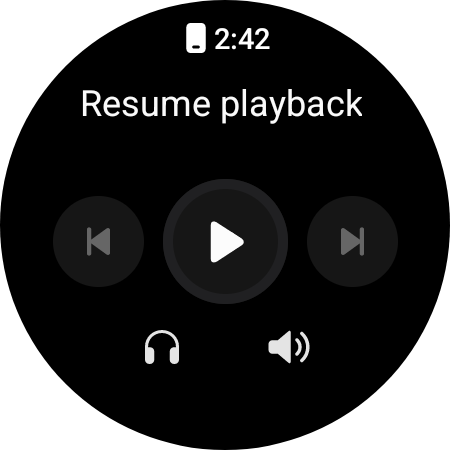
Some apps, like Spotify, show a phone icon instead of a speaker. Don’t be fooled—this is the volume control.
• Tap the phone icon in Spotify’s player.
• You’ll see a volume slider appear.
• Adjust using the bezel or touch.
User Insight: “I didn’t realize the phone icon in Spotify was for volume—it took me weeks to figure that out.” – Cassie Joughin, verified Galaxy user
Why Volume Changes Don’t Always Work on Paired Phone
Some users report that adjusting volume on the watch doesn’t affect sound on the paired phone. This happens when:
• The media app is running locally on the phone.
• Audio output is not routed through the watch.
• The app doesn’t support remote volume control.
Reddit User Report: “When I play music, I want to control it on my watch, but nothing happens on my phone.” – No-Safe2466
Fix App-Specific Volume Issues
This behavior is often app-dependent. For example:
• Samsung Music and YouTube Music typically respond well to watch-based volume control.
• Spotify may require you to tap the phone icon to access volume.
• Some third-party apps don’t support remote volume adjustment at all.
Troubleshooting Step: Test with Samsung Music first. If volume works there, the issue is likely with the app—not your watch.
Customize Volume by Sound Type on Galaxy Watch 7
The Galaxy Watch 7 separates audio into four distinct categories, each adjustable independently.
Ringtone Volume
Controls incoming call audio.
• Adjust via: Watch Settings > Sounds and Vibration > Volume > Ringtone
• Tip: Set this higher if you wear hearing aids or use Bluetooth earbuds.
Media Volume
Affects music, videos, and app audio.
• Controlled in Media Controller during playback.
• Also adjustable in Galaxy Wearable app.
• Most critical when streaming to Bluetooth headphones paired with the watch.
Notification Volume
Manages alerts for messages, calendar, and apps.
• Set once in Sounds and Vibration menu.
• Keep moderate for daily use; lower for meetings.
System Volume
Includes UI beeps, alarms, and haptic feedback tones.
• Often overlooked but useful for accessibility.
• Lower this to reduce accidental beeping during workouts.
| Volume Type | Best Adjustment Method | Real-World Use Case |
|---|---|---|
| Ringtone | Watch Settings or Galaxy Wearable | Calls while wearing hearing aids |
| Media | Media Controller (during playback) | Listening to Spotify on Bluetooth earbuds |
| Notifications | Galaxy Wearable app | Customizing alert levels for work vs. home |
| System | Direct on watch | Reducing beeps during sleep tracking |
Optimize Volume for Bluetooth Headphones and Hearing Aids

If you use hearing aids or wireless headphones paired directly to your Galaxy Watch 7, volume control becomes even more powerful.
Pair Audio Devices to Watch
- On your watch, go to Settings > Connections > Bluetooth.
- Turn on Bluetooth and pair your hearing aids or headphones.
- Once connected, audio (including media) routes through the watch.
Now:
• Adjust media volume on the watch to control sound in your ears.
• Use the Media Controller for real-time changes.
Benefit: You can leave your phone in your bag and still control everything from your wrist.
Ensure Correct Audio Routing
If volume adjustments aren’t working:
• Check that audio is playing from the watch, not the phone.
• In Spotify or other apps, ensure the output device is set to “Watch” or your connected headphones.
To switch output:
• Open the Media Controller on the watch.
• Tap the device icon (speaker or phone).
• Select your watch or paired headphones as the output.
Avoid Common Volume Mistakes on Galaxy Watch 7
Even experienced users make these errors—avoid them to save time and frustration.
Using General Settings for Media Volume
Don’t go to Sounds and Vibration > Volume to adjust music. That menu sets default levels, not live playback. Use the Media Controller instead.
Expecting Long-Press Button Shortcut
Unlike Garmin or Apple Watch, the Galaxy Watch 7 does not support a long-press side button to open volume. You must open the Media Controller manually.
Workaround: Use a third-party app like Button Mapper or a custom watch face with quick-launch media tiles.
Ignoring App Output Settings
Many users assume the watch controls volume universally—but if the app outputs sound to the phone, the watch can’t affect it. Always check the output device in the media player.
Best Practices for Daily Volume Control
Follow these tips to master volume control on your Galaxy Watch 7.
For General Setup
• Use the Galaxy Wearable app to set baseline volumes.
• Fine-tune ringtone and notifications based on your environment (e.g., louder at home, quieter at work).
For Music and Podcasts
• Always launch the Media Controller via the music note icon.
• In Spotify, tap the phone icon to reveal volume.
• Pair Bluetooth headphones directly to the watch for full wrist-based control.
For Hearing Aid Users
• Pair hearing aids to the watch, not the phone.
• Adjust media volume on the watch to control sound sent to your aids.
• Use Media Controller during calls or audio playback for real-time adjustments.
Missing Native Shortcut? Workarounds for Quick Volume Access
Samsung doesn’t provide a built-in way to launch volume control with a button press. But you can optimize access.
Use Quick Settings Tiles
- Swipe down from the watch face.
- Tap the edit (pencil) icon.
- Add the Do Not Disturb or Sound tile for faster access to sound modes.
While this won’t open volume sliders, it lets you switch between sound profiles quickly.
Try Third-Party Apps
• Button Mapper: Remap the side button to open the Media Controller or a specific app.
• Wear OS Customizer: Add volume shortcuts to custom watch faces.
Note: These require sideloading and may not be supported by Samsung.
Frequently Asked Questions About Galaxy Watch 7 Volume Control
How do I adjust volume directly on my Galaxy Watch 7?
Swipe up from the watch face to open Quick Settings, tap the Settings icon, then go to Sounds and Vibration > Volume. Use the sliders to adjust ringtone, media, notifications, and system sounds.
Why doesn’t volume control work when I adjust it on my watch?
This usually happens when media is playing on your phone rather than through the watch. Check that audio output is routed through the watch in your media app’s settings, or use the Media Controller for real-time adjustments.
Where is the volume control in Spotify on Galaxy Watch 7?
Spotify shows a phone icon instead of a speaker icon. Tap the phone icon to reveal the volume slider. This is a common point of confusion for new users.
Can I control volume from my phone instead of the watch?
Yes. Open the Galaxy Wearable app, select your watch, go to Watch Settings > Sound and Vibration > Volume, and adjust sliders there. Changes sync instantly to your watch.
Does Galaxy Watch 7 have a button shortcut for volume?
No. Unlike some competitors, the Galaxy Watch 7 does not support a long-press side button for volume. Use the Media Controller or Quick Settings tiles for faster access.
Can I pair hearing aids directly to Galaxy Watch 7 for volume control?
Yes. Go to Settings > Connections > Bluetooth on your watch to pair hearing aids or headphones. Once connected, adjust media volume on the watch to control audio sent to your devices.
Key Takeaways for Controlling Volume on Galaxy Watch 7
The Samsung Galaxy Watch 7 gives you full, granular control over volume—but it’s not always intuitive. By using the Media Controller for playback, the Galaxy Wearable app for setup, and understanding app-specific quirks like Spotify’s phone icon, you can take complete command of your audio experience. While a native button shortcut is missing, smart workflows and proper device pairing make up for it. Keep your firmware updated, route audio correctly, and use the right tools for the task—your wrist will do the rest.



