
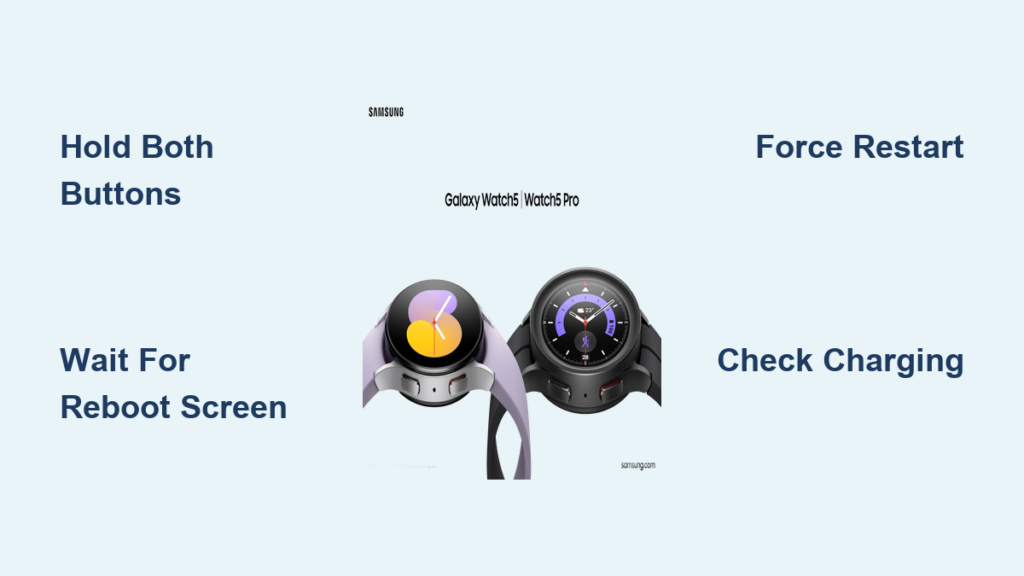
Is your Galaxy Watch 5 frozen, unresponsive, or acting strangely? A reset can often fix software glitches, app crashes, or performance lags. Whether you’re dealing with a non-responsive touchscreen or apps that keep closing, knowing how to reset Galaxy Watch 5 the right way can save you time and frustration.
This guide covers the correct method to force restart your device, which is Samsung’s recommended solution when the watch is not responding normally. You’ll also learn what to expect during the process, how long it takes, and what to do if a simple reset does not solve the problem.
Force Restart Galaxy Watch 5
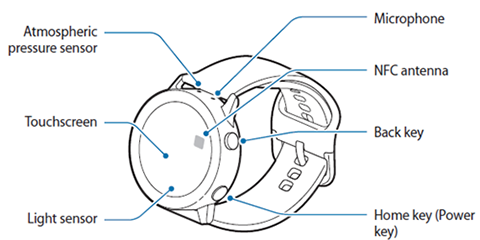
A force restart is the primary way to reset your Galaxy Watch 5 when it is frozen or not responding. This method works on both the standard Galaxy Watch 5 and the Galaxy Watch 5 Pro. It is fast, safe, and does not require any tools or computer connection.
To perform a force restart:
- Press and hold both the upper side button and the lower button at the same time.
- Keep holding them for 10 to 15 seconds.
- Wait until you see the SAMSUNG Rebooting screen appear.
- Release the buttons and let the watch restart automatically.
The entire process takes about 30 seconds. Once the reboot finishes, your watch will return to the Samsung logo screen and power back on normally. After resetting, check if the issue has been resolved.
What Happens During a Force Restart
When you force restart your Galaxy Watch 5, the system shuts down abruptly and restarts the core operating system. This clears the device’s RAM and stops any stuck processes. Think of it like unplugging a computer and plugging it back in.
You will see these stages during the restart:
- The screen goes black after holding the buttons.
- The Samsung logo appears briefly.
- The SAMSUNG Rebooting message shows on screen.
- The watch face returns after a few seconds.
No data is deleted during this process. All your apps, health metrics, and settings remain intact.
When to Use a Force Restart
Use this method when you encounter these situations:
- The screen is frozen or unresponsive.
- An app will not close or keeps crashing.
- The watch will not turn off using the power menu.
- You are experiencing lag or stuttering in navigation.
- The watch reboots in a loop or gets stuck on the logo screen.
It is safe to do a force restart occasionally. However, if you find yourself needing to do it frequently, there may be a deeper software or battery issue.
Fix Unresponsive Galaxy Watch 5
Sometimes the watch does not react to taps or button presses. Before assuming hardware failure, try these quick checks to confirm the issue and apply the proper fix.
Screen Not Responding to Touch
If the screen is black or frozen but the watch might still be on, try these steps:
- Press the lower button to see if it wakes the display.
- Rotate the bezel to check for any response.
- Plug the watch into the charger. If it vibrates or shows a charging icon, it is powered on.
If none of these work, proceed with the force restart as described above.
Watch Will Not Power On After Restart
If the watch does not come back on after a force restart, try these solutions:
- Charge it for at least 15 to 30 minutes using the original charger.
- Try the force restart again while it is plugged in.
- Ensure the charging puck is properly aligned with the back of the watch.
Sometimes a drained battery mimics a software crash. Even if the battery is low, the watch should show a charging indicator within seconds of connecting.
Galaxy Watch 5 Pro: Special Considerations
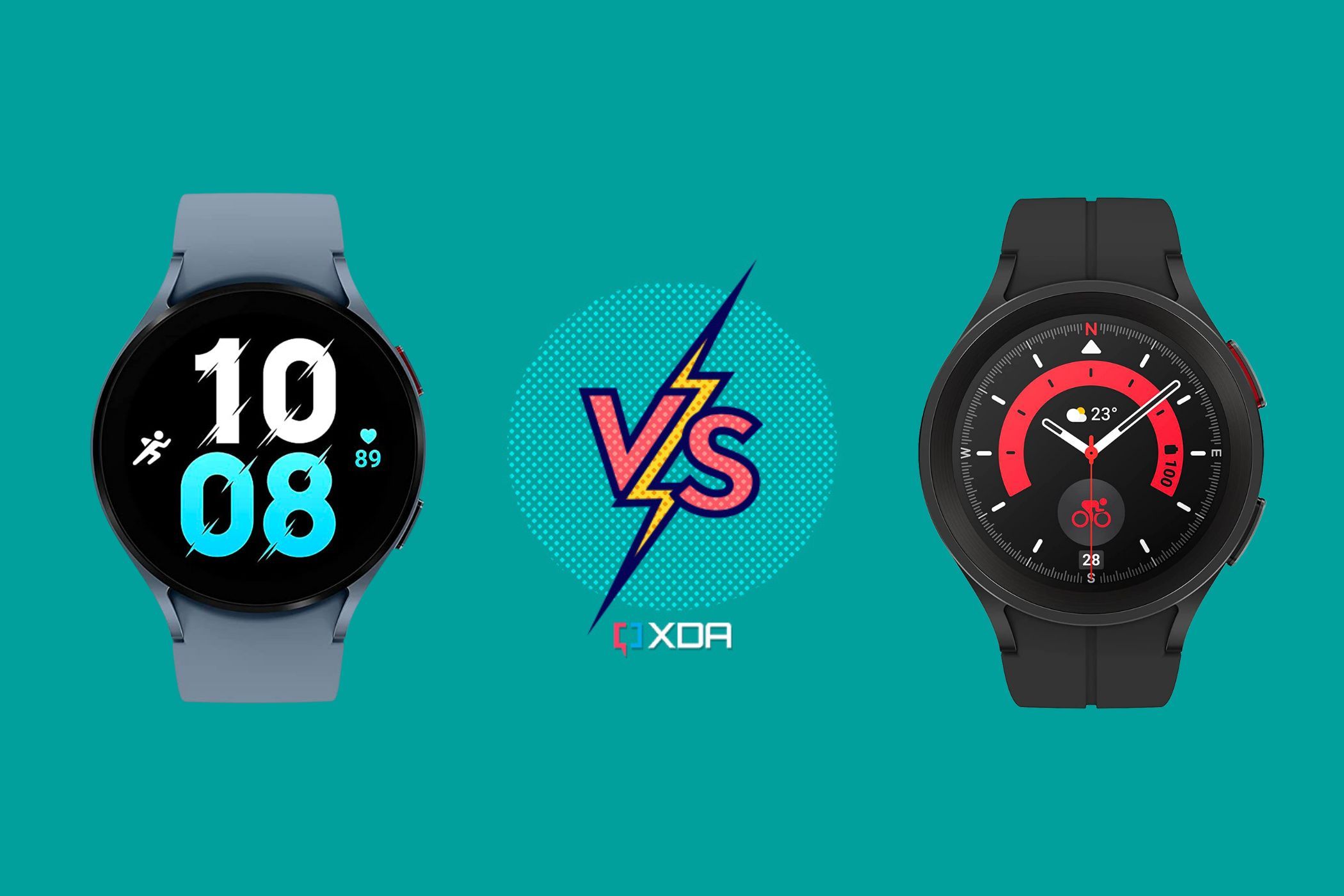
The Galaxy Watch 5 Pro shares the same reset procedure as the standard model, but its rugged design and larger battery mean a few extra considerations.
Same Buttons, Same Process
Despite its bigger size and titanium frame, the reset method is identical to the standard model. Hold both side buttons for 10 to 15 seconds and wait for the reboot screen. No special steps are needed due to the Pro model’s durability or GPS features.
Battery Tips for Watch 5 Pro Users
Because the Pro model is often used for long outdoor activities, it may be more prone to deep battery drain. If your Pro watch will not reset, follow these tips:
- Charge it fully before attempting another restart.
- Avoid using third party chargers. They may not deliver enough power.
- Clean the charging contacts with a dry cloth if charging seems slow.
The Galaxy Watch 5 Pro has a slightly longer boot time than the standard model due to its optimized GPS firmware. Wait up to 45 seconds for full startup after a reset.
What Resetting Does and Does Not Do
Understanding the impact of a reset helps you decide when to use it and when to try something else.
What a Reset Fixes
A force restart resolves these common issues:
- Temporary software freezes
- App crashes or lockups
- Glitchy UI elements like stuck notifications
- Minor sync issues with your phone
It is the first troubleshooting step for almost any performance problem.
What a Reset Does Not Do
A reset will not delete apps or user data. It will not remove paired phones or accounts. It will not fix hardware damage like cracked screens. It will not solve chronic battery drain. It will not update software or install patches.
If problems persist after multiple resets, consider other solutions.
Alternative: Factory Reset
If a force restart does not fix ongoing issues, a factory reset may help. This is a stronger action, so only use it if problems continue.
When to Factory Reset
Consider a factory reset in these situations:
- Apps keep crashing after updates.
- The watch slows down significantly.
- Bluetooth pairing fails repeatedly.
- You are selling or giving away the watch.
Back up your data first. Open the Samsung Wearable app on your phone and sync your watch data before proceeding.
How to Factory Reset
- Open Settings on your Galaxy Watch 5.
- Scroll to General and tap Reset.
- Tap Factory data reset.
- Confirm with the Delete All button.
- Wait for the watch to erase and restart.
This process takes 5 to 10 minutes. The watch will reboot multiple times during the process.
Prevent Future Issues
After resetting your Galaxy Watch 5, take steps to avoid repeat problems.
Keep Software Updated
Outdated firmware can cause instability. To check for updates, open the Samsung Wearable app on your phone. Tap Watch Settings, select About watch, and choose Software update to install any available patches.
Manage Apps and Notifications
Too many apps running in the background can slow down your watch. Uninstall apps you do not use by pressing and holding the app screen and tapping Uninstall. Limit notification heavy apps to reduce system load.
Restart Weekly
Even smartphones benefit from occasional reboots. Try a weekly force restart to keep your Galaxy Watch 5 running smoothly. Simply hold both buttons for 10 seconds, even if the watch is working fine.
Frequently Asked Questions About Resetting Galaxy Watch 5
How do I force restart my Galaxy Watch 5?
Press and hold both the upper side button and the lower button simultaneously for 10 to 15 seconds. Keep holding until you see the SAMSUNG Rebooting screen appear, then release and let it restart.
Will I lose my data when force restarting?
No. A force restart does not delete any apps, settings, health data, or paired phones. It simply reboots the operating system to clear temporary issues.
Why is my Galaxy Watch 5 not responding to touch?
This usually indicates a software freeze. Try pressing the lower button or rotating the bezel. If nothing works, perform a force restart by holding both side buttons for 10 to 15 seconds.
How long does a force restart take?
The entire process takes about 30 seconds from start to finish. The watch will show the Samsung logo briefly before returning to normal operation.
Can I reset my Galaxy Watch 5 while it is charging?
Yes. In fact, if the watch will not turn on after a reset, try charging it for 15 to 30 minutes first, then attempt the force restart again while it is plugged in.
What should I do if my Galaxy Watch 5 keeps freezing?
Try a force restart first. If it keeps happening frequently, check for software updates through the Samsung Wearable app. If problems continue, consider backing up your data and performing a factory reset.
Key Takeaways for Resetting Your Galaxy Watch 5

Knowing how to reset Galaxy Watch 5 is essential for keeping your smartwatch reliable. A simple force restart, holding both buttons until the reboot screen appears, can fix most common issues without losing any data. This method works identically on both the Galaxy Watch 5 and Watch 5 Pro. Use it when the screen freezes, apps crash, or the device becomes unresponsive.
If problems continue after multiple restarts, consider a factory reset or check for software updates through the Samsung Wearable app. Always back up your data first. With regular maintenance and smart app usage, your Galaxy Watch 5 should stay responsive and efficient for months to come.
Now that you know the steps, you are ready to handle most glitches with confidence. No tech support needed.



