

You just unboxed your new smart watch and want it working seamlessly with your phone. Whether you’re using an Android or iPhone, setting up a smart watch doesn’t have to be confusing. With the right steps, you’ll have health tracking, notifications, and custom watch faces ready in under 15 minutes. This guide covers how to set up a smart watch from start to finish: charging, app pairing, permissions, customization, and troubleshooting.
Let’s get your device powered, paired, and personalized so you can enjoy all the features your new smart watch offers.
Charge Before Setup
Your watch likely arrived with a low battery, so charging is the essential first step. Never skip this stage, as firmware updates and initial syncs demand stable power.
Connect to Magnetic Charger
Use the proprietary magnetic charging cable included in the box. Align the magnets on the back of the watch with the pins on the charger until they snap into place. Plug the other end into a USB power adapter or computer. A battery icon will appear on-screen when charging begins.
Wait for Full Charge
Allow one to two hours for a full charge. Even if the screen lights up quickly, wait until it shows 100%. For best results, charge overnight. Pro tip: keep the watch at 50% or higher before starting setup, especially if a firmware update is expected.
Install the Companion App
The companion app is the bridge between your phone and watch. Without it, pairing won’t work.
Scan QR Code to Find App
The fastest way to find the correct app is by scanning the QR code provided on the watch back or side, in the instruction manual, or on the packaging box. Open your smartphone camera, point it at the QR code, and tap the pop-up link.
Download for Your OS
iPhone users should get the app from the App Store. Android users should download from Google Play Store. Common apps include Very Fit and Fits Pro. If scanning fails, manually search the exact app name and avoid third-party clones.
Create Your Account
Open the app and sign up with your email address or Apple ID. Then enter personal details including age, gender, height, weight, and daily activity goals. These help calibrate step counting, calorie burn, heart rate trends, and sleep analysis.
Pair Watch to Phone

Now comes the critical step: connecting your watch to your phone via Bluetooth.
Enable Bluetooth and Location
Before pairing, turn on key phone settings. On iPhone, go to Settings, then Bluetooth, then turn it on. Also enable Location Services in Settings, Privacy and Security. On Android, enable Bluetooth in Settings, Connected Devices, and turn on Location in Settings.
Start Device Binding
Open the companion app and tap Add Device, Bind New Device, or Connect Watch. Select Watch Bracelet or Smartwatch category. Grant permissions when prompted, including Bluetooth, Location, Storage, and Body sensors.
Complete the Connection
Wait for your watch to appear in the device list, then tap it to begin pairing. Keep the phone and watch within 10 centimeters during pairing for a strong Bluetooth signal. When successful, you’ll see Binding Successful in the app and a new screen animation on the watch.
Update Firmware Immediately
After pairing, check for firmware updates to ensure optimal performance.
Check for Updates
The app may prompt Firmware Update Available. Tap Upgrade or Update Firmware to start the process.
Do Not Interrupt the Process
During the update, keep the watch plugged in and stay close to your phone. Do not press any buttons. The watch will reboot automatically when done. Wait up to 60 seconds after reboot. If the screen stays dark, press the side power button once to wake it.
Grant Essential Permissions
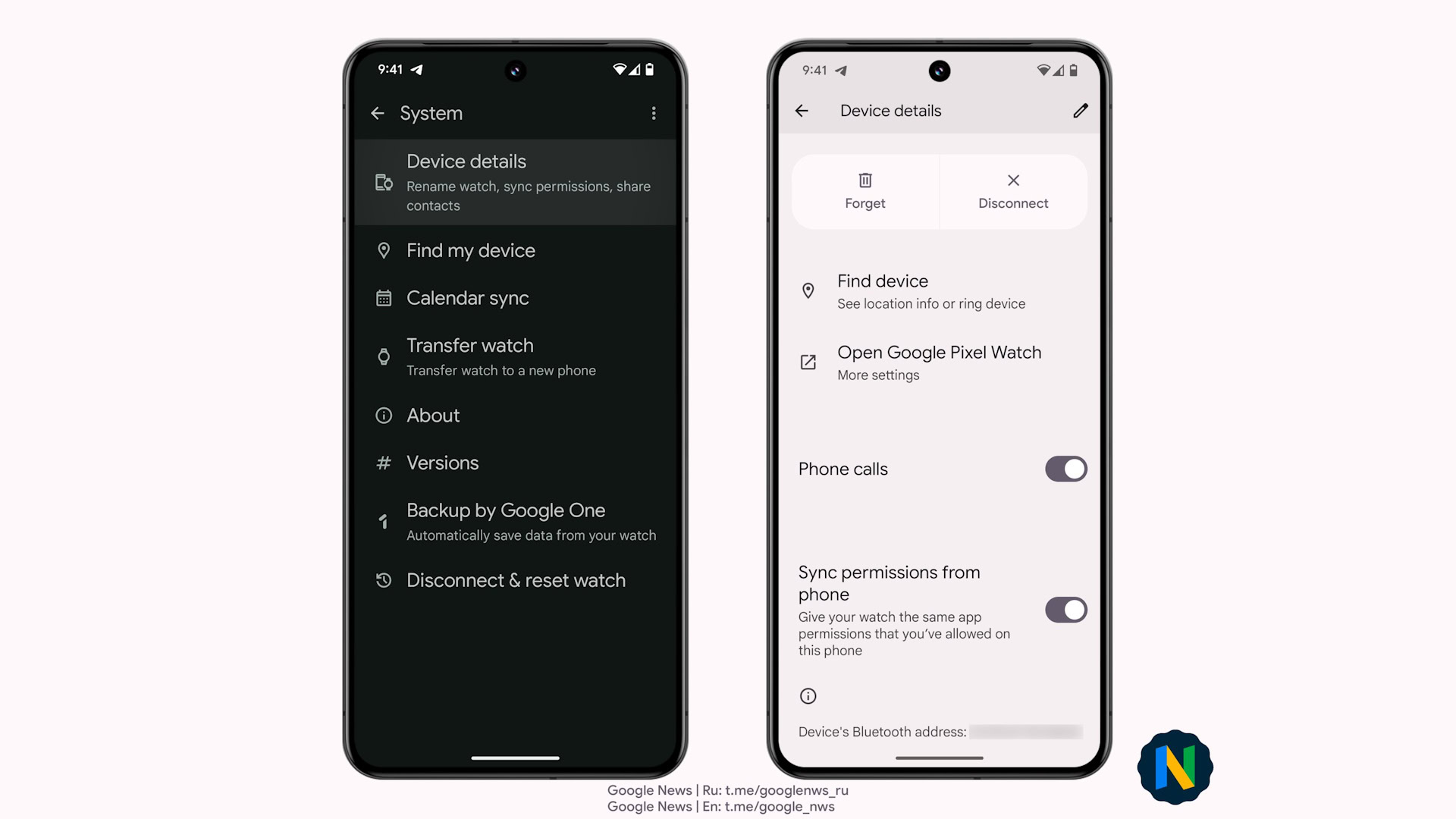
Without proper permissions, your watch won’t deliver notifications or track health data.
Android App Permissions
On Android, prevent sync issues by allowing full access. Go to Settings, Apps, then your companion app, and enable permissions for Body sensors, Call logs, Contacts, Phone, Physical activity, SMS, Location, and Storage.
Enable Notification Access
Go to Settings, Apps, your companion app, then Notifications. Turn on access for Messages, Calls, Email, and social apps like WhatsApp and Instagram. Then open the companion app and go to the Notifications section to toggle on which apps send alerts to your wrist.
Disable Battery Optimization (Android Only)
Android may kill background processes to save power, which breaks syncing.
Prevent App Suspension
Go to Settings, Apps, your companion app, then Battery. Tap Battery Optimization, select the app, and choose Don’t optimize or Allow background activity. This keeps health data flowing and notifications arriving instantly.
Customize Your Watch Face
Make your watch uniquely yours by uploading a personal photo.
Upload a Personal Photo
In the companion app, tap Watch Face, Wallpaper, or Dial. Select Custom Image or Upload Photo, pick a picture from your gallery, adjust crop and layout, then tap Apply. The image syncs wirelessly within seconds.
Ensure Fast Transfer
For quick sync, maintain Bluetooth connection and keep both devices awake. Avoid switching apps during upload. Use a high-contrast photo for readability in sunlight.
Activate Key Features
Your smart watch can do much more than show the time.
Answer Calls on Wrist
Once permissions are set, incoming calls appear on the watch screen. Tap Answer or Reject to handle calls directly from your wrist.
Control Music Remotely
From the watch menu, you can play, pause, skip tracks, and adjust volume on select models. Control Spotify, YouTube Music, or local files directly from your wrist.
Use Voice Assistant
Some models support Alexa. During setup, sign in to your Amazon account. Say Alexa to set timers, check weather, or create reminders. Siri integration for iPhone users varies by model.
Find My Phone and Watch
Enable Find My Phone in the app. Tap the button and your phone rings, even on silent. Use Find My Smartwatch to make your watch emit a sound so you can locate it.
Monitor Health and Fitness
Your watch continuously monitors heart rate 24/7 and blood oxygen when you tap to measure. Sleep stages are automatically detected, and step count syncs to the app dashboard for long-term trends. Built-in workout modes include walking, running, cycling, yoga, and free training.
Maximize Battery Life
Under normal use with notifications on, heart rate continuous, and sleep tracking enabled, the battery lasts up to seven days. Thanks to efficient power management, you can keep the watch on 24/7 for uninterrupted health monitoring. Charge approximately once per week. Pro tip: avoid full discharges. Top up early to extend battery longevity.
Troubleshoot Common Issues
Watch Won’t Pair
Check that Bluetooth is on and your phone isn’t connected to another device. Ensure the watch is factory reset. Retry with devices within four inches of each other.
Notifications Not Showing
Verify app notifications are enabled in phone settings and battery optimization is disabled. Make sure the watch is in range and connected.
Firmware Update Failed
Try again with the watch plugged in and close to your phone. Do not touch controls during transfer. If stuck, perform a factory reset and restart setup.
Frequently Asked Questions About Setting Up a Smart Watch
How long does it take to set up a smart watch?
Most smart watches take under 15 minutes to set up, assuming all prerequisites like charging and app installation are completed smoothly.
Can I set up a smart watch without the companion app?
No. The companion app is required for pairing, permissions, customization, and firmware updates. Without it, your watch cannot connect to your phone.
Why won’t my watch pair to my phone?
This usually happens if Bluetooth is off, the watch is already paired to another phone, or permissions are missing. Factory reset the watch and ensure both devices are close together during pairing.
Do I need location services enabled to pair my watch?
On Android, location is required for device discovery. On iPhone, enable Location Services in privacy settings to ensure smooth pairing.
How do I know if my firmware update was successful?
The watch will reboot automatically after the update. If the screen stays dark for more than 60 seconds, press the side power button to wake it. The app will confirm when the update is complete.
Key Takeaways for Setting Up Your Smart Watch
Setting up a smart watch is a straightforward process when you follow the right steps. Charge your watch fully before starting, install the correct companion app, and ensure Bluetooth and location are enabled on your phone. Grant all necessary permissions, disable battery optimization on Android, and update the firmware immediately after pairing. Once configured, you can customize your watch face, enable call and notification alerts, and start tracking your health and fitness data. With proper setup, your smart watch will deliver weeks of reliable performance on a single charge.



