
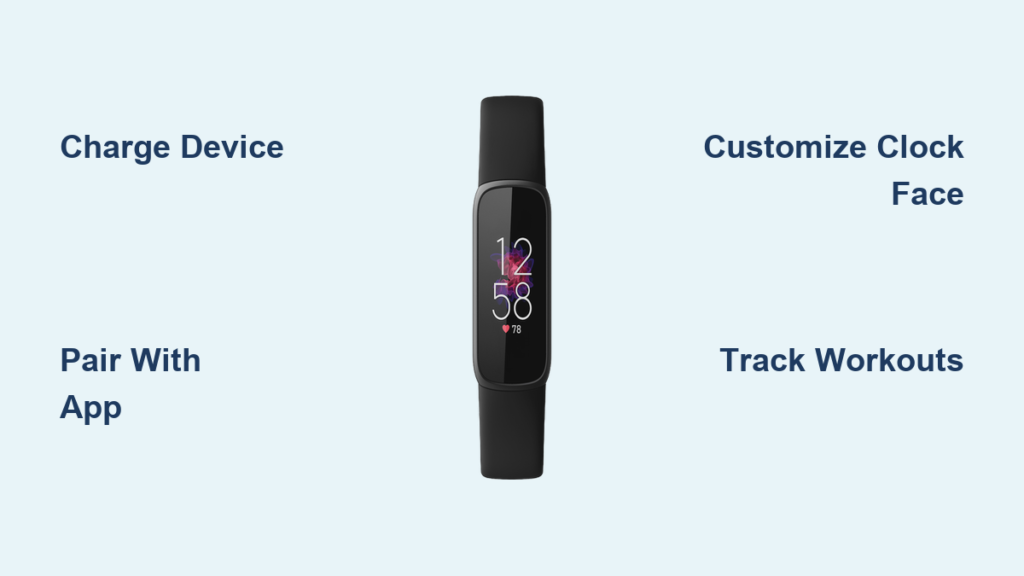
You just unboxed your Fitbit Luxe, the sleek fitness tracker designed to blend fashion with wellness. This compact device tracks your steps, monitors your heart rate, analyzes your sleep, and helps you manage stress throughout the day. But figuring out how to navigate its features can feel overwhelming at first.
This guide walks you through everything you need to know, from the initial setup to daily use. You will learn how to pair your device, navigate the interface, track workouts, and customize settings to fit your lifestyle. By the end, you will be ready to make the most of your Fitbit Luxe from day one.
Set Up Your Fitbit Luxe

Before you can start tracking your health, you need to power on and connect your device to your phone.
Charge and Power On
Start by charging your Fitbit Luxe using the magnetic charging cable. The pins align automatically when you connect the cable to the back of the device. A full charge takes about one to two hours and provides up to five days of battery life.
Once charged, the device turns on automatically. You will see the Fitbit logo appear followed by a setup prompt on the screen.
Install the Google Health App
The Fitbit Luxe uses the Google Health app to sync and manage all your health data. Follow these steps to get started:
• Download Google Health from the Google Play Store for Android or the Apple App Store for iPhone
• Open the app and tap Sign in with Google
• Select an existing Google account or create a new one if needed
• Follow the on-screen prompts to pair your Luxe via Bluetooth
Keep your tracker close to your phone during the pairing process. Make sure Bluetooth and location services are enabled on your phone, as some devices require location access to complete Bluetooth pairing.
Navigate the Fitbit Luxe Interface

Once your device is paired, learning how to move around the interface takes just a few minutes.
Swipe and Tap Controls
The Luxe uses simple touch gestures to navigate:
• Swipe left or right to cycle through apps and stats
• Swipe up or down to scroll through menus and view more details
• Double-tap firmly to return to the clock face from any screen
• Swipe right to go back one screen
There are no physical buttons on the Luxe. Everything is controlled through these touch gestures.
View Your Core Stats
From the clock face, swipe up to see your real-time health metrics including:
• Steps taken
• Heart rate
• Active Zone Minutes
• Floors climbed
• Calories burned
Swipe left or right to cycle through different stats. Each metric updates automatically throughout the day.
Customize Your Clock Face
Make your Fitbit Luxe match your personal style by choosing a clock face that works for you.
Change the Display
To change your clock face:
- From the clock face, long-press the screen
- Swipe left or right to browse available clock faces
- Tap to select your choice
You can choose from digital or analog designs. Some clock faces display additional information like heart rate, steps, or battery life.
Toggle Displayed Metrics
On compatible clock faces, tap the screen to toggle between different metrics. You can switch between seeing your steps, heart rate, battery percentage, or weather information depending on which clock face you selected.
Track Workouts and Activity
The Fitbit Luxe helps you stay active with built-in exercise tracking and automatic activity detection.
Start a Manual Workout
To track a specific workout:
- Swipe left from the clock face to open the Exercise app
- Swipe to select your activity type such as walking, running, yoga, or cycling
- Tap to start the workout
- View real-time stats during exercise including time elapsed, heart rate, and pace
- Press and hold to pause or end the workout
Note that the Fitbit Luxe does not have built-in GPS. It uses your phone’s GPS when paired, so keep your phone nearby for accurate pace and distance tracking.
Use SmartTrack for Auto-Detection
Your Luxe automatically detects workouts lasting 15 minutes or more. Supported activities include walking, running, elliptical workouts, and bike rides. After detected activity ends, you will receive a notification asking if you want to log the workout. Tap to confirm or dismiss the prompt.
Enable Exercise Focus Mode
To silence notifications during workouts:
- Open the Settings app on your Luxe
- Tap Exercise Focus
- Turn it on
Remember to disable Exercise Focus after your workout ends, otherwise you will continue to miss calls and message notifications.
Monitor Health and Wellness
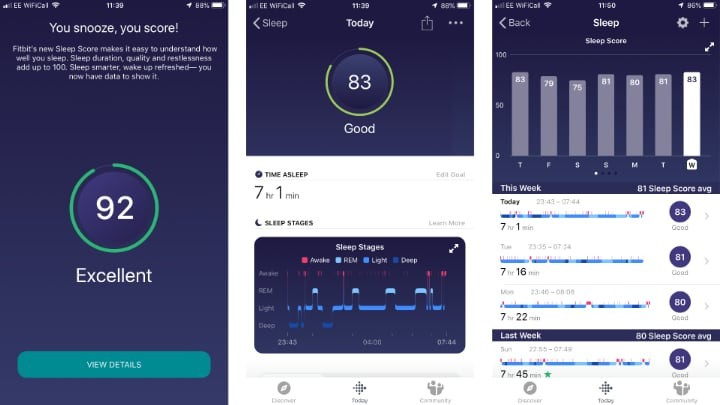
Beyond steps and calories, the Luxe provides detailed health insights including sleep analysis and stress management.
Check Your Heart Rate
Your real-time heart rate appears on the core stats screen and during workouts. Resting heart rate trends are tracked nightly and displayed in the Google Health app. Lower resting heart rate typically indicates better cardiovascular fitness.
Track Blood Oxygen Saturation
The Luxe estimates your blood oxygen saturation while you sleep. Wear your Luxe to bed with the band snug but comfortable. In the morning, open the Google Health app and go to the Sleep tab to see your average SpO2 level, which typically ranges from 95 to 100 percent.
This feature is for general wellness purposes only and is not intended for medical diagnosis.
View Your Sleep Score
After sleeping with your Luxe:
- Open the Google Health app
- Tap the Sleep tile
- See your Sleep Score rated from 0 to 100
Your score is calculated based on time asleep, restlessness, and heart rate variability. Use these insights to identify patterns and improve your bedtime habits.
Manage Stress with the Relax App
To reduce stress on the go:
- Open the Relax app on your Luxe
- Choose a breathing session lasting 2 to 5 minutes
- Follow the on-screen animation to inhale and exhale
Watch your heart rate drop in real time as you follow the guided breathing.
Check Your Stress Management Score
In the Google Health app, tap the Stress tile to view your Daily Readiness Score and see how your activity, sleep, and heart rate affect your stress levels. The app may suggest breathing sessions or earlier bedtimes when stress appears elevated.
Use Notifications and Alarms
Stay connected without constantly checking your phone.
Receive Phone Alerts
Your Luxe displays notifications for incoming calls, text messages, calendar events, and apps like WhatsApp and Gmail. To customize which apps send notifications:
- Open the Google Health app
- Tap Today, then your profile picture
- Select Devices, then Notifications
- Toggle apps on or off
Android users can respond to messages using preset quick replies such as “Yes,” “No,” or “On my way.”
Set a Wake-Up Alarm
Never oversleep again with silent wrist vibrations:
- In the Google Health app, go to Alarms
- Tap the plus icon to add a new alarm
- Set the time, choose repeat days, and add a label
- Save the alarm
In the morning, the Luxe vibrates gently. Tap the screen to snooze or tap again to dismiss.
Maintain and Protect Your Luxe
Keep your tracker clean, charged, and ready for any activity.
Use Water Lock
Turn on Water Lock when showering, swimming, or washing hands to prevent accidental screen activations:
- Swipe down from the clock face
- Tap Water Lock
- Double-tap the screen to confirm
To disable Water Lock, double-tap firmly until “Unlocked” appears on screen. If it does not unlock on the first try, tap harder.
Clean Your Device
Wipe your Luxe daily with a soft, dry cloth. After swimming or sweating:
• Rinse with fresh water
• Dry thoroughly
• Avoid soaps or chemicals that could damage the sensors
Replace the Band
Luxe bands are interchangeable. To change your band:
- Flip the tracker over
- Press the release tab on the band
- Slide the band out
- Snap in the new band until it clicks into place
Fitbit sells bands in multiple colors and materials to match your style.
Track Advanced Health Metrics

In supported regions, monitor long-term wellness trends through detailed health metrics.
View Health Metrics in Google Health
Open the app and explore these tracked metrics:
• Resting heart rate trends
• Heart-rate variability indicating recovery status
• Breathing rate changes that may signal illness
• Skin temperature tracking overnight
These metrics help you identify patterns like rising stress or early signs of illness. Remember these are wellness indicators and not medical tools. Consult a doctor for any health concerns.
Troubleshoot Common Issues
Fix common problems quickly with these solutions.
No Syncing with Phone
Try these steps in order:
• Restart the Google Health app
• Toggle Bluetooth off and on
• Restart your phone
• Re-pair the device in app settings
Ensure your Luxe stays within 20 feet of your phone for reliable connectivity.
Battery Drains Too Fast
Common causes include too many notifications, always-on display enabled, frequent GPS use, and animated clock faces. To extend battery life, use a static clock face, turn off unnecessary alerts, and disable Always-On Display in the app settings.
Heart Rate Not Updating
Check these potential issues:
• Band is too loose. Adjust it snugly above your wrist bone.
• Skin is dry or cold. Warm up and recheck the reading.
• Sensors were affected by water. Wait a minute after washing hands before checking.
Maximize Your Fitbit Luxe Experience
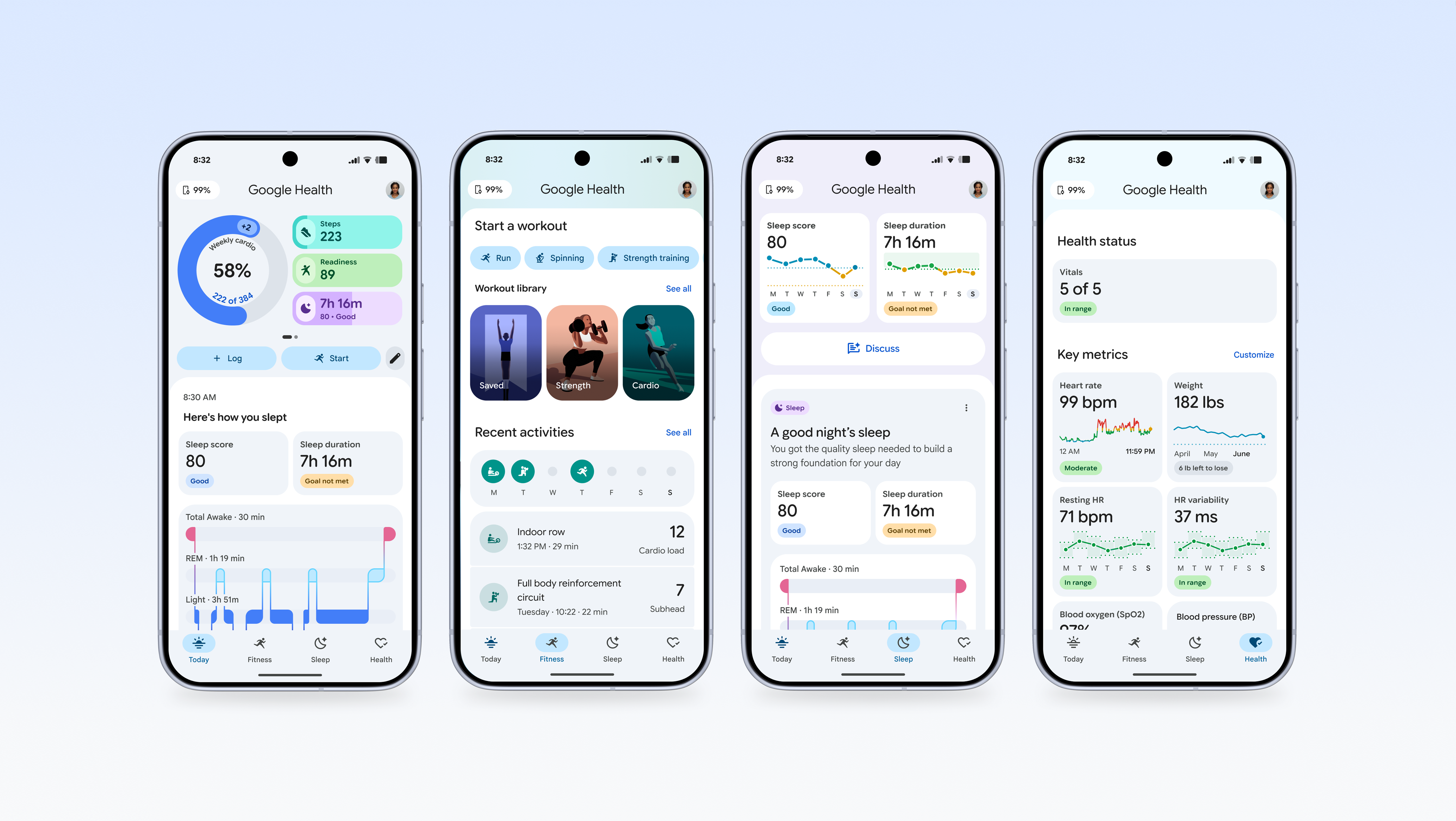
Get the most from your device by setting goals and using built-in motivation tools.
Set Daily Goals
In the Google Health app, customize your targets:
• Step goal (default is 10,000 steps)
• Active Zone Minutes target (recommended 20 minutes per day)
• Weekly sleep average tracking
Personalized goals keep you motivated and help you track progress over time.
Join Challenges
Compete with friends to boost consistency:
- Tap Today in the app, then select Challenges
- Start or join a step or workout challenge
- Climb the leaderboard
Friendly competition adds fun to your fitness journey.
Use Weekly Insights
Every Monday, Google Health sends a Weekly Summary showing your steps taken, sleep quality, active minutes, and trends in stress and heart rate. Use this information to reflect on your progress and adjust your habits.
Frequently Asked Questions About Using a Fitbit Luxe
How do I pair my Fitbit Luxe with my phone?
Download the Google Health app from your phone’s app store, sign in with your Google account, and follow the on-screen instructions to pair via Bluetooth. Keep your Luxe close to your phone during setup.
Can I swim with my Fitbit Luxe?
Yes, the Luxe is water-resistant. Use Water Lock mode when swimming or showering to prevent accidental screen touches. Rinse with fresh water after exposure to chlorinated or salty water.
Does Fitbit Luxe have GPS?
No, the Luxe does not have built-in GPS. It can connect to your phone’s GPS during workouts for accurate pace and distance tracking. Keep your phone nearby during outdoor exercises.
How long does the battery last?
The Fitbit Luxe battery lasts up to five days on a full charge. Battery life varies depending on usage, notifications, and which features you have enabled.
Can I reply to messages on Fitbit Luxe?
Android users can reply to text messages and app notifications using preset quick replies like “Yes,” “No,” or “On my way.” This feature is not available on iPhones.
Key Takeaways for Using Your Fitbit Luxe
The Fitbit Luxe is a powerful wellness companion that goes far beyond basic step tracking. Setting it up properly through the Google Health app ensures you get accurate data and seamless syncing from day one. Take time to customize your clock face, enable the notifications you want, and adjust your daily goals to match your fitness level.
Make use of the health insights including sleep scores, stress management tools, and heart rate monitoring to build healthier routines. Remember to use Water Lock when in water, keep your band snug for accurate readings, and take advantage of features like Exercise Focus to minimize distractions during workouts. With these tips, your Fitbit Luxe becomes an invaluable tool for tracking your journey to better health.



