
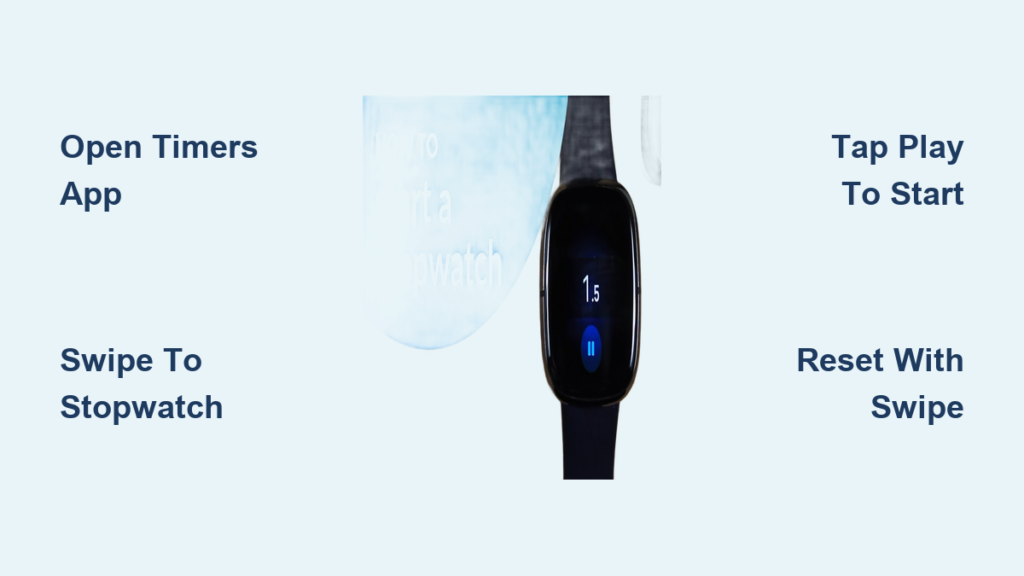
You’re mid-workout, timing intervals, or just trying to track how long your morning routine takes, and you realize your Fitbit has a stopwatch. But how do you actually use it? Unlike smartphones, Fitbits don’t have physical buttons for every function, and navigation varies by model. The good news: the Fitbit stopwatch is built into most devices and works without your phone. Whether you’re using an Inspire, Charge, Versa, or Sense, this guide walks you through exactly how to start, pause, reset, and use the stopwatch.
You’ll learn the correct steps for your specific Fitbit model, avoid common mistakes, and discover pro tips like running both stopwatch and timer at once.
Fitbit Stopwatch Basics
All modern Fitbits include a stopwatch app designed to track elapsed time with precision. It’s ideal for workouts, productivity sprints, or timing household tasks. The stopwatch runs independently of your smartphone, uses minimal battery, and continues in the background even if you switch watch faces.
Key features across models include:
- Start, pause, and reset functions available on all devices
- No sound alerts — only vibration and screen flash
- Background operation — you can navigate other apps while timing
- Simultaneous use with countdown timer on most newer models
Depending on your Fitbit, you’ll access the stopwatch through the Timers app or a dedicated Stopwatch screen. Interface differences mean the exact steps vary, so let’s go model by model.
How to Access the Stopwatch on Your Fitbit Model
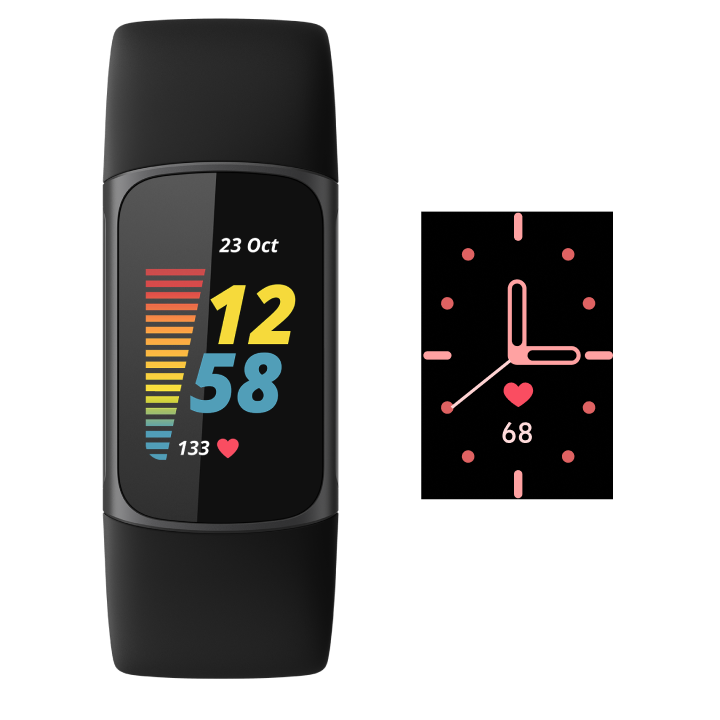
The access method depends entirely on which Fitbit you own. Here’s the breakdown by device generation.
Charge 5, Charge 6, Inspire 3, and Luxe
Swipe left or right from your watch face until you see the Timers app. Tap to open. You’ll land on the countdown timer screen by default. From the main timer screen, swipe up and tap the Stopwatch option. This brings up the stopwatch interface with a “00:00.00” display and a large Play icon.
Charge 3, Charge 4, Versa, Versa 2, and Blaze
Open the Timer app from your app grid. The Stopwatch appears as the default screen on the Blaze, but on Charge 3/4 and Versa models, you may need to swipe right to switch from the countdown timer.
Sense, Versa 3, Sense 2, and Versa 4
Find and tap the Timer app. On Sense and Versa 3, tap the 0.0 display to initialize stopwatch mode. On Sense 2 and Versa 4, access the Timers tile by swiping left or right from the clock face, then tap Start in the Stopwatch section.
Ace 2, Ace 3, Inspire, Inspire 2
Open the Timers app. If the countdown timer appears, swipe down and tap the Stopwatch icon.
Charge 2
Navigate specifically to the Stopwatch screen in the app carousel. This model doesn’t have a general Timers app.
Starting, Pausing, and Resetting the Stopwatch

Once you’ve accessed the stopwatch, the controls are straightforward across most models. Here’s how to operate it.
Starting the Stopwatch
Tap the Play icon to begin. The time starts counting in minutes, seconds, and hundredths on newer models. On Charge 2, you must press and hold the side button instead of tapping the screen.
Pausing and Stopping
Tap Pause to stop the count. On Charge 2, press and hold the side button again to stop.
Resetting for Next Use
The reset method varies by model:
- Charge 5/6, Inspire 3, Luxe: Swipe up and tap Reset
- Charge 3/4, Versa, Versa 2: Tap the Reset icon directly on screen
- Ace 2, Ace 3, Inspire, Inspire 2: Swipe down and tap Reset
- Sense, Versa 3: Tap the Reset icon
- Sense 2, Versa 4: Tap Reset in the app interface
- Charge 2: Press and hold the side button (specific reset instructions vary for this legacy model)
Pro Tip: On Charge 5/6, Inspire 3, and Luxe, you can run the stopwatch and countdown timer at the same time. Use the stopwatch to track your total workout time while setting a countdown for rest intervals.
Using Stopwatch and Timer Together
On Charge 3/4/5/6, Versa, Sense, Inspire 3, and Luxe, you can run the stopwatch and countdown timer simultaneously. This is perfect for tracking total workout time while timing rest intervals, monitoring meditation session length while cueing transitions, or cooking multiple dishes with different timing needs.
How to Enable Simultaneous Operation
- Start the stopwatch
- Exit the app by pressing the side button
- Reopen the Timers app
- Switch to countdown timer and set your duration
- Start the countdown
Both will run in the background. Check either by reopening the Timers app.
Note: Timers set via voice assistants like Alexa or Google Assistant don’t interfere with the native stopwatch. They run as separate alerts.
Troubleshooting Common Stopwatch Issues
Timer Not Starting
Check screen lock first. Some models disable touch when the screen is off, so wake the display before attempting to start. In extreme low power mode, background apps may pause. Charge your device and retry. If problems persist, restart your Fitbit by holding the side button for 10 to 15 seconds.
Can’t Reset the Stopwatch
On Inspire 2 or Ace models, swipe down first to reveal the Reset option. On Versa 4 and Sense 2, ensure you’re not in tile view and tap into the full app interface.
Alert Not Vibrating
Go to Settings > Do Not Disturb and ensure it’s off. Test haptics by setting a 5-second timer. If no vibration occurs, check Settings > Alerts and adjust the intensity.
Pro Tips for Maximizing Your Fitbit Stopwatch

Save Time with Presets
On Sense 2 and Versa 4, custom timers are remembered. If you set a 24-minute focus session once, it stays saved. Tap it again the next day without re-entering the duration. Default presets often include 5-minute and 10-minute intervals useful for quick tasks.
Use for Interval Training
For a typical HIIT workout, use the stopwatch to track your total 20-minute session while setting a countdown timer for 40 seconds work and 20 seconds rest. Set the countdown for 0:20. When it vibrates, switch to rest. Reset and repeat.
Cooking and Meditation
Set a countdown timer for boiling eggs. The vibration alerts you without needing to check the screen constantly. For meditation, use a 10-minute countdown. The silent alert keeps your session undisturbed while the vibration signals the end.
Frequently Asked Questions About Fitbit Stopwatch
Does the Fitbit stopwatch work without my phone?
Yes. The stopwatch runs directly on your Fitbit device and doesn’t require a smartphone connection. It operates independently using the device’s internal clock.
Can I use split lap times on my Fitbit?
No. The Fitbit stopwatch does not support split lap times on any current model, including the Versa 4 and Sense 2. You cannot record intermediate times while keeping the stopwatch running.
How do I dismiss the timer alert when it finishes?
Dismissal methods vary by model. On Charge 5/6 and Luxe, swipe up. On Charge 3/4 and Versa, tap the check mark or press the physical button. On Sense and Versa 3, tap the check mark or press the side button twice. On Sense 2 and Versa 4, tap the check mark or press the button.
Can I run the stopwatch and timer at the same time?
Yes, on most modern models including Charge 3/4/5/6, Versa series, Sense series, Inspire 3, and Luxe. Both can run simultaneously, allowing you to track total elapsed time while monitoring specific intervals.
Why isn’t my Fitbit vibrating when the timer ends?
Check that Do Not Disturb is turned off in your settings. Test the vibration by setting a 5-second timer. If there’s still no vibration, adjust your alert settings or check for software updates.
Does using the stopwatch drain battery quickly?
No. The stopwatch has minimal battery impact compared to GPS or continuous heart rate tracking. It primarily uses the system clock and occasional screen updates.
Key Takeaways for Using Your Fitbit Stopwatch

The Fitbit stopwatch is a reliable, low-power tool that works independently of your phone. Access methods vary by model, so knowing whether you need to swipe up, swipe down, tap the display, or hold a button is essential before starting your timing. The ability to run stopwatch and countdown timer simultaneously on newer models makes it especially valuable for workouts and productivity.
Remember that alerts are vibration-only, so test your haptics before relying on them for important timing. Avoid confusion by noting that voice-assistant timers run separately from the native Timer app. For the best experience, test your stopwatch before relying on it. Set a 10-second countdown, start the stopwatch, and verify both work. Once you know your model’s flow, timing anything becomes effortless.



