

You just unboxed your Fitbit Flex and want to start tracking your steps, sleep, and progress, but there is no screen, no buttons, and no obvious way to get started. Do not worry: the Fitbit Flex is designed to be simple once you know how it works. This guide walks you through every step of setting up, charging, syncing, and using your Fitbit Flex like a pro.
Whether you are using a smartphone or computer, we will show you exactly how to work a Fitbit Flex, troubleshoot issues, and make the most of its silent, light-based feedback system. From charging the first time to celebrating your 10,000th step with a buzz and flash, here is everything you need to know.
Charge Before First Use
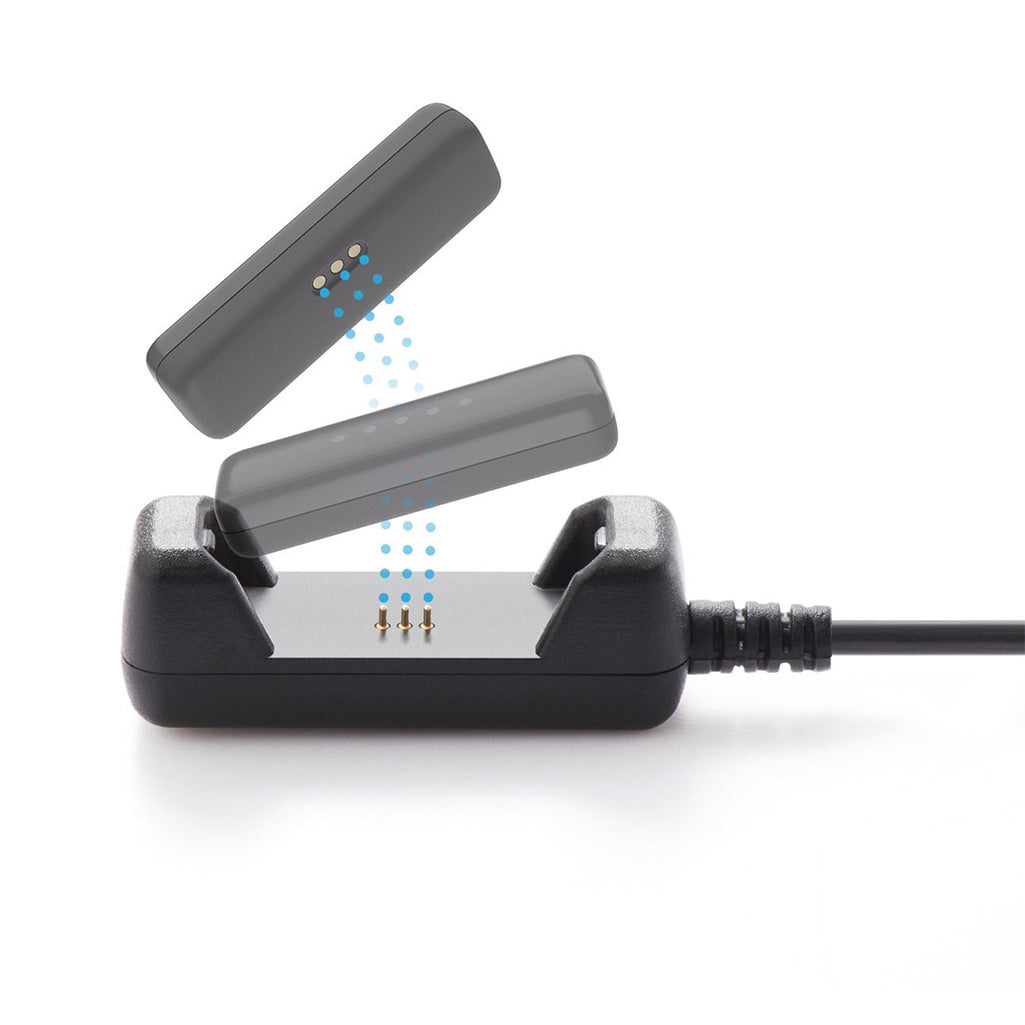
Before setup, your Fitbit Flex must be fully charged. A low battery prevents pairing and syncing. The device will not function properly if you try to set it up with a drained battery.
Insert Tracker Into Charger
Remove the small black tracker from the wristband. Align the round end of the device with the round slot on the USB charging cable. Slide it in gently until it clicks into place. The gold contacts on the tracker should face the corresponding pins in the charger.
Plug Into Power Source
Connect the USB end to a computer port or wall adapter. Charging begins automatically. Use a standard USB port rather than a high-speed charging adapter for the best results.
Watch LED Lights for Status
The five LED lights indicate charging progress. Here is what to look for:
- Flashing lights mean charging is in progress
- Solid lights indicate charge is complete
- Minimum requirement: wait for at least 3 solid lights
- Best practice: wait for all 5 lights to be solid before removing
If no lights appear, clean the gold charging contacts on both the tracker and cable with a dry cloth. Oil and debris from your fingers can prevent proper contact.
Insert Tracker Into Wristband Correctly
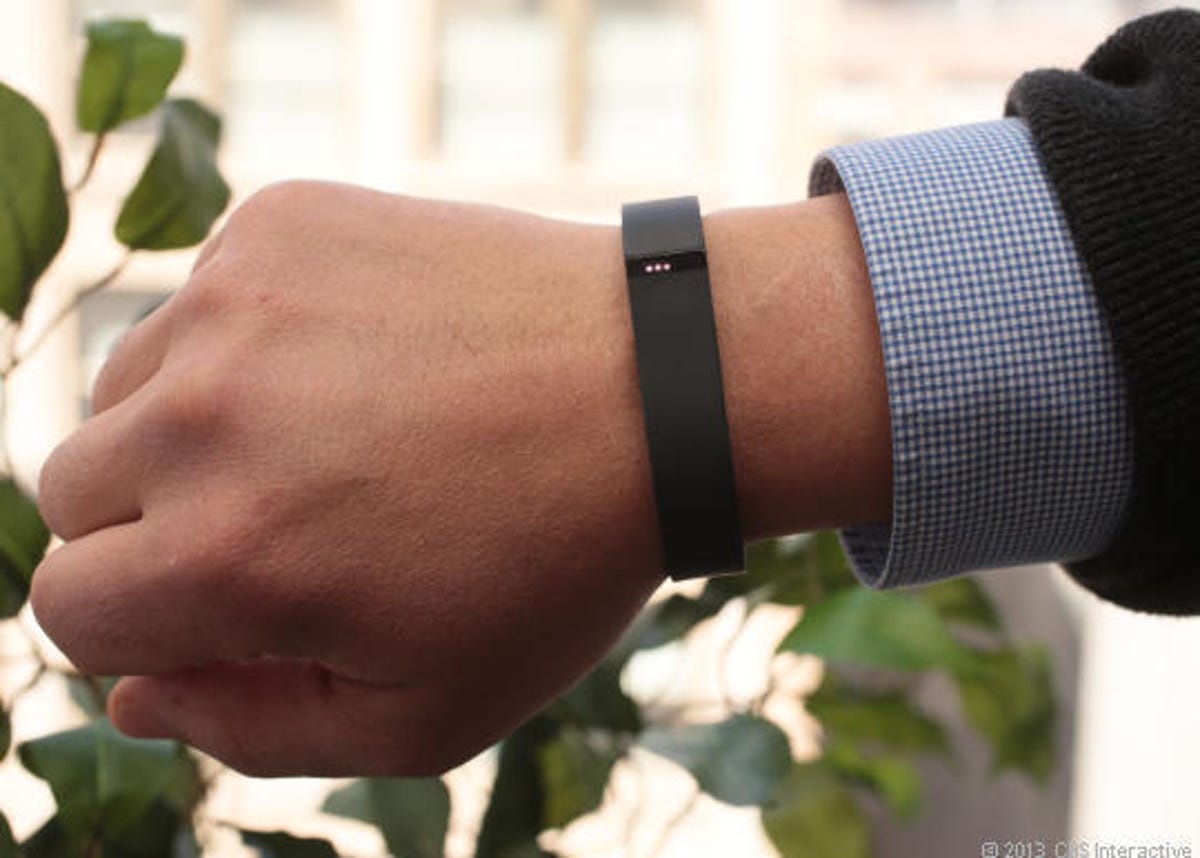
Proper orientation ensures syncing works and you get accurate feedback. The tracker must be inserted the correct way or the setup process will fail.
Align Arrow With Window
When placing the tracker back into the band, locate the arrow icon on the device. It must point toward the black plastic window on the band. This side faces outward when worn on your wrist.
Snap Into Place
Slide the tracker into the band until it clicks securely. If the arrow faces the wrong way, the setup process may fail and you will not be able to pair the device with your phone or computer.
Choose Correct Band Size
Try both included bands. The fit should be snug but comfortable, allowing airflow while keeping the device stable during activity. A too-loose band can cause inaccurate tracking.
Set Up With Mobile App (iOS/Android)
The fastest way to start using your Fitbit Flex is through the mobile app. This method works for iPhone, Android, and Windows Phone users.
Download Fitbit App
Go to your phone is app store:
- iPhone: search Fitbit in the App Store
- Android: find Fitbit on Google Play
- Windows Phone: check the Microsoft Store
Tap install and open the app when done. The app is free to download.
Create or Sign In to Account
Tap Join Fitbit to make a new account. Enter your email address, password, name, birthday, gender, height, and weight. These details are essential for accurate calorie and BMR calculations. Or sign in with Facebook or Google if you already have an account.
Select Fitbit Flex
Follow the prompts and choose Fitbit Flex from the device list. The app will prepare for pairing and guide you through the next steps.
Enable Bluetooth
Make sure Bluetooth is turned on in your phone settings. Disconnect any paired headsets or speakers to avoid interference. If your phone is connected to other Bluetooth devices, the pairing may fail.
Start Pairing Process
Hold your phone near the tracker. The app detects the device automatically. No manual pairing mode is needed. When prompted, confirm the device name or code. Wait for setup to finish. Do not close the app until the process completes.
Sync Automatically
Once paired, your Flex syncs data whenever your phone is nearby within 20 feet, the Fitbit app is open or running in the background, and Bluetooth is enabled. No action is required. Syncing happens silently in the background.
Manually Sync When Needed
To force a sync, open the Fitbit app, tap your profile icon, and select the circular arrow icon. Wait for the progress bar to complete. Use this if data is not updating or you want to see your latest stats immediately.
Set Up With Computer (Windows/Mac)
Use this method if you do not have a smartphone or prefer desktop control. You will need to install Fitbit Connect software.
Download Fitbit Connect
Visit fitbit.com/setup in your browser. The site detects your operating system automatically. For Windows 10 or 11 users, if you are redirected to the Microsoft Store, manually select PC to download the traditional Fitbit Connect software.
Install Software
Run the downloaded installer. Follow the prompts to complete installation. Restart your computer if asked. The software handles all communication between your computer and the Fitbit Flex.
Plug in Bluetooth Dongle If Needed
Most laptops have built-in Bluetooth 4.0 or higher. If yours does not, plug the USB Bluetooth dongle into a USB port. Wait for drivers to install before proceeding.
Wear the Tracker
Insert the charged tracker into the wristband with the arrow facing out. Put it on your wrist. The band should be snug but not tight.
Launch Fitbit Connect
Open the program. Sign in with your Fitbit account or create one if you have not already done so.
Wait for Device Detection
The software searches for your Flex. After a few seconds, two lights should appear on the black band of the wristband. This indicates the computer has found the device.
Confirm Connection
Double-tap the tracker. It should vibrate and flash lights. This confirms pairing was successful. If nothing happens, try moving closer to the computer.
Begin Tracking
Your default goal of 10,000 steps activates immediately. Data syncs to fitbit.com/login when the tracker is near the computer. You can view all your stats on the website.
Check Progress With LED Lights
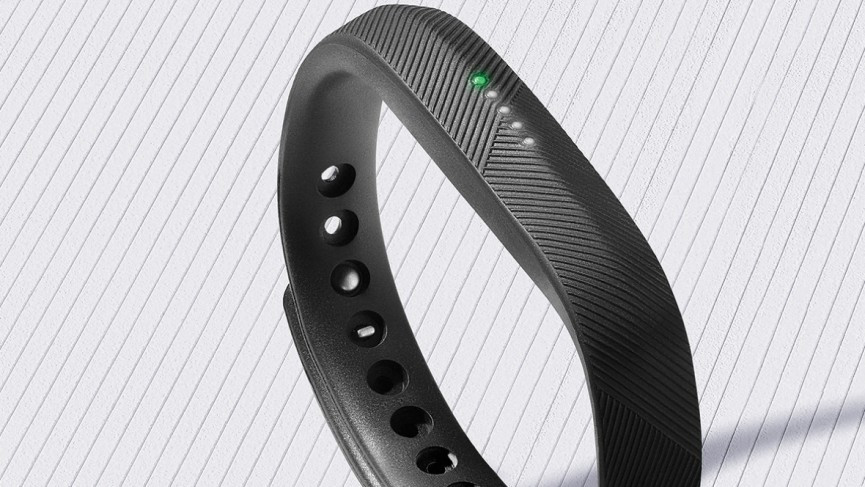
No screen? No problem. Use the five LED lights to track your day without checking your phone. The Flex communicates everything through lights and vibration.
Double-Tap to View
Gently tap the side of the tracker twice. The LEDs light up to show your progress toward your daily goal. This works anytime you want a quick status check.
Read the Light Code
Each light represents 20% of your daily goal. Here is the breakdown:
- 1 light: 20% of goal (2,000 steps)
- 2 lights: 40% (4,000 steps)
- 3 lights: 60% (6,000 steps)
- 4 lights: 80% (8,000 steps)
- 5 lights: 100% (Goal reached)
The lights stay on for a few seconds, then fade out. This saves battery.
Goal Achievement Alert
When you hit 10,000 steps, the device vibrates and all five lights flash repeatedly. It is your silent celebration. You feel the buzz and see the lights, but you never need to look at a screen.
Track Sleep Automatically

Your Fitbit Flex monitors sleep without extra steps. The device senses when you are inactive and records your rest automatically.
Enable Sleep Mode (Optional)
To manually start sleep tracking, double-tap the tracker until all lights flash slowly. This sets sleep mode manually. However, in most cases, the device auto-detects sleep when it senses prolonged inactivity at night. You usually do not need to do anything.
Wake Up and Sync
In the morning, remove the tracker or just let it resume normal tracking. Sync with the app to see your sleep data. You will find your total sleep time, restless versus restful periods, and any wake-ups. Data appears under the Sleep tab in the app or on the website.
Customize Goals and Settings
Your 10,000-step goal is not set in stone. You can change it to match your fitness level and goals.
Change Step Goal
Open the Fitbit app or website:
- Go to Account Settings
- Tap Goals
- Select Daily Steps
- Enter your new target (for example, 8,000 or 12,000)
- Save your changes
Your LED feedback adjusts automatically to reflect the new percentage toward your custom goal.
Update Personal Info
Accurate data improves calorie and BMR estimates. Update your weight, height, and activity level regularly. In the app, go to Profile and tap Edit Profile to make changes.
Troubleshoot Common Problems

Even simple devices can glitch. Here is how to fix the most frequent issues you might encounter with your Fitbit Flex.
No Lights When Tapped
Cause: deep battery drain. Fix: charge for at least 30 minutes. Wait for at least one light to appear. If the device is still dead, clean the charging contacts and try a different USB port.
Won t Pair With Phone
Cause: Bluetooth conflict. Fix by turning Bluetooth off and on, forgetting other paired devices like headphones or car connections, restarting the Fitbit app, and rebooting your phone. If it still fails, uninstall and reinstall the Fitbit app.
Computer Does not Detect Tracker
Cause: missing Bluetooth or software issue. Fix by confirming the USB Bluetooth dongle is inserted if needed, reinstalling Fitbit Connect, trying a different USB port, and ensuring the tracker is inserted correctly in the band with the arrow facing out. Consider switching to mobile setup as a workaround.
Syncing Fails or Stalls
Fix by bringing the device within 6 feet of your phone or computer, opening the Fitbit app, manually syncing using the circular arrow icon, and ensuring the device has at least 3 lights of charge. Syncing usually takes under 10 seconds.
Reset the Device (Safe Fix)
When the tracker freezes or misbehaves, reset it. This is a safe troubleshooting step that does not delete your data.
Perform a Reset
Plug the tracker into the charger, wait for lights to flash, remove from the charger, and immediately double-tap the tracker 5 times. The lights will flash rapidly, then go out. The device restarts.
Data Is Not Lost
A reset does not erase stored data. All steps and sleep data remain until synced. After resetting, sync as soon as possible to preserve your progress.
Maintain and Care for Your Flex
Keep your tracker working smoothly with basic care. Regular maintenance extends the life of your device and ensures accurate tracking.
Clean Band Regularly
Sweat and dirt can irritate skin and block sensors. Remove the tracker from the band, wash the band with mild soap and water, and dry completely before reinserting the tracker. Do this weekly if you wear the Flex daily.
Protect Charging Contacts
Wipe the gold pins on the tracker and charger with a dry cloth monthly. Avoid touching them with your fingers to prevent oil buildup. Clean contacts ensure reliable charging.
Avoid Water Damage
While the Flex is sweat-resistant, do not wear it in showers, pools, or saunas. Prolonged water exposure can damage internal components. Remove the device before water activities.
Store Properly
When not in use, keep in a dry place. Charge every few weeks to preserve battery health. Do not leave it in direct sunlight or extreme temperatures.
Frequently Asked Questions About How to Work a Fitbit Flex
How do I check my steps on a Fitbit Flex without a screen?
Double-tap the side of the tracker to activate the LED lights. Each light represents 20% of your daily goal. Five lights mean you have reached 10,000 steps.
Why will not my Fitbit Flex pair with my phone?
Bluetooth interference is the most common cause. Turn Bluetooth off and on, forget other paired devices, restart the app, and reboot your phone. Make sure the tracker is charged.
How long does the Fitbit Flex battery last?
The battery typically lasts several days on a full charge. Charge when the lights are low or the device is not responding. Always charge to all five lights for best results.
Does the Fitbit Flex track sleep automatically?
Yes. The device auto-detects sleep when it senses prolonged inactivity at night. You can also manually enable sleep mode by double-tapping until the lights flash slowly.
Can I change my daily step goal on Fitbit Flex?
Yes. Open the Fitbit app, go to Account Settings, tap Goals, select Daily Steps, and enter your new target. The LED lights will adjust to show percentages toward your new goal.
What should I do if my Fitbit Flex has no lights when tapped?
The battery is likely drained. Charge the device for at least 30 minutes. If no lights appear, clean the gold charging contacts with a dry cloth and try a different USB port.
Key Takeaways for Using Your Fitbit Flex
The Fitbit Flex is a powerful fitness tracker that relies on a simple light and vibration system instead of a screen. To make the most of it, always charge the device fully before first use, ensuring all five LED lights are solid. Learning the LED language is essential: each light represents 20% of your daily goal, and five lights with a buzz means you have hit 10,000 steps. Setting up is straightforward whether you use the mobile app or computer, with automatic syncing happening silently in the background whenever you are near your phone. Regular maintenance, including cleaning the band and charging contacts, keeps your Flex accurate and reliable for years of tracking your fitness journey.



